trigger
Trigger any DOM event on an element, the window, or the document: mouse,
keyboard, touch, pointer, drag and drop, or your app's own custom events. Use it
when a handler listens for an event that action commands such as
.click() and .type() don't
fire.
Syntax
.trigger(eventName)
.trigger(eventName, position)
.trigger(eventName, options)
.trigger(eventName, x, y)
.trigger(eventName, position, options)
.trigger(eventName, x, y, options)
Usage
Correct Usage
cy.get('a').trigger('mousedown') // Trigger mousedown event on link
Incorrect Usage
cy.trigger('touchstart') // Errors, cannot be chained off 'cy'
cy.clock().trigger('mouseleave') // Errors, 'clock' does not yield DOM elements
Arguments
eventName (String)
The name of the event to be triggered on the DOM element.
position (String)
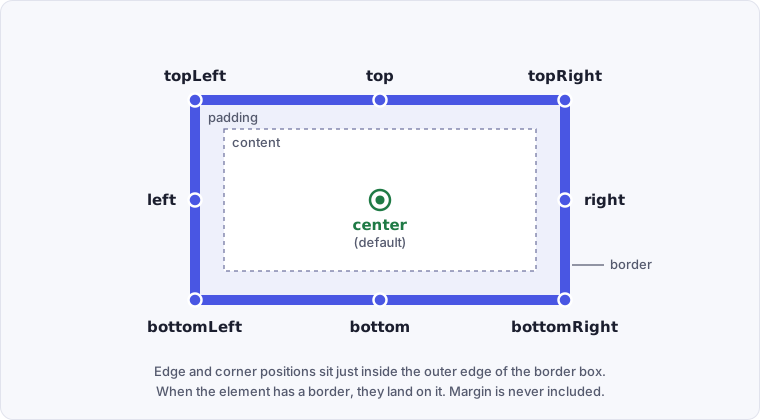
The position where the event should be triggered. The center position is the
default position. Valid positions are topLeft, top, topRight, left,
center, right, bottomLeft, bottom, and bottomRight.
x (Number)
The distance in pixels from element's left to trigger the event.
y (Number)
The distance in pixels from element's top to trigger the event.
options (Object)
Pass in an options object to change the default behavior of .trigger().
| Option | Default | Description |
|---|---|---|
animationDistanceThreshold | animationDistanceThreshold | The distance in pixels an element must exceed over time to be considered animating. |
bubbles | true | Whether the event bubbles |
cancelable | true | Whether the event is cancelable |
eventConstructor | 'Event' | The name of the constructor, as a string, that creates the event object (e.g. 'MouseEvent', 'KeyboardEvent'). It must exist on the application's window. See choosing an event constructor. |
force | false | Forces the action, disables waiting for actionability |
log | true | Displays the command in the Command Log |
scrollBehavior | scrollBehavior | Viewport position to where an element should be scrolled before executing the command. Accepts a single alignment, a per-axis { block, inline } object, or false. |
timeout | defaultCommandTimeout | Time to wait for .trigger() to resolve before timing out |
waitForAnimations | waitForAnimations | Whether to wait for elements to finish animating before executing the command. |
You can also include arbitrary event properties (e.g. clientX, shiftKey).
With the default Event constructor, they're attached to the event as is. With
another constructor, the browser decides which ones it accepts. See
choosing an event constructor.
When the subject is an element, .trigger() sets clientX, clientY, pageX,
pageY, screenX, and screenY on the event from the position or x and y
you pass. screenX and screenY carry the same viewport-relative values as
clientX and clientY. Any of these properties you pass in options override
the calculated ones.
clientX and clientY measure from the viewport, while pageX and pageY
measure from the top of the document, so they differ once the page scrolls.
Yields
.trigger()yields the same subject it was given.- It is unsafe
to chain further commands that rely on the subject after
.trigger().
Examples
Event Name
Trigger a mouseover on the button
The element must first reach an actionable state, such as being visible and not disabled.
cy.get('button').trigger('mouseover') // yields 'button'
Position
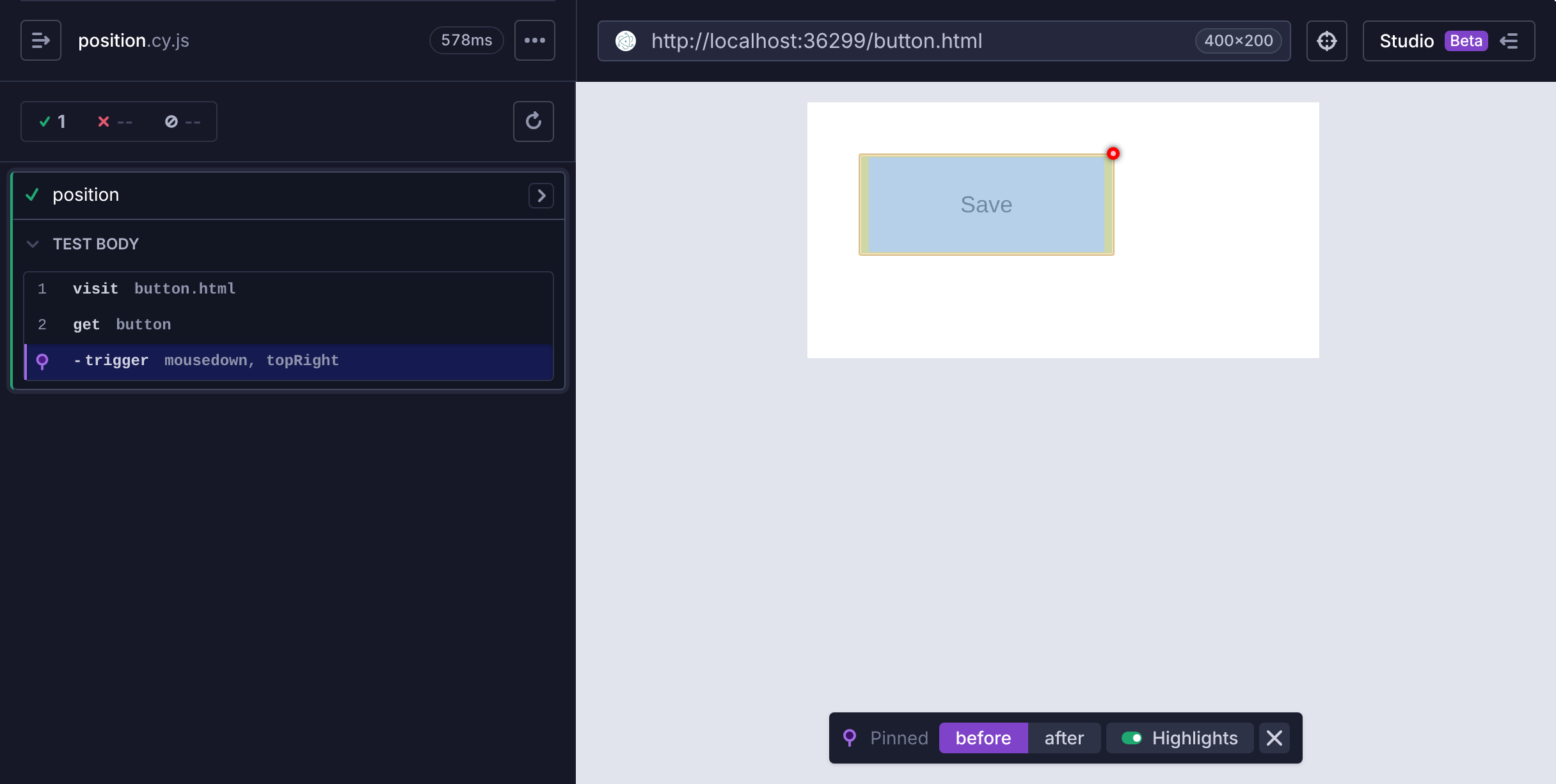
Trigger a mousedown on the top right of a button
cy.get('button').trigger('mousedown', 'topRight')
Click the trigger command in the Command Log to pin its snapshot. A red dot
marks the point where the event fired, here the button's top-right corner.
Coordinates
Specify explicit coordinates relative to the top left corner
cy.get('button').trigger('mouseup', 15, 40)
Options
Specify that the event should not bubble
By default, the event bubbles up the DOM tree. Set bubbles: false to stop it
at the element.
cy.get('button').trigger('mouseover', { bubbles: false })
A cy.spy() added as a listener on the document confirms
the event stopped at the button.
const onDocumentMouseover = cy.spy().as('documentMouseover')
cy.document().then((doc) => {
  doc.addEventListener('mouseover', onDocumentMouseover)
})

cy.get('button').trigger('mouseover', { bubbles: false })
cy.get('@documentMouseover').should('not.have.been.called')
Specify the exact clientX and clientY the event should have
Passing clientX and clientY overrides the position .trigger() calculates
from the element. Use it for events like mousemove, where the position needs
to be outside the element.
cy.get('button').trigger('mousemove', { clientX: 200, clientY: 300 })
To check the properties a listener receives, add a
cy.spy() as the listener and assert on its call.
const onMousemove = cy.spy().as('mousemove')
cy.get('button').then(($button) => {
  $button[0].addEventListener('mousemove', onMousemove)
})

cy.get('button').trigger('mousemove', { clientX: 200, clientY: 300 })
cy.get('@mousemove').should('have.been.calledWithMatch', {
  clientX: 200,
  clientY: 300,
})
Force an event on a hidden element
Custom controls often hide the native input they're built on. Without force,
.trigger() waits for the input to become visible and fails when it times out.
force: true skips the actionability checks and the scroll
into view, and dispatches the event right away.
cy.get('[data-cy=volume-input]').then(($input) => {
  $input[0].value = '60'
})
cy.get('[data-cy=volume-input]').trigger('change', { force: true })

cy.get('[data-cy=volume-label]').should('have.text', '60')
cy.get<HTMLInputElement>('[data-cy=volume-input]').then(($input) => {
  $input[0].value = '60'
})
cy.get('[data-cy=volume-input]').trigger('change', { force: true })

cy.get('[data-cy=volume-label]').should('have.text', '60')
Forcing lets the test do something a user can't, so keep it for elements like this one, which receive events but are never visible.
Mouse Events
Show and hide a tooltip on hover
When a JavaScript handler shows the tooltip, trigger the events it listens for and assert on the result.
cy.get('[data-cy=help-icon]').trigger('mouseover')
cy.get('[data-cy=tooltip]').should('be.visible')

cy.get('[data-cy=help-icon]').trigger('mouseout')
cy.get('[data-cy=tooltip]').should('not.be.visible')
If the app listens for mouseenter and mouseleave instead, trigger those
event names. A triggered event doesn't apply CSS :hover styles, so a tooltip
shown only by a :hover rule stays hidden. See .hover()
for workarounds.
Simulate a "long press" event
Hold the press with mousedown, assert on what the long press shows, then
release it with mouseup. The assertion retries until the menu appears, so the
test holds the press only as long as the app needs, without a fixed
cy.wait().
cy.get('.target').trigger('mousedown')
cy.get('.long-press-menu').should('be.visible')
cy.get('.target').trigger('mouseup')
Trigger a mousedown from a specific mouse button
// Main button pressed (usually the left button)
cy.get('.target').trigger('mousedown', { button: 0 })
// Auxiliary button pressed (usually the middle button)
cy.get('.target').trigger('mousedown', { button: 1 })
// Secondary button pressed (usually the right button)
cy.get('.target').trigger('mousedown', { button: 2 })
Keyboard Events
Open a command palette with a keyboard shortcut
.trigger() fires one keyboard event with exactly the properties you pass,
including modifier keys, without moving focus. Trigger it on the document to
reach a global shortcut handler.
cy.document().trigger('keydown', { key: 'k', ctrlKey: true })
cy.get('[data-cy=command-palette]').should('be.visible')
Pass the properties the handler reads, such as key, code, or keyCode, along
with ctrlKey, metaKey, shiftKey, or altKey.
To press a single key the way a user does, such as Escape to close a dialog, use
cy.press() instead. It dispatches native key events,
while events from .trigger() have isTrusted set to false, so a handler
that checks isTrusted ignores them. cy.press() takes one key without
modifiers. To type text, use .type().
cy.press(Cypress.Keyboard.Keys.ESC)
cy.get('[data-cy=dialog]').should('not.exist')
Change Events
Interact with a range input (slider)
To interact with a range input (slider), set its value property, then trigger
the change event to signal it changed.
Some implementations listen for the input event instead, which fires as the
user moves the slider.
cy.get('input[type=range]').then(($range) => {
  $range[0].value = '25'
})
cy.get('input[type=range]').trigger('change')

cy.get('input[type=range]').siblings('p').should('have.text', '25')
cy.get<HTMLInputElement>('input[type=range]').then(($range) => {
  $range[0].value = '25'
})
cy.get('input[type=range]').trigger('change')

cy.get('input[type=range]').siblings('p').should('have.text', '25')
Set a range input in a React controlled component
React tracks an input's value itself, so setting the value property directly,
as in the range input example, doesn't reach the component's change handler. Set the value through the
element's native value setter, then trigger the event React listens for.
cy.get('input[type=range]').then(($range) => {
  const descriptor = Object.getOwnPropertyDescriptor(
    Object.getPrototypeOf($range[0]),
    'value'
  )
  descriptor?.set?.call($range[0], 70)
})
cy.get('input[type=range]').trigger('input')

cy.get('input[type=range]').siblings('p').should('have.text', '70')
React's onChange listens for the input event. If the component listens for
change instead, trigger change.
Vue's v-model reads the input's value directly, so the
range input example works there with
.trigger('input') in place of .trigger('change').
Drag and Drop Events
Which events to trigger depends on how the app implements dragging: the HTML Drag and Drop API, mouse events, or pointer events. Each example below covers one of them.
Drag an item to a drop zone with dataTransfer
HTML drag and drop handlers pass data through the event's dataTransfer
property. Create one
DataTransfer
and pass the same object to every event, so the data the dragstart handler
sets is there when the drop handler reads it.
const dataTransfer = new DataTransfer()

cy.get('[data-cy=card]').trigger('dragstart', { dataTransfer })
cy.get('[data-cy=done-column]').trigger('dragenter', { dataTransfer })
cy.get('[data-cy=done-column]').trigger('dragover', { dataTransfer })
cy.get('[data-cy=done-column]').trigger('drop', { dataTransfer })
cy.get('[data-cy=card]').trigger('dragend', { dataTransfer })

cy.get('[data-cy=done-column]').should('contain', 'Write docs')
Check that a drop zone accepts drops
A drop zone accepts a drop only when its dragover handler cancels the event
with preventDefault(). The event is cancelable by default, so a
cy.spy() listener can check the event's
defaultPrevented property after the handlers run.
const onDragover = cy.spy().as('dragover')
cy.get('[data-cy=drop-zone]').then(($zone) => {
  $zone[0].addEventListener('dragover', onDragover)
})

cy.get('[data-cy=drop-zone]').trigger('dragover')
cy.get('@dragover').should('have.been.calledWithMatch', {
  defaultPrevented: true,
})
With cancelable: false, preventDefault() has no effect and
defaultPrevented stays false.
Drag an element with mouse events
Many drag handlers listen for mousedown on the element, then follow
mousemove and mouseup on the document. The events bubble, so triggering them
on the element reaches document listeners too. Pass the position properties the
handler reads at each step. With the default Event constructor, pageX and
pageY reach the handler exactly as you pass them.
cy.get('[data-cy=draggable]').trigger('mousedown', {
  button: 0,
  pageX: 100,
  pageY: 100,
})
cy.get('[data-cy=draggable]').trigger('mousemove', {
  pageX: 300,
  pageY: 150,
})
cy.get('[data-cy=draggable]').trigger('mouseup')

cy.get('[data-cy=draggable]')
  .should('have.css', 'left', '200px')
  .and('have.css', 'top', '50px')
Drag a slider thumb with pointer events
Many drag and gesture libraries listen for pointer events and ignore pointers
that aren't primary. Pass the same pointerId with every event so the library
tracks one pointer from press to release.
const pointer = { pointerId: 1, pointerType: 'mouse', isPrimary: true }

cy.get('[data-cy=volume-thumb]').trigger('pointerdown', {
  ...pointer,
  button: 0,
})
cy.get('[data-cy=volume-thumb]').trigger('pointermove', {
  ...pointer,
  clientX: 400,
})
cy.get('[data-cy=volume-thumb]').trigger('pointerup', pointer)

cy.get('[data-cy=volume-value]').should('have.text', '80')
Touch Events for Mobile Testing
Swipe a carousel with touch events
Mobile web apps often handle swipes and other gestures with touch events. Touch
handlers read finger positions from the touches and changedTouches lists
rather than from clientX. With the default Event constructor, pass
plain objects with the properties the handler reads. On touchend, the lifted
finger is in changedTouches, and touches is empty.
cy.get('[data-cy=carousel]').trigger('touchstart', {
  touches: [{ clientX: 300, clientY: 100 }],
})
cy.get('[data-cy=carousel]').trigger('touchmove', {
  touches: [{ clientX: 50, clientY: 100 }],
})
cy.get('[data-cy=carousel]').trigger('touchend', {
  touches: [],
  changedTouches: [{ clientX: 50, clientY: 100 }],
})

cy.get('[data-cy=slide-2]').should('be.visible')
For mobile testing, pair this with cy.viewport(),
such as cy.viewport('iphone-x'), to render your app's mobile layout. A desktop
browser usually reports no touch support, so an app that checks for it before
adding touch listeners, such as with 'ontouchstart' in window, doesn't respond
to these events.
Custom Events
Trigger a custom event with a detail payload
.trigger() fires any event name, including your app's own events. With the
default Event constructor, the detail you pass is attached as is.
cy.get('[data-cy=cart]').trigger('cart:updated', { detail: { count: 3 } })
cy.get('[data-cy=cart-count]').should('have.text', '3')
If the handler checks event instanceof CustomEvent, add
eventConstructor: 'CustomEvent', which also accepts detail.
Window and Document
Trigger an event on the window or document
.trigger() also accepts the window or document as its subject. It dispatches
the event right away, without waiting for actionability, and doesn't add any
coordinate properties to the event.
cy.window().trigger('beforeprint')
cy.document().trigger('visibilitychange')
Show an offline banner when the connection drops
cy.window().trigger('offline')
cy.get('[data-cy=offline-banner]').should('be.visible')

cy.window().trigger('online')
cy.get('[data-cy=offline-banner]').should('not.be.visible')
This runs the app's offline and online listeners, but navigator.onLine
doesn't change. It works when the app reacts to the events rather than reading
navigator.onLine.
For scroll and resize, use .scrollTo() and
cy.viewport() instead. They change the scroll
position or window size and fire the real event, so the handler reads values
that match it.
Notes
Actionability
The element must first reach actionability
.trigger() is an "action command" that follows all the rules of
Actionability.
Events
Choose which event .trigger() fires
.trigger() is a low-level utility that constructs and dispatches an event for
you. Since it fires any event, Cypress makes no assumptions about how the event
should look. Check which event your app's handler listens for, including
handlers inside a third-party library, and pass the properties it reads.
How eventConstructor changes the properties you can set
By default, .trigger() fires an
Event. To fire
another class, such as MouseEvent or KeyboardEvent, pass its name in the
eventConstructor option.
cy.get('button').trigger('mouseover', { eventConstructor: 'MouseEvent' })
When the constructor is
UIEvent or one of
its subclasses, such as MouseEvent or KeyboardEvent, .trigger() sets the
event's view property to the application's window.
With the default Event constructor, .trigger() attaches every property you
pass to the event as is, including ones like pageX and pageY that a real
mouse event calculates for itself. Handlers that only read properties, like the
one in Drag an element with mouse events,
work with this default.
When you set eventConstructor to a class such as
MouseEvent, the
browser builds the event, and that class decides which properties you can set.
Properties the constructor accepts, such as clientX, button, and shiftKey,
take your values. Read-only properties the browser calculates, such as pageX
and offsetX, keep the browser's values, and .trigger() drops yours without
an error.
// Event (default): pageX is attached as passed
cy.get('.target').trigger('mousedown', { pageX: 600 })

// MouseEvent: clientX is set, and the browser calculates pageX from it
cy.get('.target').trigger('mousedown', {
  eventConstructor: 'MouseEvent',
  clientX: 300,
})
This table shows where each mouse property's value comes from:
| Property | Default Event | MouseEvent |
|---|---|---|
clientX, clientY, screenX, screenY | Your value | Your value |
button, buttons, movementX, movementY | Your value | Your value |
shiftKey, ctrlKey, altKey, metaKey | Your value | Your value |
pageX, pageY | Your value | Calculated from clientX, clientY, and scroll |
offsetX, offsetY | Your value | Calculated from the element's position |
which | Your value | Calculated from button |
x, y | Not attached: .trigger() reads them as the position to fire at | Calculated, equal to clientX and clientY |
With KeyboardEvent, every property keyboard handlers usually read takes your
value: key, code, keyCode, which, repeat, and the modifier keys.
Keep the default unless the handler needs a real instance of the class, for
example when it checks event instanceof MouseEvent.
Differences
How .trigger() differs from action commands
In other words, what's the difference between:
cy.get('button').trigger('focus')
cy.get('button').focus()

// ... or ...

cy.get('button').trigger('click')
cy.get('button').click()
Both kinds of commands wait for the element to reach actionability first. The
action commands then reproduce the full sequence of events a user's input
produces, along with what the browser does in response. .trigger() dispatches
only the event you name.
| You call | Events fired | What happens in the browser |
|---|---|---|
.trigger('click') | click | Focus doesn't move. With the default Event, nothing else happens. With eventConstructor: 'MouseEvent', a checkbox toggles and fires input and change, and a link is followed. |
.click() | pointerover, pointerenter, mouseover, mouseenter, pointermove, mousemove, pointerdown, mousedown, focus, focusin, pointerup, mouseup, click | Focus moves to the element, a checkbox toggles, and a link is followed. |
.trigger('keydown', { key: 'a' }) | keydown | Focus doesn't move, and no text is inserted, even with eventConstructor: 'KeyboardEvent'. |
.type('a') | The .click() sequence when the element isn't focused yet, then keydown, keypress, beforeinput, textInput, input, keyup | Focus moves to the element, and a is inserted. |
.trigger('focus') | focus | Focus doesn't move. |
.focus() | focus, focusin | Focus moves to the element. |
Your listeners run either way. Use the action command when you're testing what a
user does, and .trigger() when a handler listens for an event no action
command fires.
Rules
Requirements
.trigger()requires being chained off a command that yields a single DOM element, the window, or the document. It errors when the subject contains more than one element.
Assertions
.trigger()automatically waits for the element to reach an actionable state. It skips this wait when the subject is the window or the document..trigger()automatically retries until all chained assertions have passed.
Timeouts
.trigger()can time out waiting for the element to reach an actionable state..trigger()can time out waiting for assertions you've added to pass.
Command Log
Trigger a change event on input type='range'
cy.get('.trigger-input-range').then(($range) => {
  $range[0].value = '25'
})
cy.get('.trigger-input-range').trigger('change')
cy.get<HTMLInputElement>('.trigger-input-range').then(($range) => {
  $range[0].value = '25'
})
cy.get('.trigger-input-range').trigger('change')
The commands above display in the Command Log as:

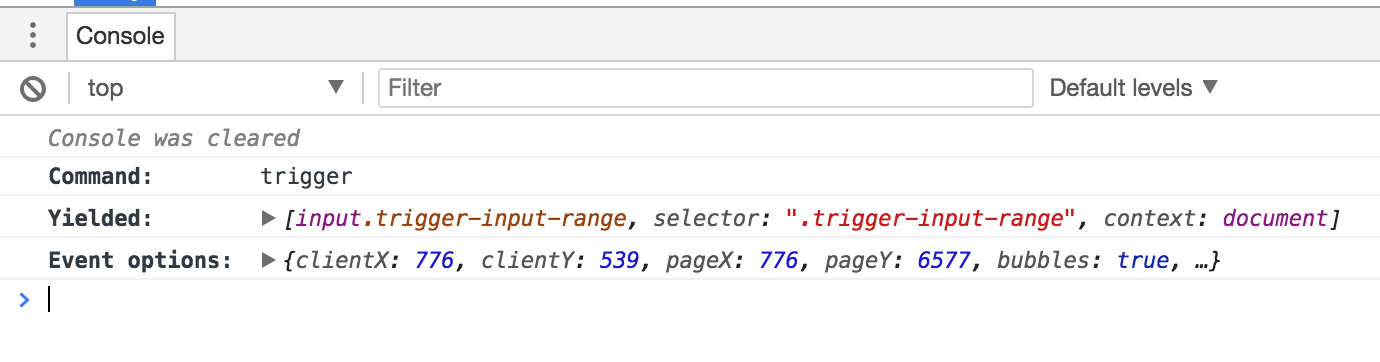
When you click trigger in the Command Log, the console outputs the following:
History
| Version | Changes |
|---|---|
| 15.20.0 | Option scrollBehavior now accepts a per-axis { block, inline } object and the 'start' and 'end' alignments |
| 6.1.0 | Added option scrollBehavior |
| 5.1.0 | Added option eventConstructor, and events from UIEvent constructors now include the view property |
| 3.5.0 | Added screenX and screenY properties to events |
| 0.20.0 | .trigger() command added |