Jira Integration
With Cypress Cloud's Jira integration you can create a Jira issue directly from a specific test (failing, flaky, or passing), attach it to that test in Cypress Cloud, and view a running history of every issue ever associated with that test, across all runs. The Jira issue links back to the exact test run in Cypress Cloud, so anyone following up has the full picture without hunting for it.
This is a native Jira integration built into Cypress Cloud, not a custom reporter or webhook script. No code changes are required in your test suite.
What the Cypress Cloud Jira integration does
From any test result in Cypress Cloud, you can:
- Create a Jira issue for a failing, flaky, or passing test without leaving Cypress Cloud. You choose the project, issue type, assignee, and additional fields.
- Link an existing Jira issue to the test when the ticket already exists in Jira. The issue appears in that test's results panel and issue history the same way as a newly created issue.
- View issue history per test. Every Jira issue ever created or linked for a given test appears in that test result's panel. When the same test regresses across multiple runs, you can see whether a previous issue was filed and what happened to it.
- Inspect a linked issue from the test panel. Expand Jira issue in the results panel to see assignee, status, and when the issue was created, and open the issue in Jira in one click.
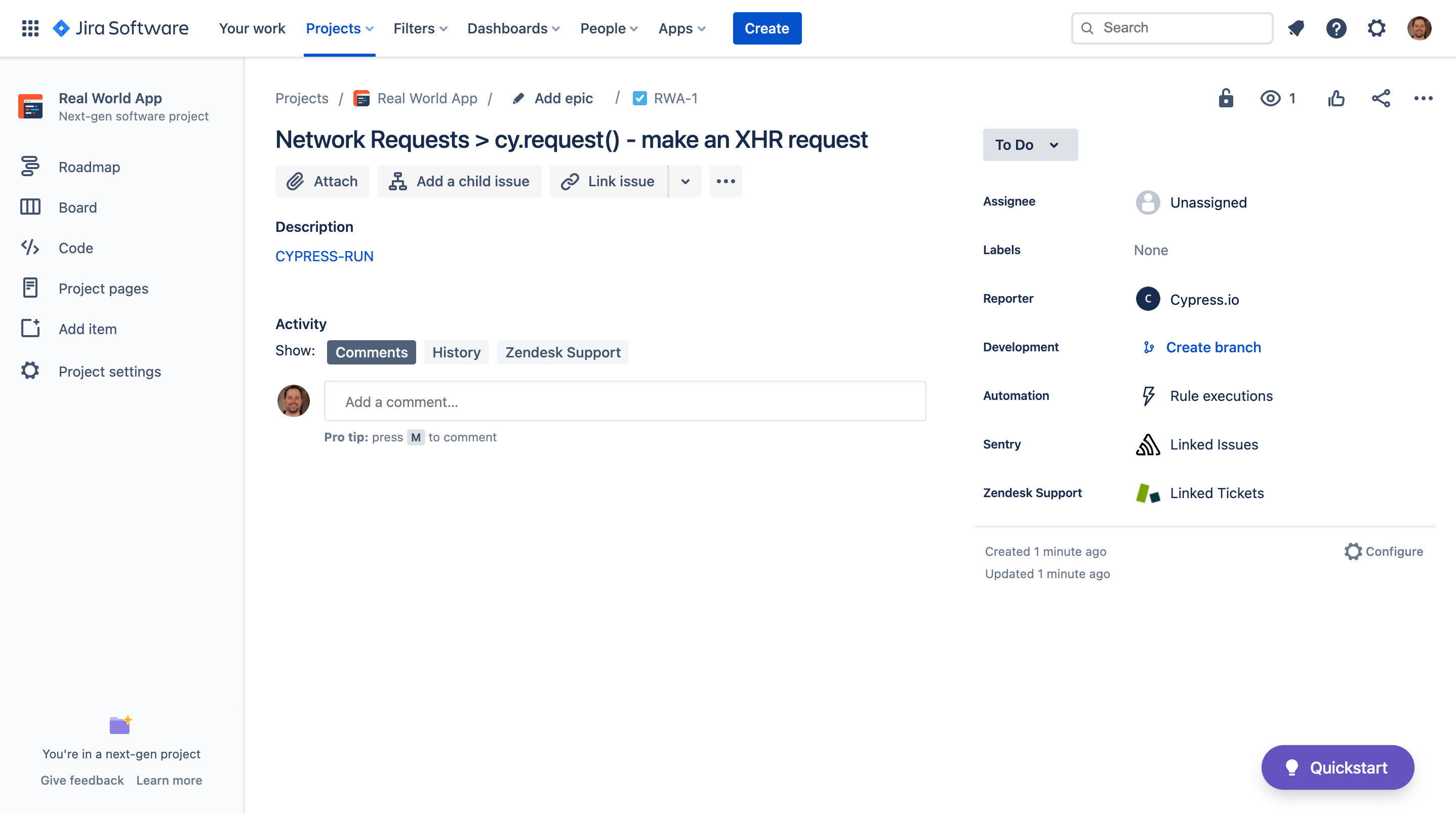
- Navigate from Jira back to Cypress Cloud. Every issue created through this integration includes a direct link to the test run in Cypress Cloud where the issue was filed. Anyone triaging in Jira can jump straight to the test replay, error output, and run context.
The most common use case is tracking and prioritizing failing or flaky tests. But the integration works for passing tests too, which is useful for capturing behavioral notes or flagging intermittent behavior before it becomes a consistent failure.
Install the Jira integration
Only one active installation is supported per organization.
-
Verify that you have a Team Cypress Cloud plan to use this feature.
-
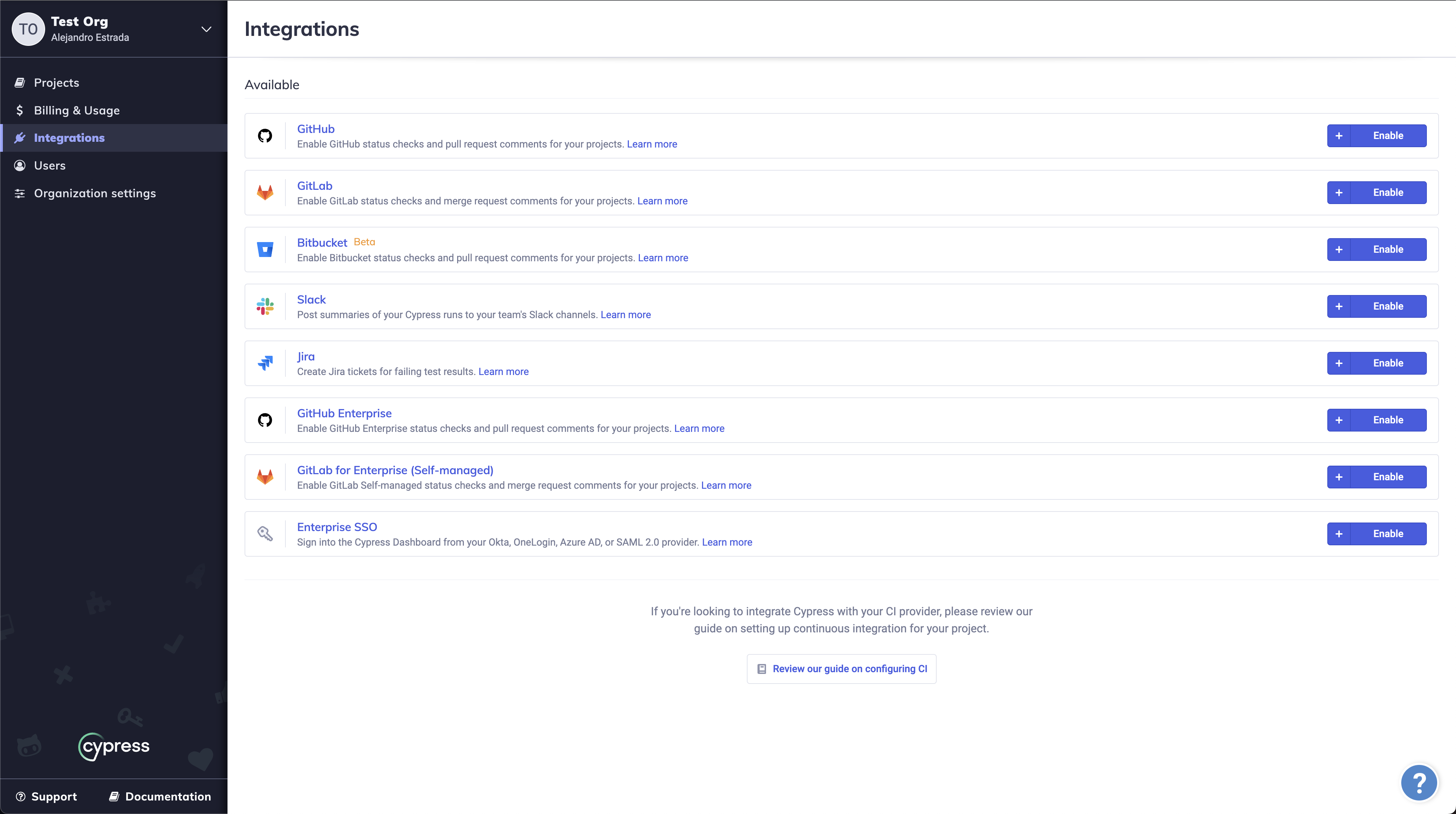
In Cypress Cloud, go to Integrations → Jira and click + Enable.
-
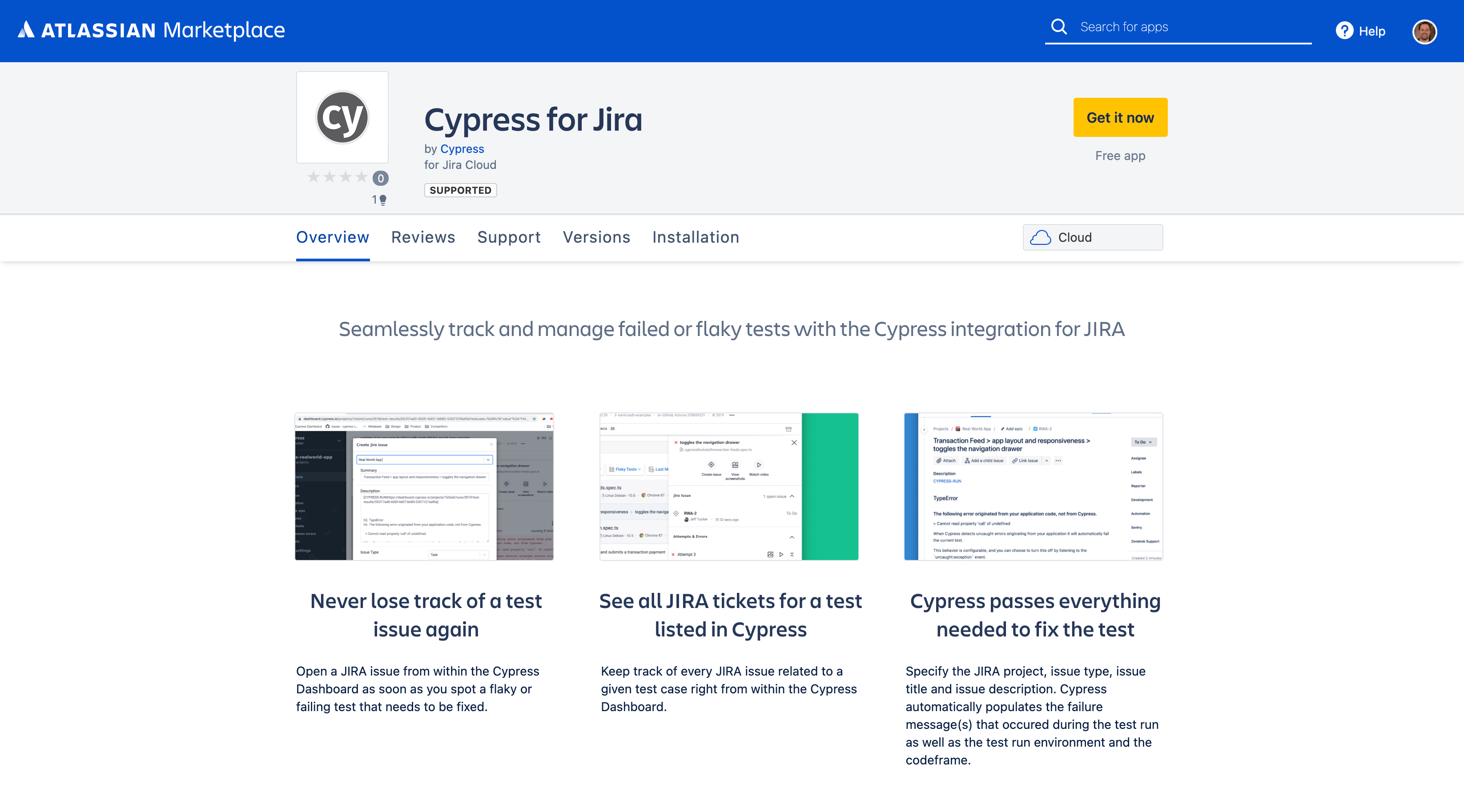
On the Atlassian Marketplace Cypress for Jira page, click Get it Now.
-
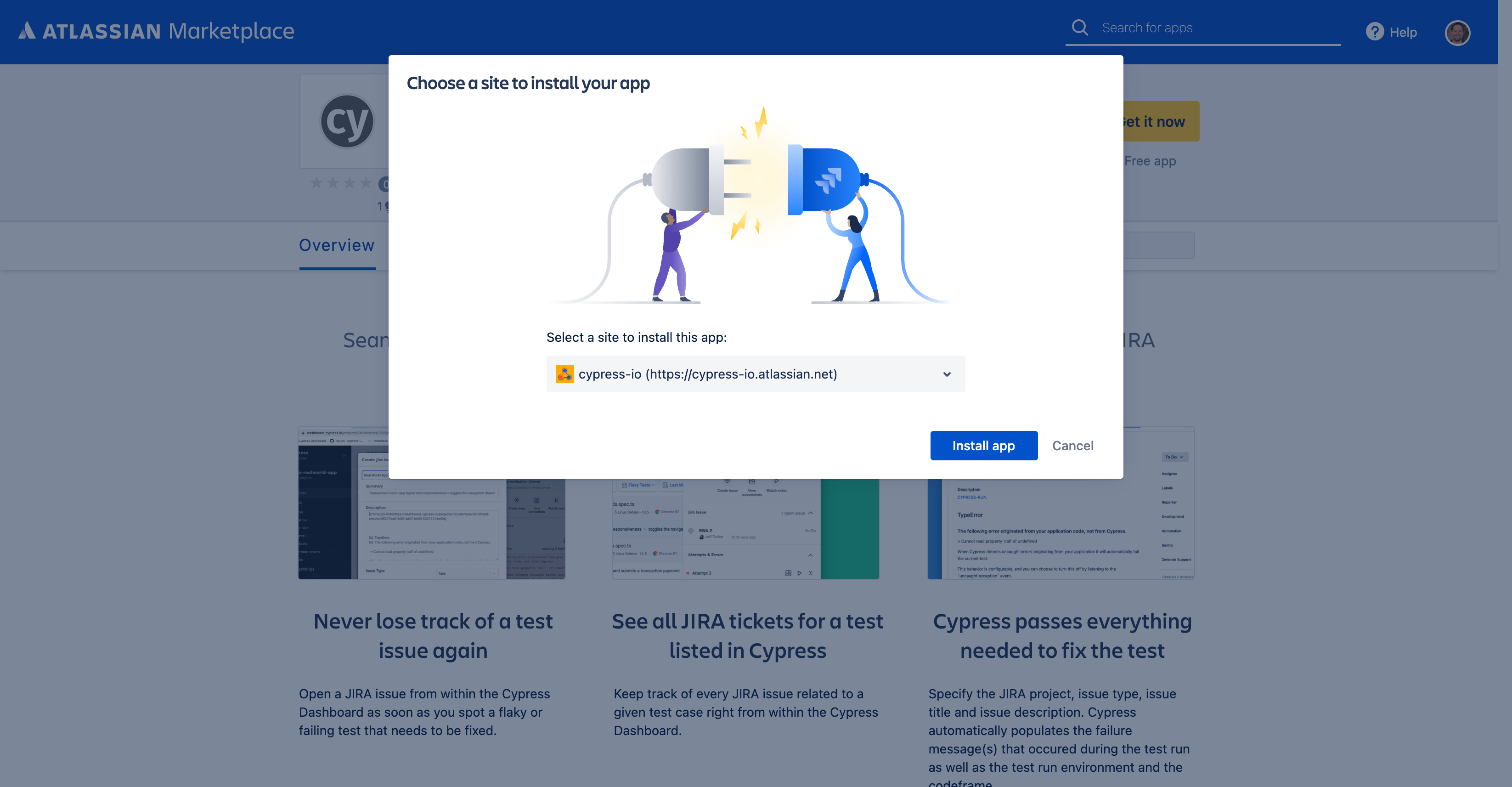
Log in to Jira, choose the site where you want to install the app, and click Install app.
-
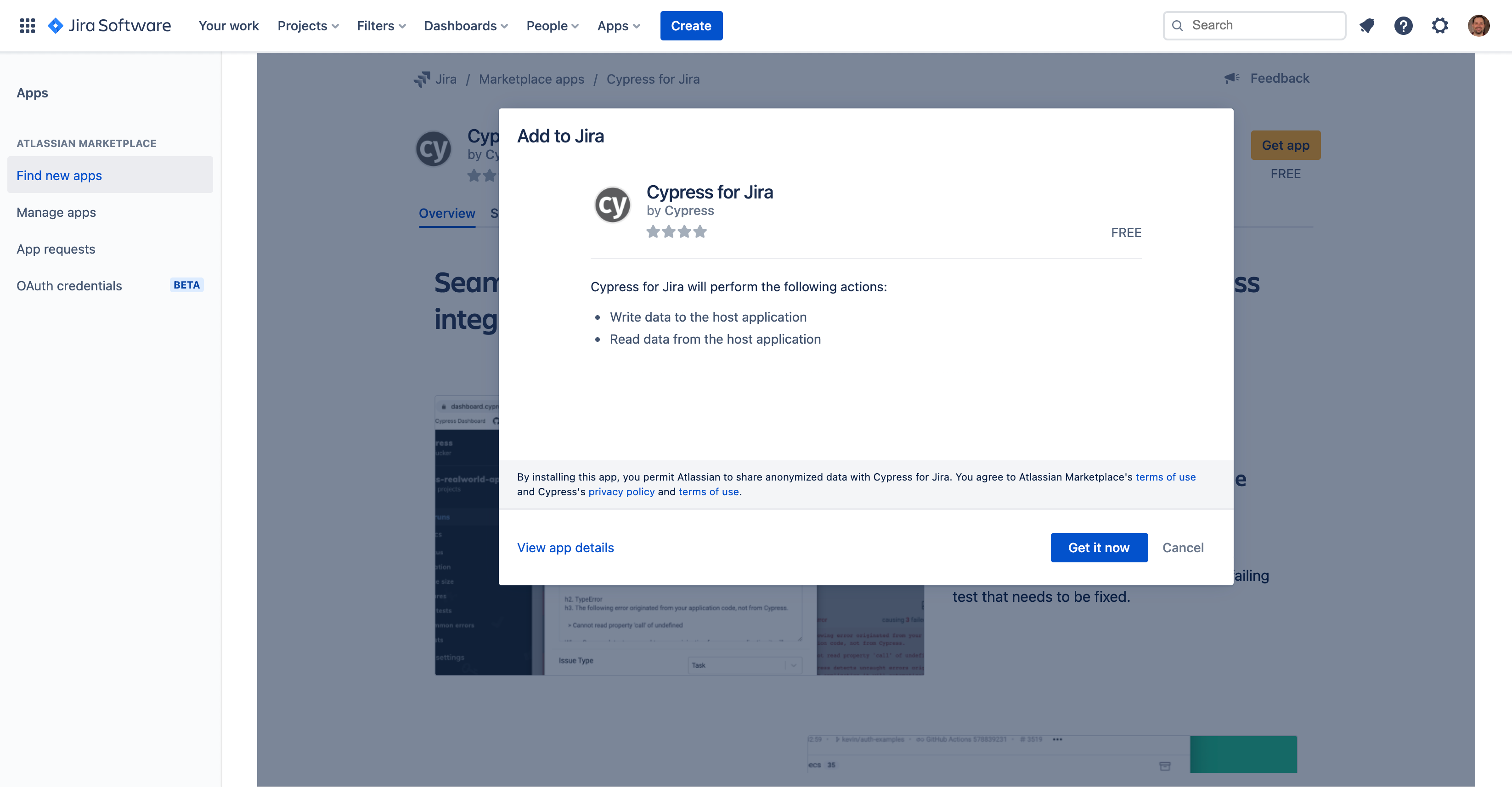
On the "Add to Jira" screen, confirm the installation by clicking Get it now.
-
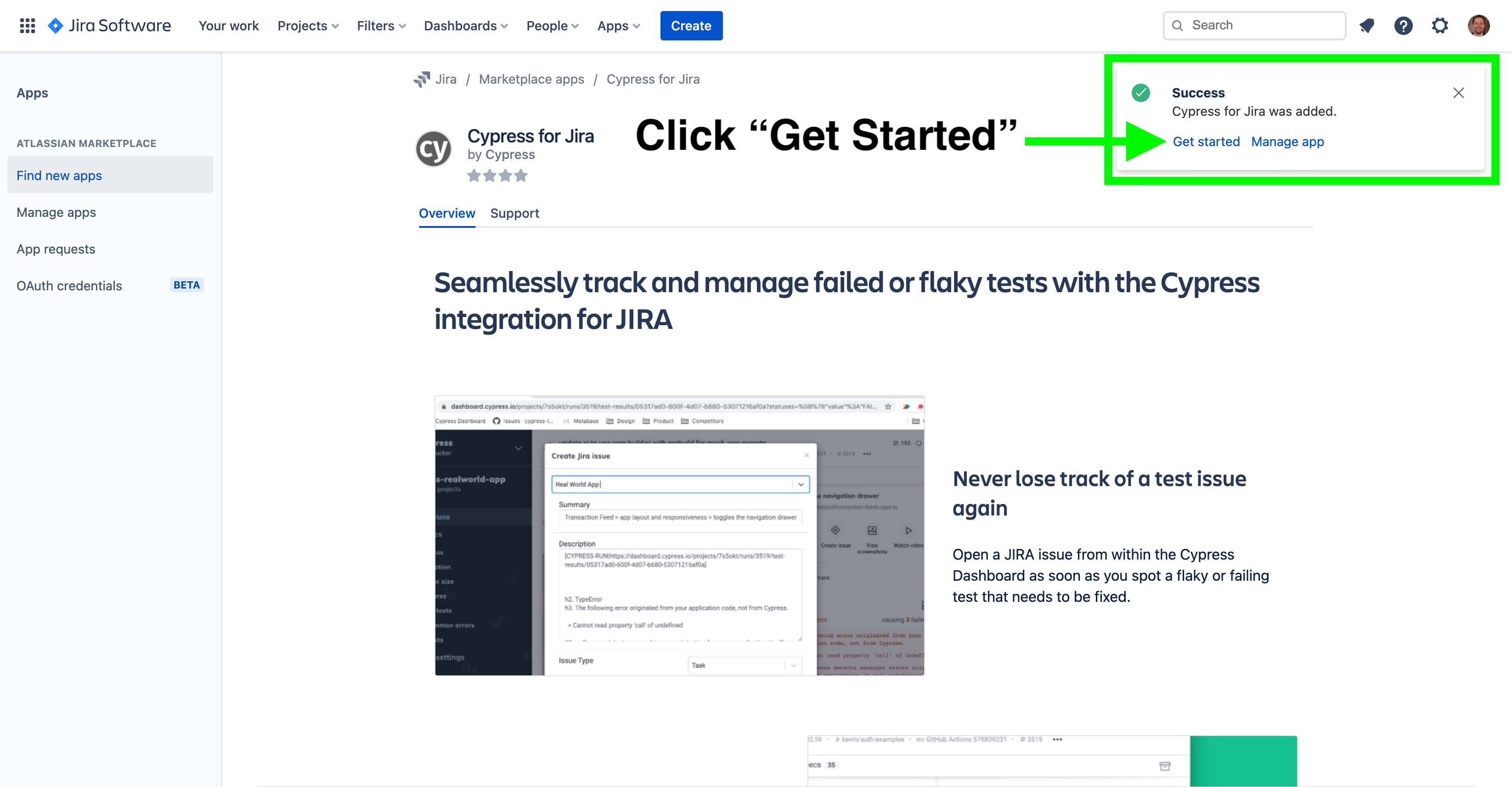
Once installed, click the Get Started link in the confirmation notification.
-
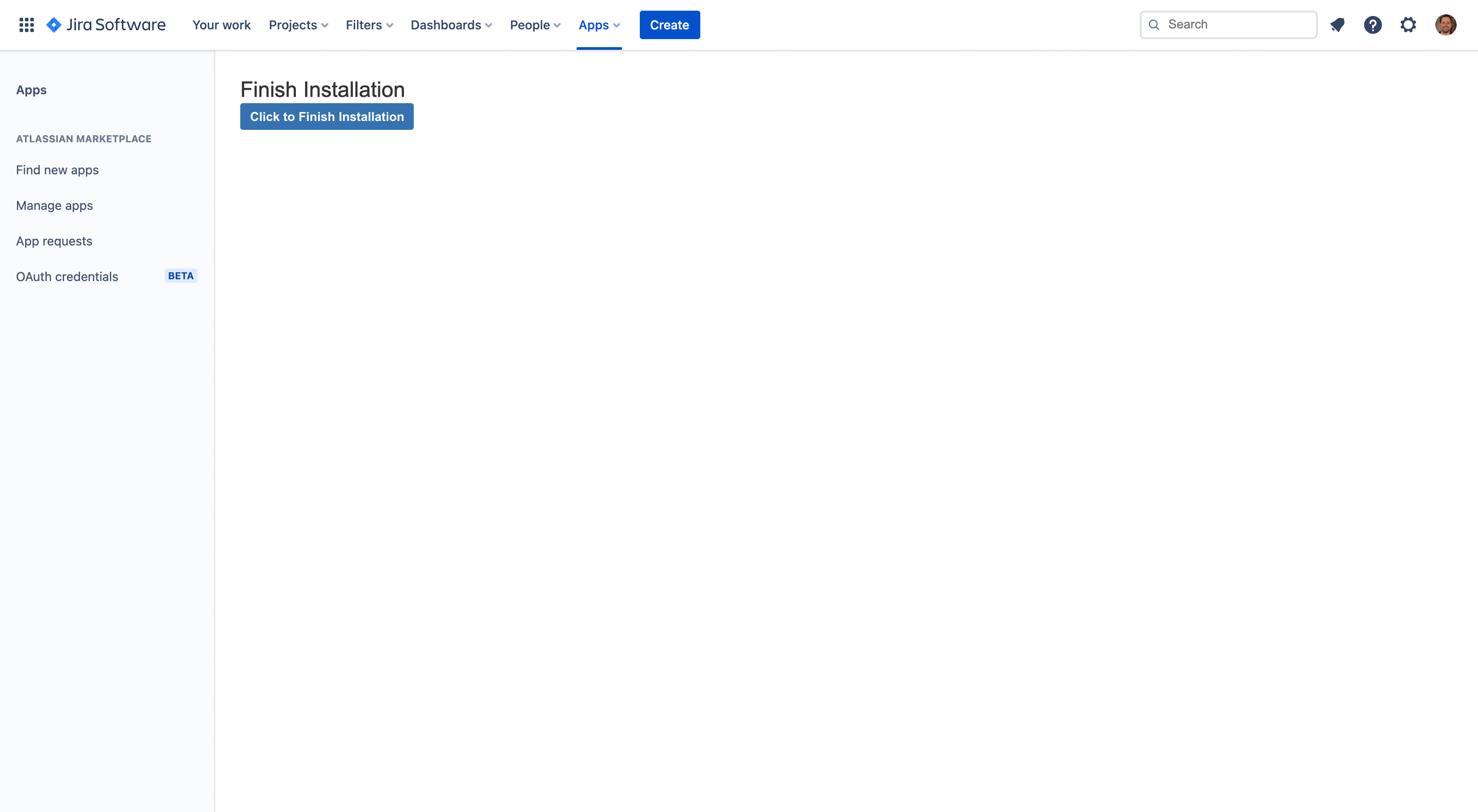
Confirm the installation by clicking Click to Finish Installation to be redirected to Cypress Cloud, where you will select the Cypress organization to connect.
-
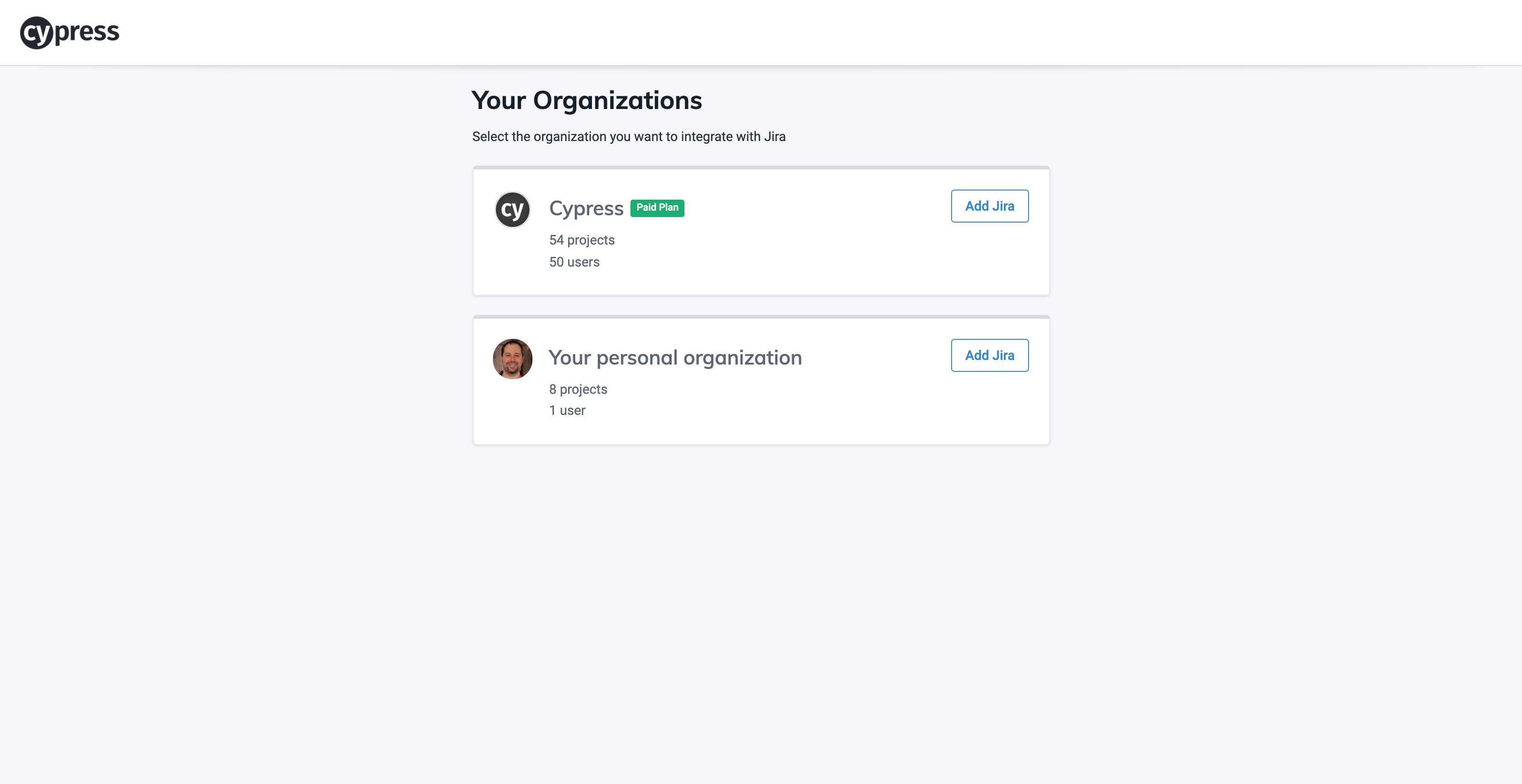
In Cypress Cloud, select the organization to integrate with the Jira app.
-
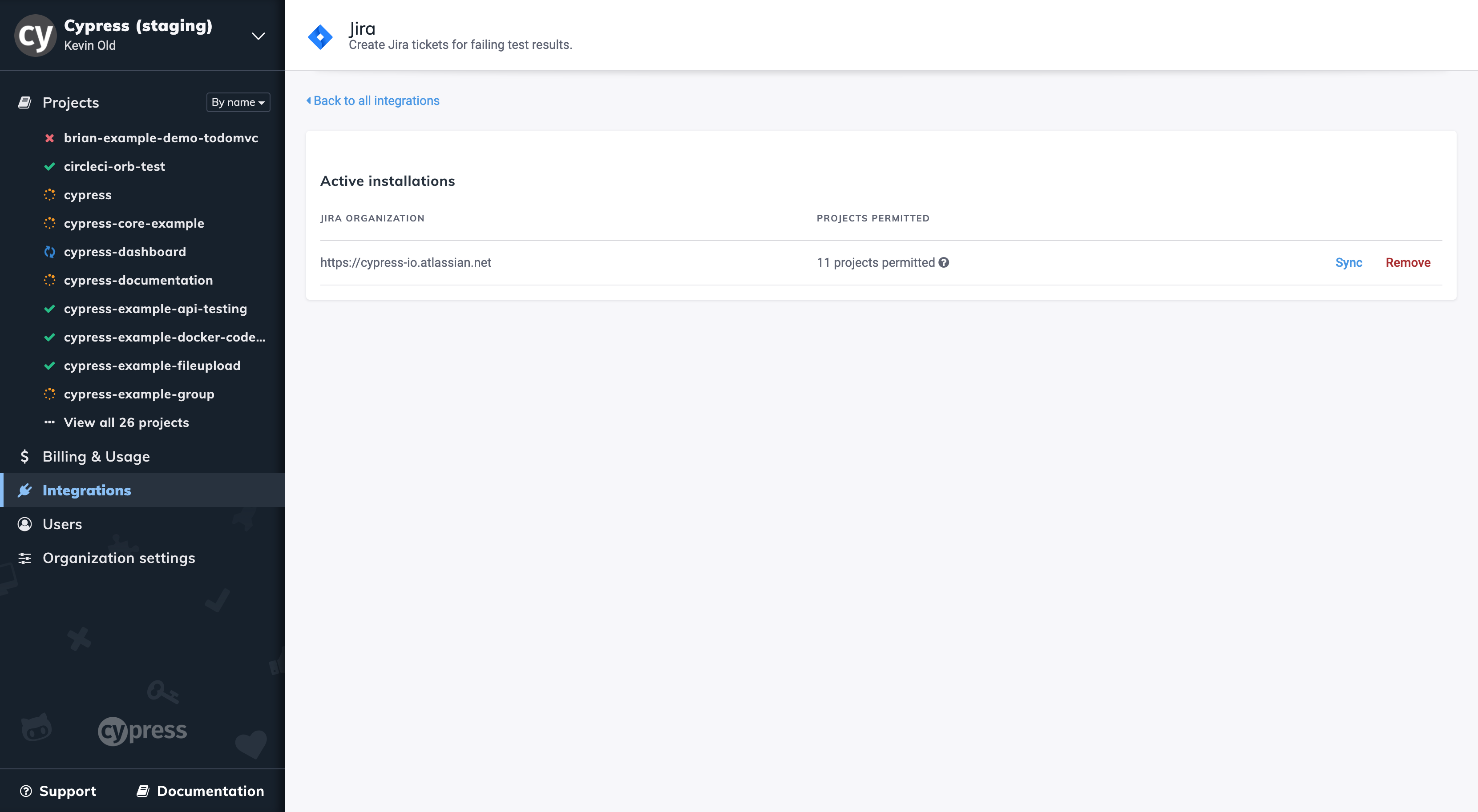
The integration is complete. The Jira Integration page in Cypress Cloud shows the list of permitted Jira projects.
How project data stays in sync
Cypress keeps the list of available Jira projects current through three mechanisms:
- On install: When the Cypress app is first connected to a Jira site, it automatically pulls in all accessible projects in the background.
- Real-time updates: Jira pushes changes to Cypress whenever projects are created, renamed, archived, or deleted, so the list stays current without any user action.
- Manual sync: The Sync button in the integration settings lets you trigger an on-demand refresh if something looks out of date.
Create a Jira issue from a test
You can file a Jira issue from any test result. Here is how to do it for a failing test:
-
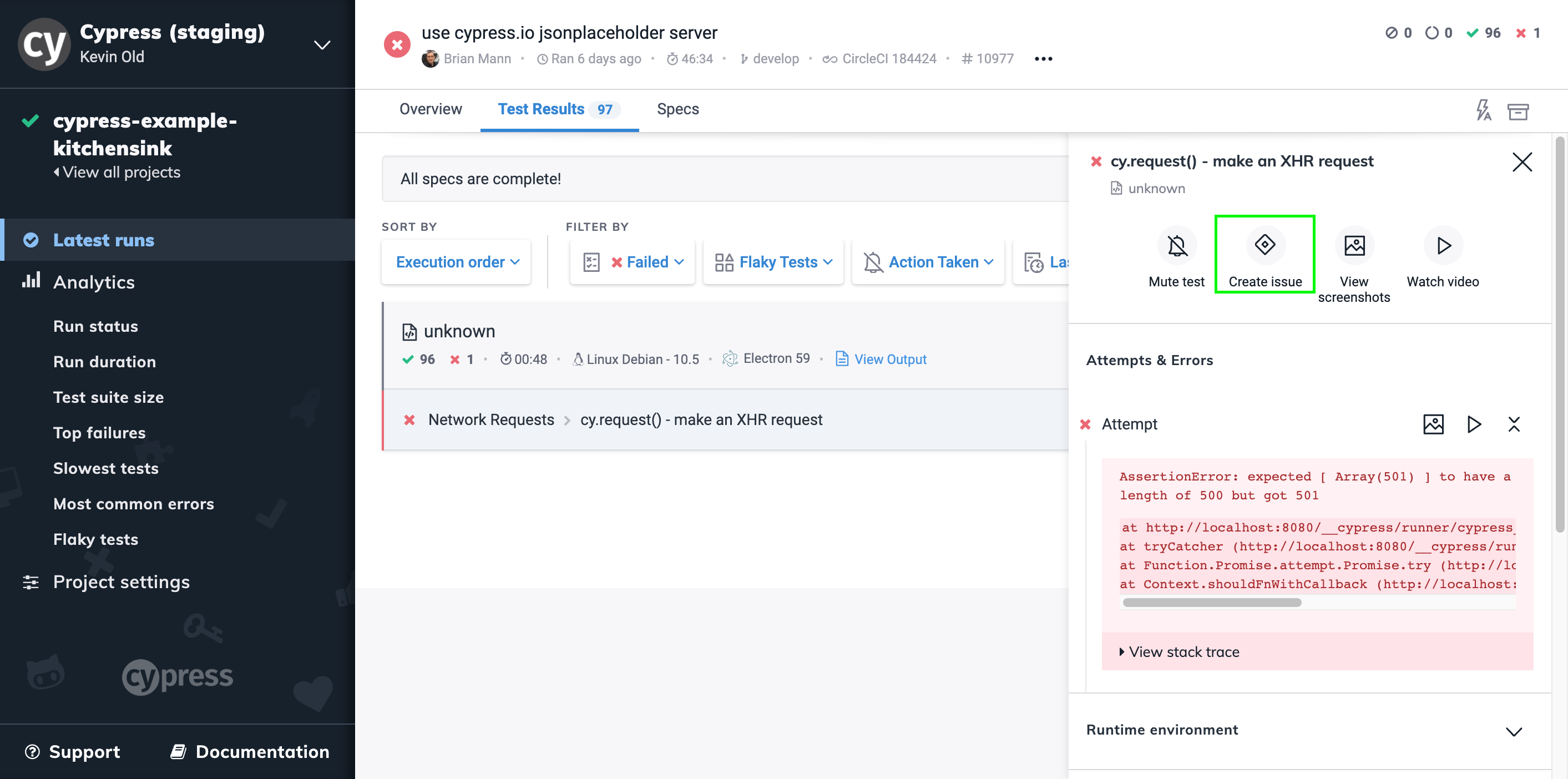
In Cypress Cloud, open a test run and click a failing test in the Test Results view to open its results panel.
-
Click Create Issue in the results panel.
-
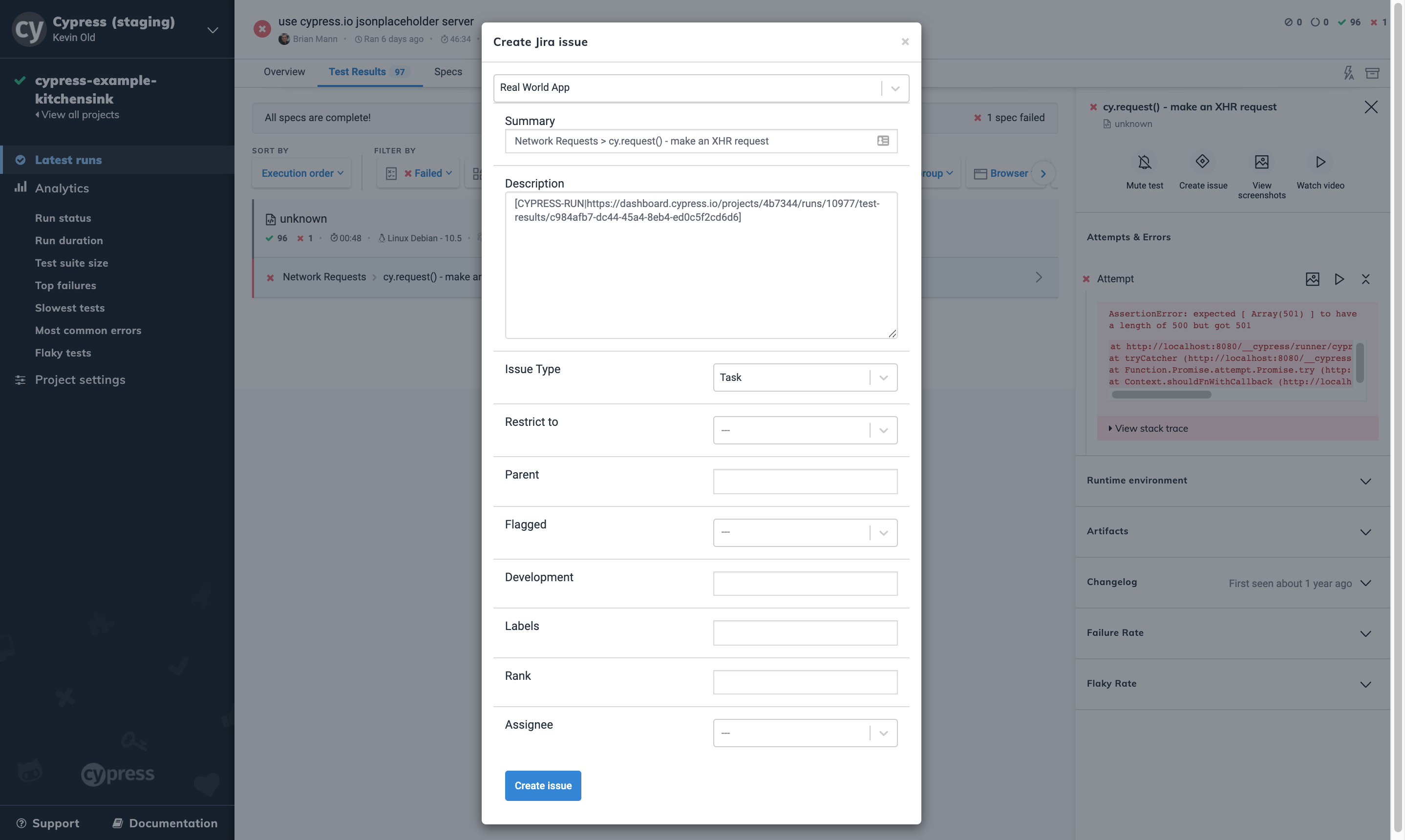
Fill out the Jira issue form. Select the project, issue type, assignee, and any other fields required by your team's Jira workflow.
-
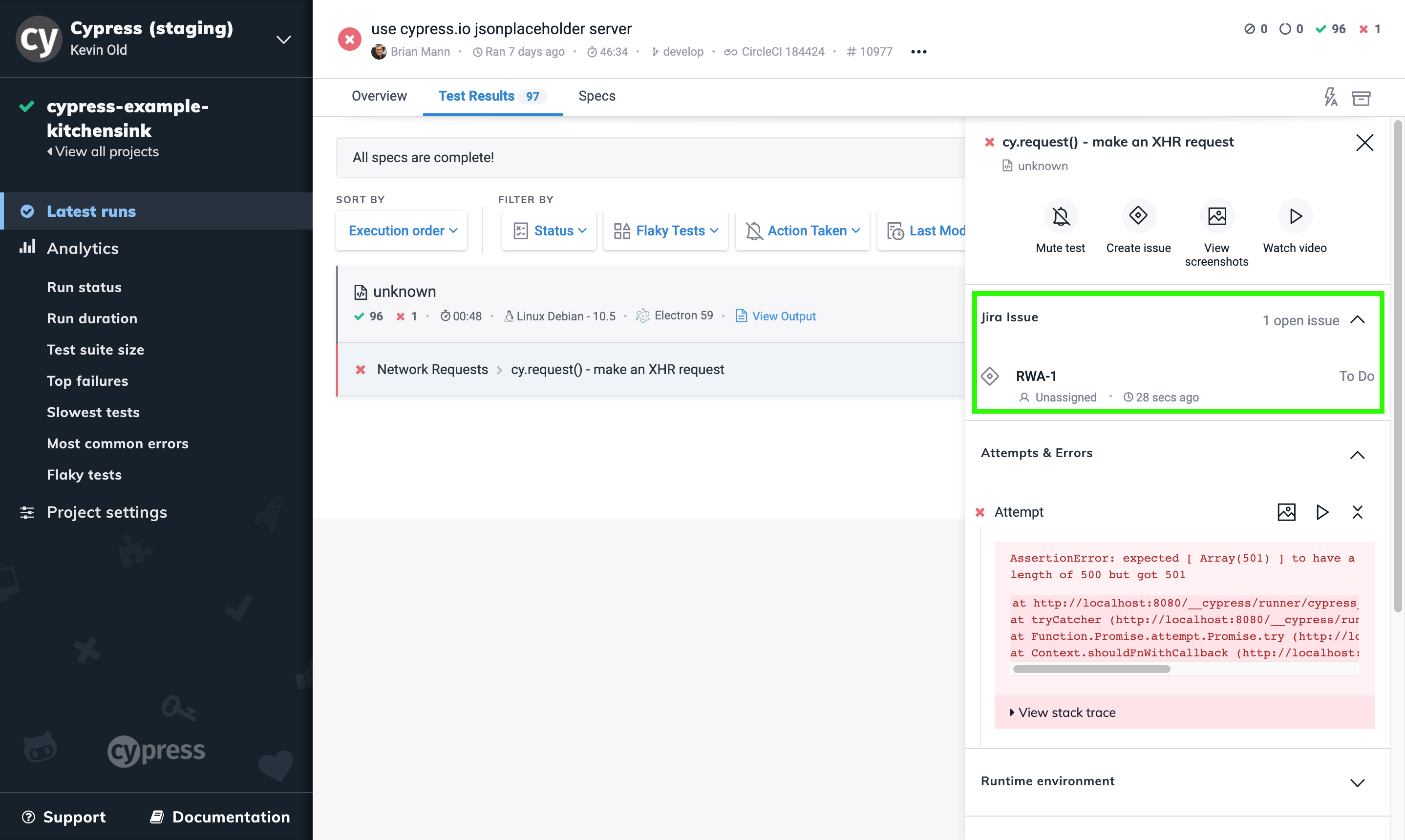
After you submit, the issue appears in the results panel for that test. It will remain there as part of the test's issue history across all future runs.
The Jira issue includes a link back to this test run in Cypress Cloud, so anyone picking up the issue in Jira has direct access to the failure context.
Link an existing Jira issue to a test
If the Jira ticket already exists, you can attach it to a test from Cypress Cloud without creating a duplicate issue.
-
In Cypress Cloud, open a test run and select the test in the Test Results view to open its results panel.
-
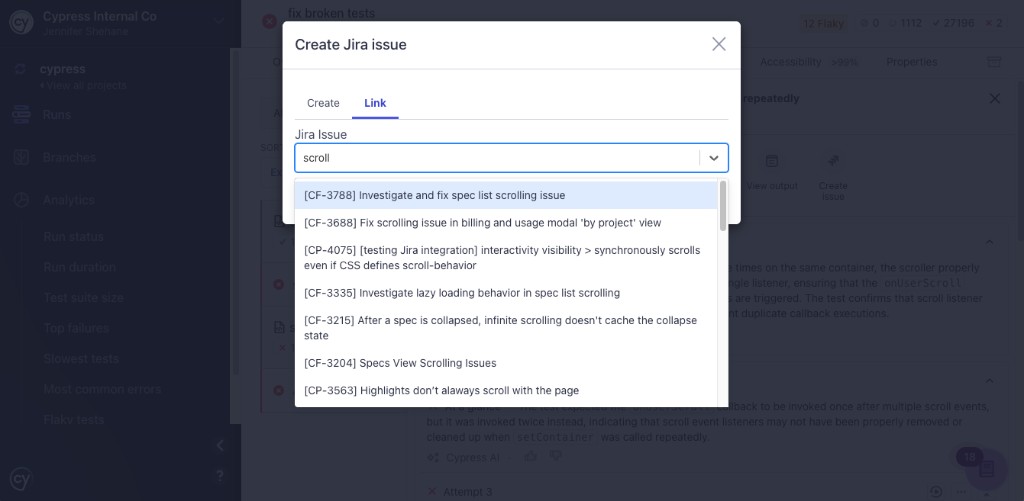
Click Create Issue to open the Jira modal.
-
Select the Link tab.
-
In Jira Issue, start typing to search your Jira project. Matching issues from your connected projects appear in a dropdown (you can search by issue key, title text, or other terms that match the issue). Select the issue you want. As an alternative, you can paste the full URL of a Jira issue into the same field.
-
Click Link issue. The issue appears in the results panel for that test and is included in issue history on future runs.
View a linked Jira issue from a test
After an issue is created or linked for a test, you can review it from the test's results panel without opening Jira first.
-
In Cypress Cloud, open a test run and select the test in the Test Results view so the results panel opens.
-
Find the Jira issue section and expand it.
Inside the expanded section, click the issue to open it directly in Jira. The section also lists assignee, status, and date created for that ticket so you can triage from the test result without copying keys into Jira manually. The issue status is fetched live from Jira each time you view the test result, so it always reflects the current state of the ticket rather than a cached snapshot.
Understand issue history
Every Jira issue created or linked for a test, from any run, accumulates in that test's results panel in Cypress Cloud. This history is useful when a test has failed before: you can see whether a previous issue was filed, who it was assigned to, and whether it was resolved before the test regressed again.
If a test has a long history of recurring failures and associated issues, that pattern is visible without leaving Cypress Cloud.
Uninstall the Jira integration
To remove the integration, go to Integrations → Jira in your Cypress Cloud organization settings and uninstall from there. After removal, you will no longer be able to create or link Jira issues from test results in Cypress Cloud. Existing issues in Jira are not affected.