Cloud MCP: Agentic Debugging
Cypress Cloud's Model Context Protocol (MCP) server connects your AI coding assistants directly to Cypress Cloud, giving them a window into your application's health and stability.
By eliminating the context gap between CI and your editor, you remove the manual triage that makes testing a bottleneck. Cloud MCP gives your AI agent real-time access to your test results. It allows agents to query run statuses, identify flaky tests, and retrieve failure details—including Test Replay links—directly within your agentic workflow.
Cloud MCP reached general availability on May 20, 2026. It is included on every Cypress Cloud plan at no additional cost.
How it Works
The Model Context Protocol (MCP) is an open standard that enables AI models to safely access external data and tools.
Think of MCP as the "USB port" for AI. Just as a USB port allows any peripheral to connect to any computer, MCP allows your AI assistant (the Host) to plug into Cypress Cloud (the Server) to fetch real-time context.
- The Host: Your AI client (like Cursor, Claude Desktop, or VS Code).
- The Server: A remote service hosted by Cypress that retrieves Cloud data for the AI.
- The Connection: A secure pipe authenticated via OAuth (recommended) or a personal access token.
Configuring the Cloud MCP
To use the Cloud MCP:
- Enable integration: An admin will need to enable the integration for your organization
- Authenticate: Each user authenticates with Cypress Cloud — via OAuth (recommended) or a personal access token
- Configure AI: Each user will need to add the remote MCP configuration to their preferred AI client
Enable for Organization
Enable the Cloud MCP integration for your organization from the Integrations page for your organization.

Each user who wants to use Cloud MCP must then authenticate — using OAuth or a personal access token.
Authenticate
There are two options for authenticating the Cloud MCP server with your Cloud account: oauth (recommended) and a personal access token (PAT).
OAuth (Recommended)
OAuth is the recommended authentication method for Cloud MCP. It uses a browser-based sign-in flow, so no manual token generation or rotation is needed — your AI client manages the session automatically.
When you configure your AI client with the Cloud MCP server URL (https://mcp.cypress.io/mcp) and your client supports OAuth, it will:
- Detect that the server requires authentication via OAuth discovery.
- Open a browser window and redirect you to the Cypress Cloud sign-in page.
- After you sign in, the client stores the session securely and reconnects automatically for 30 days.
OAuth sessions are scoped to your Cypress Cloud user account and respect your existing role and permissions in each MCP-enabled organization. No token expiry management is required on your part.
Your active OAuth sessions are visible on your Manage Profile page. You can revoke any session from there at any time.
If your AI client does not support OAuth, use a personal access token instead.
Personal Access Token
A personal access token (PAT) can used to securely connect with Cypress Cloud through the Cloud MCP server. You create and manage your PAT from your Cypress Cloud profile.
- Sign in to Cypress Cloud.
- In the upper-left corner of any page, click your organization picture.
- Select Manage Profile.
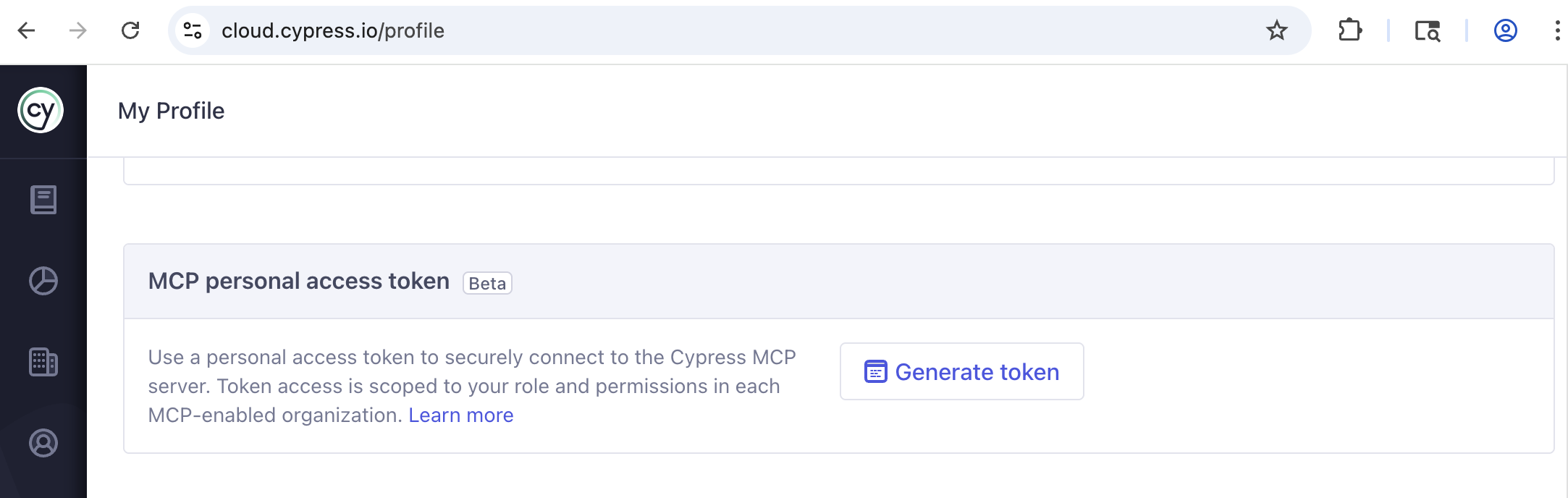
- Under MCP personal access token, click Generate token.
- Select an expiration for the token and click Continue.
- Your token is generated. Copy it immediately — it is only shown once.
The token access is scoped to your role and permissions in each MCP-enabled organization. Use your PAT in place of OAuth when your AI client does not support browser-based authentication flows.
Configure AI Assistant
Configure your agent or AI client to connect to Cloud MCP. Cloud MCP is a remote server hosted by Cypress, so your client must support tools and remote server (HTTP) connections.
The remote URL is: https://mcp.cypress.io/mcp. Clients that support OAuth will handle authentication automatically via a browser sign-in. For clients that do not support OAuth, set the authorization header with Bearer YOUR_MCP_TOKEN using your personal access token.
Antigravity
OAuth (Recommended)
- Open the MCP store via the "..." dropdown at the top of the editor's agent panel.
- Click on Manage MCP Servers
- Click on View raw config
- Modify the
mcp_config.jsonwith your custom MCP server configuration.{"mcpServers": {"cypress-cloud": {"serverUrl": "https://mcp.cypress.io/mcp"}}} - Save
mcp_config.jsonand click Refresh. Antigravity will prompt you to sign in to Cypress Cloud via your browser.
Personal Access Token (Alternative)
- Follow steps 1–3 above.
- Modify the
mcp_config.jsonto include your token:{"mcpServers": {"cypress-cloud": {"serverUrl": "https://mcp.cypress.io/mcp","headers": {"Authorization": "Bearer YOUR_MCP_TOKEN"}}}} - Replace
YOUR_MCP_TOKENwith your personal access token. - Save
mcp_config.jsonand click Refresh.
See Antigravity's documentation for more details.
Claude Desktop
OAuth (Recommended)
- Open Claude Desktop.
- Click Customize
- Click Connectors
- Click the + icon and select 'Add custom connector'
- Add the connector name, i.e
cypress-cloud - Add remote MCP url
https://mcp.cypress.io/mcp - Click add
- Click connect to authn
Personal Access Token (Alternative)
- Open Claude Desktop.
- Go to Settings > Developer > Edit Config.
- Add the following to your
claude_desktop_config.json:{"mcpServers": {"Cypress Cloud": {"command": "npx","args": ["-y","mcp-remote@latest","https://mcp.cypress.io/mcp","--header","Authorization: Bearer ${CYPRESS_MCP_TOKEN}"],"env": {"CYPRESS_MCP_TOKEN": "YOUR_MCP_TOKEN"}}}} - Replace
YOUR_MCP_TOKENwith your personal access token. - Restart Claude Desktop after saving. You should see a tools indicator in the chat input.
See Claude's documentation for more details.
Note: mcp-remote requires Node.js v22+ in the path to run successfully.
Claude Code (CLI)
OAuth (Recommended)
-
Add the Cloud MCP server:
claude mcp add cypress-cloud \https://mcp.cypress.io/mcp \--transport http -
Start claude session
claude -
Prompt
mcp cypress -
Claude Code will open a browser window to sign in to Cypress Cloud
Personal Access Token (Alternative)
-
Add the Cloud MCP server with your token:
claude mcp add cypress-cloud \https://mcp.cypress.io/mcp \--transport http \--header "Authorization: Bearer YOUR_MCP_TOKEN" -
Replace
YOUR_MCP_TOKENwith your personal access token.
Note: CLI Scope options are
--scope user— available across all projects (recommended)--scope local— current project only (default)--scope project— shared via.mcp.jsonin project root
See Claude Code's documentation for more details.
Cursor
OAuth (Recommended)
- Open Cursor
- Open the "Settings" menu and select "Cursor Settings"
- Select "Tools & MCPs"
- Select "New MCP Server"
- Add the following to your
~/.cursor/mcp.json:{"mcpServers": {"cypress": {"url": "https://mcp.cypress.io/mcp"}}} - Save the file and restart Cursor. Cursor will open a browser window to sign in to Cypress Cloud on first use.
Personal Access Token (Alternative)
- Follow steps 1–4 above.
- Add the following to your
~/.cursor/mcp.json:{"mcpServers": {"cypress": {"url": "https://mcp.cypress.io/mcp","headers": {"Authorization": "Bearer YOUR_MCP_TOKEN"}}}} - Replace
YOUR_MCP_TOKENwith your personal access token. - Save the file and restart Cursor.
See Cursor's documentation for more details.
GitHub Copilot in VS Code
You can install the Cloud MCP server in your user profile or a specific workspace. See VS Code's MCP installation options.
OAuth (Recommended)
- Add the following to your
.vscode/mcp.json:{"servers": {"cypress": {"type": "http","url": "https://mcp.cypress.io/mcp"}}} - VS Code will handle authentication via a browser-based Cypress Cloud sign-in when the server is first used.
Personal Access Token (Alternative)
- Add the following to your
.vscode/mcp.json:{"servers": {"cypress": {"type": "http","url": "https://mcp.cypress.io/mcp","headers": {"Authorization": "Bearer ${input:CYPRESS_MCP_TOKEN}"}}},"inputs": [{"type": "promptString","id": "CYPRESS_MCP_TOKEN","description": "Enter your Cypress MCP personal access token","password": true}]} - VS Code will prompt for your PAT via the
CYPRESS_MCP_TOKENinput when connecting.
See VS Code's documentation for more details.
GitHub Copilot CLI
GitHub Copilot CLI uses a personal access token for Cloud MCP authentication.
- Add the following to your global config (
~/.copilot/mcp-config.json) or project config (.copilot/mcp-config.json):{"mcpServers": {"Cypress Cloud": {"type": "http","url": "https://mcp.cypress.io/mcp","headers": {"Authorization": "Bearer ${CYPRESS_MCP_TOKEN}"}}}} - Set the environment variable before launching the CLI, replacing
YOUR_MCP_TOKENwith your personal access token.- macOS/Linux:
export CYPRESS_MCP_TOKEN=YOUR_MCP_TOKEN - Windows (Powershell):
$env:CYPRESS_MCP_TOKEN="YOUR_MCP_TOKEN"
- macOS/Linux:
- Verify the connection. Run
/mcpshow inside the Copilot CLI to confirm the server is loaded and the variable is resolved.
See GitHub Copilot's documentation for more details.
OpenAI Codex CLI
Codex stores MCP configuration in ~/.codex/config.toml, which is shared between the CLI and Codex IDE extension.
OAuth (Recommended)
-
Add the Cloud MCP server:
codex mcp add cypress-cloud --url https://mcp.cypress.io/mcp -
Start the OAuth flow:
codex mcp login cypress-cloud -
Sign in to Cypress Cloud in the browser window that opens.
-
Start a new Codex session. In the CLI, run
/mcpto confirm thecypress-cloudserver is connected.
You can also add the server manually to ~/.codex/config.toml and then run codex mcp login cypress-cloud:
[mcp_servers.cypress-cloud]
url = "https://mcp.cypress.io/mcp"
Personal Access Token (Alternative)
- Add the following to
~/.codex/config.toml:[mcp_servers.cypress-cloud]url = "https://mcp.cypress.io/mcp"bearer_token_env_var = "CYPRESS_MCP_TOKEN" - Set your token in your environment, replacing
YOUR_MCP_TOKENwith your personal access token:- macOS/Linux:
export CYPRESS_MCP_TOKEN=YOUR_MCP_TOKEN - Windows (Powershell):
$env:CYPRESS_MCP_TOKEN="YOUR_MCP_TOKEN"
- macOS/Linux:
See Codex's documentation for more details.
If you use an AI client not listed here, refer to its documentation for configuring a remote MCP connection.
Available tools
Once connected, your AI agent can autonomously use the following tools. You don't call these manually; the agent selects them based on your prompt.
Each time the Cloud MCP connection is established, any new tools become immediately available.
Some tools are relevant for all Cypress Cloud plans (including free), but some others are for plan-specific data like flaky test reporting, or product-specific data like Cypress Accessibility violation details. These are only available if your organization has subscriptions for the plans and products that would provide the underlying data.
| Tool | Capability | Best Use Case |
|---|---|---|
cypress_get_projects | Lists all projects in your Org. | Helping the agent find the correct projectId for subsequent queries. |
cypress_get_runs | Returns run summaries for a project, run URL, or git branch. Summaries include project name, run number, status, run URL, tags, and test status counts. | "Check the status of the last CI run on main" |
cypress_get_failed_tests | Retrieves attempt details: test name, spec, attempt error and stack trace, and a Test Replay link for quick debugging. Does not return test artifacts. | "Analyze why the checkout test failed in the latest run." |
cypress_get_flaky_tests | Identifies the flaky tests in a run. | "Are these failures regressions or known flakiness?" |
cypress_get_accessibility_report | Returns a high-level accessibility report for a run: violation counts by severity, failing rules with element counts, and the top 5 views sorted by failure count. | "Summarize accessibility violations for the latest run on this branch." |
cypress_get_accessibility_views | Returns paginated views from an accessibility report, sorted by number of failing rules. Use to browse all views beyond the top 5 in the report summary. | "Which pages have the most accessibility failures in this run?" |
cypress_get_accessibility_rule_failures | Returns paginated failing DOM elements for a specific accessibility rule, with CSS selector, view, and failure message. Optionally scope to a specific view. | "Show me all color-contrast failures on the checkout page." |
cypress_get_ui_coverage_report | Returns a high-level UI Coverage report for a run: overall coverage score, tested and untested element and link counts, and the top 5 riskiest views sorted by most untested interactive elements. | "Summarize UI Coverage for the latest run on this branch." |
cypress_get_ui_coverage_views | Returns paginated views from a UI Coverage report, sorted by most untested elements and links. Use to browse all views beyond the top 5 in the report summary. | "Which pages have the most untested elements in this run?" |
cypress_get_ui_coverage_elements | Returns paginated interactive elements for a run. Filter by tested or untested, and optionally scope to a specific view by name. | "Show me the untested elements on the checkout page in this run." |
submit_mcp_feedback | Shares feedback with Cypress directly from your agentic environment. | "Report a bug or request a new MCP feature." |
Writing effective prompts
To get the most out of Cloud MCP, follow these three principles:
- Trigger Explicitly: Use the phrase "Cypress Cloud" to ensure the agent looks for the correct MCP tools.
- Provide Context: Mention "this branch," "this commit," or paste a Run URL directly.
- Define the Workflow: Don't just ask what failed; ask the agent to fix it.
Example Prompts
Pro-Tip: If you find a workflow that works well, save it as a Custom Instruction or Skill in your AI client to standardize debugging for your entire team.
The Health Check
Get a high-level summary of any failures in the latest run on your branch.
Check Cypress Cloud for the latest run on this branch. Give me a high-level summary of any failures.
The Deep Debug
Investigate each failing test and propose a fix for the regression.
Find the failing tests for [Run URL]. For each failure, look at the stack trace, check my local code, and propose a fix to stop the regression.
The Flake Audit
Surface flaky tests across recent runs and look for common patterns.
List all flaky tests from the last 5 runs in Cypress Cloud. Are there any common patterns in the error messages?
The Accessibility Triage
Summarize accessibility violations for the latest run, grouped by rule and view.
Pull the Cypress Cloud Accessibility report for the latest run on this branch. List any critical or serious violations grouped by rule, and tell me which views are most impacted.
For a deeper exploration of working with Cloud MCP's accessibility tools, read our guide Cypress Accessibility - Work with AI agents.
The UI Coverage Triage
Review UI Coverage for the latest run and drill into the riskiest view.
Using Cypress Cloud, pull the UI Coverage report for the latest run on this branch. Tell me the overall coverage score, list the views with the most untested elements, and show me the specific untested elements on the riskiest view.
For more patterns, example prompts, and governance ideas when using UI Coverage with agents, read Cypress UI Coverage - Work with AI agents.
FAQs
Cloud MCP vs the Cloud CLI
Cloud MCP and the Cloud CLI both give programmatic access to your Cypress Cloud data. They solve related problems in different ways:
- Cloud MCP is a remote server your AI client connects to. The agent selects Cypress tools automatically based on your prompt, which makes it the best fit for conversational, in-editor debugging.
- The Cloud CLI (
cy-cloud) is a command-line tool for humans, scripts, and agents that run shell commands. It returns JSON and provides direct access to Test Replay data, which makes it the best fit for deeper triage from the terminal, automation, custom tooling, and agents that run shell commands.
Many teams use both. If your assistant speaks MCP, connect it to Cloud MCP. If it works through a terminal, or you are scripting, reach for the Cloud CLI. Use both when running agents in your terminal.
Both are available on every Cypress Cloud plan at no additional cost. See the Cloud CLI documentation for its setup and command reference.
Troubleshooting
Agent can't find your run:
- Verify the organization has the Cloud MCP integration enabled in Cypress Cloud.
- Ensure your Git branch name in CI matches the branch name you're telling the agent.
- A failed CI job doesn't mean no run was recorded. A red CI conclusion only reflects the job's exit code. As long as Cypress recorded the run, it's in Cypress Cloud and the agent can query it, so point the agent at the run by branch, commit, run number, or Run URL instead of assuming a failed job left nothing to find.
- If you pair Cloud MCP with a CI or GitHub MCP that reads job logs, the recorded Run URL prints near the end of the Cypress CLI output. Have the agent read the tail of the log so it doesn't miss the link.
Connection errors:
- If using OAuth: ensure your browser can reach https://cloud.cypress.io to complete sign-in. If the browser window doesn't open, try removing and re-adding the server config in your AI client.
- If using a personal access token: verify your PAT hasn't expired (check Manage Profile).
- Check firewall and proxy settings to ensure https://mcp.cypress.io is allowlisted.
Switching from a personal access token to OAuth:
If you previously configured Cloud MCP with a PAT and want to switch to OAuth:
- Remove the
Authorizationheader (or token environment variable) from your AI client's MCP config. - Save the config and reconnect. Your client will detect that no token is present and trigger the OAuth browser sign-in flow automatically.
Pricing & Availability
Cloud MCP is available for free to all Cypress Cloud plans, including the Starter plan. We believe AI-assisted debugging should be accessible to every developer building with Cypress.
No minimum Cypress App version is required to get started.
Cloud MCP reached generally available on May 20th, 2026.
Usage Limits
Current limits include 100 tool requests per hour for all plans.
Cloud MCP data availability matches existing test recording limits and data retention policies for your plan.
If you need to increase your limits, contact support at [email protected].
Security & Privacy
Cloud MCP is an API for AI agents. When your AI assistant needs information about your Cypress test runs, it calls Cloud MCP the same way any application calls an API — it sends a request, and Cypress returns data.
What Cypress can and cannot see:
- Cypress cannot see your AI conversation: Cypress has no access to your AI assistant's context window, chat history, or anything it generates. The only thing Cypress receives are the inputs to a tool call — for example,
getRuns(projectId: 100, runNumber: 45, limit: 10). - Cypress does not train on your data: Test results, stack traces, and replay links returned through Cloud MCP are used only to fulfill the request. Your data is never used to train or improve any LLM.
- You control the connection: Cloud MCP is opt-in. Enabling it means your AI assistant can request Cypress data and enabling the integration does not give Cypress any visibility into your AI's context, conversation, or outputs.
How access is controlled:
- Read-only: Cloud MCP is designed for data retrieval and debugging. It cannot modify your test code or delete runs.
- User-scoped: Your AI assistant can only access the projects and data your Cypress Cloud user has permission to see. It operates within the same access boundaries as you do.
- Locally managed: You control when the server is active by managing the configuration in your local AI client.
Cloud MCP implements the standard MCP authorization specification with OAuth 2.0 and uses streamable HTTP transport. It falls under our AI security practices →
Remove the integration
Remove the Cloud MCP integration at any time by going to the Integrations page for your organization and selecting Disable in the Cypress MCP section.
Disabling the integration immediately revokes access for all users in that organization, regardless of whether they authenticated via OAuth or a personal access token.
Send feedback
You can share feedback directly through your agent:
Share feedback, use cases, or issues with Cypress from your agent.
Send Cypress the following feedback: [Your message here]
Alternatively, use this feedback form to share any feedback, use cases, or issues encountered with your prompts and queries.