Work with AI agents
AI coding assistants can speed up accessibility work when they have the right context. This guide outlines patterns that teams are adopting today.
Cypress Cloud MCP
Cypress Cloud MCP lets compatible agents pull run metadata, test results, and accessibility summaries from Cypress Cloud using structured tools instead of copy-pasting from the UI.
You can ask your LLM about what issues are present, what patterns exist, and how to break the reports into work units or manage other handoffs like reporting issues to your third-party vendors or content authors.
For example, an open-ended question like "Check the newest Cypress Accessibility results for this project and help me make an action plan to resolve them" should help your agent produce a useful summary of the current state and help quickly bucket things according to expected remediation paths and ownership.
Example prompts
Basic
Here are some example prompts to try out:
"Pull the Cypress Cloud Accessibility report for the latest run on this branch. List any critical or serious violations grouped by rule, and tell me which views are most impacted."
"Using Cypress Cloud, get the "color-contrast" failures from run #142 scoped to the "/checkout" view. For each failing element, look at the local CSS and suggest a fix."
Advanced
Deep dive on solving a specific issue:
You are a front-end expert focused on delivering an accessible product.
The
<element_id>selector was flagged as inaccessible by the Cypress Accessibility report. It<element_status>the<rule_severity>rule<rule_name>described as<rule_label>. The proposed solution is<proposed_solution>.First, verify the issue is actually a problem given how the code is constructed.
If it is a valid issue, explain by briefly summarizing the fix in markdown so I can include it in my code review, then generate a plan to fix this issue (I must approve this plan before you make changes).
If it is not an issue, note it and stop. If there are not enough details to reasonably solve this, explain what other information you need before making changes. If the information is within the Cypress Cloud, submit feedback to the Cypress team.
Determine owners for issues based on specific roles at your company, and who needs to be involved or aware:
Using Cypress Cloud MCP, find the most recent run in this project with failed accessibility results and create an action plan that groups similar problems together and recommends suitable owners.
Our team includes these roles developers, QA engineers, designers, product managers, marketers, and accessibility specialists. For each role, determine if they need to be Responsible, Accountable, Consulted, Informed, or not involved.
Work with a downloaded report
The Download report button on a run's Accessibility report exports the run's violations as a .csv or .json file. This gives an AI agent a complete, self-contained view of a run's accessibility results that it can read directly from disk—no Cloud connection or MCP setup required.
This pairs well with the Cypress Cloud MCP approach rather than replacing it:
- Cloud MCP is best for live, interactive querying while you work—asking follow-up questions and drilling into specific rules or views on demand.
- A downloaded report is best when you want the agent to work over the full dataset at once—generating a chart, producing a written summary, or diffing two runs—and when you want a fixed artifact you can re-run the same analysis against later.
Each row in the file is one failed element for one rule on one view, and includes deep links back into the Cloud report. See what's in the file for the full column list.
Map violations to your components
The Element column is where a downloaded report becomes especially efficient for an agent. When you set up your components configuration, each element's selector reflects a true hierarchy of your components instead of a raw DOM path. An agent can read that structure straight from the file to:
- Spot patterns and trends across rules and views—for example, that most
color-contrastfailures live inside a single design-system component, or that one component is responsible for a disproportionate share of a run's violations. - Trace an issue to its origin in your component tree and source code, without re-parsing full-page HTML or crawling the codebase to locate the element.
Mapping raw DOM selectors back to the component and source file that produced them is normally the expensive part of agent-assisted accessibility work, in both effort and tokens. Carrying that hierarchy in the export up front means the agent spends its budget on analysis and fixes rather than on rediscovering where each element came from.
Interpret the report
Drop the downloaded file into your project (or attach it to your chat) and ask the agent to summarize it. Because every row carries the rule, impact, element, and view, the agent can bucket and prioritize without any extra context.
Read this accessibility report file and give me a summary: total violations, a breakdown by impact (critical, serious, moderate, minor), and the five rules with the most failing elements. Then list the three views with the most issues and suggest where I should start.
Group the failures in this report by likely owner—developers, designers, and content authors—based on the rule and element. For each group, write a short, plain-language description of the work involved.
Create charts and graphs
Since the export is structured data, an agent with code execution can turn it into visualizations without you writing any plotting code.
Using this accessibility report, generate a bar chart of failing elements by rule severity, and a second chart of the top 10 rules by number of failing elements. Save them as images.
Build a small HTML dashboard from this report file: a summary of totals by impact at the top, a table of views sorted by violation count, and a chart of the most common rules. Make it a single self-contained file I can open in a browser.
Compare different reports
Download a report for each run you want to compare—for example, a main branch run and a feature-branch run—and ask the agent to diff them. This is a lightweight, offline complement to the Branch Review comparison in Cypress Cloud, useful when you want the difference in writing or as data.
Here are two accessibility reports,
report-main.jsonandreport-branch.json. Compare them and tell me which violations are new in the branch report, which were resolved, and which are unchanged. Group new issues by rule and view, and include the Element URL for each new issue so I can open it in Cypress Cloud.
I've downloaded accessibility reports from our last four weekly runs. Chart the total number of failing elements over time, and call out any rule where failures increased week over week.
Ask the agent to keep the Element URL and View URL values in its output. Every row links back to the live snapshot in Cypress Cloud, so a summary, chart annotation, or ticket can point straight to the issue in context.
File issues in your issue tracker
Triage usually ends in tickets, and typing them out one at a time is the slowest part of the job. An agent connected to both Cypress Cloud and your issue tracker can read the accessibility report for the latest run, check what has already been filed, and open only the tickets that are missing. Nothing new has to run in your pipeline, because the data comes from runs Cypress Cloud has already recorded.
Cypress supplies the read side of this workflow. Cloud MCP is read-only, so the write side comes from your tracker's own MCP server or CLI, which Jira, GitHub, and Linear all publish. Connect both to the same agent before you start.
For a single violation you are already looking at, the Create Jira issue button in Cypress Cloud is faster than any prompt. Reach for an agent when you have a report's worth of findings to file at once.
Decide what a ticket represents
Agree on this before the agent creates anything. It decides both the size of your backlog and whether next week's refresh can tell an existing ticket from a new one.
Group by rule and view. One ticket per rule per view is a good default: "Form elements must have labels on /checkout" is a unit of work someone can pick up and finish. A ticket per failing element buries the team in near-duplicates, and a ticket per rule across the whole application is usually too large to schedule.
Give every ticket the same shape. Ask the agent to follow a fixed convention: a label such as cypress-accessibility on everything it opens, a summary pattern such as [Accessibility] <rule ID> on <view name>, and a description holding the rule, the severity, the failing selectors, and the link back to the report in Cypress Cloud. The convention is what makes the next refresh cheap, because deduplication becomes a search for a label and a rule ID rather than a judgment call about whether two sentences describe the same problem.
Group by component where it helps. If your selectors carry component names, an agent can spot that one design-system component is behind failures on 15 views. That is one ticket for the component team rather than 15 for the page owners, so tell the agent which grouping you want.
Plan first, then create
Run this in two passes. The first proposes tickets and checks them against your tracker without writing anything, so you see the batch before it exists. Replace the placeholders in both prompts:
<branch>is the branch you track, such asmain.<projectId>is your Cypress project ID, theprojectIdin your Cypress configuration file.<tracker project key>identifies the project in your issue tracker that the tickets are filed into, such as the Jira project keyWEBor the repositoryacme/storefrontin GitHub.
Plan tickets from the latest report
See which failures are already tracked, which regressed, and which need a new ticket.
Refresh our accessibility backlog using Cypress Cloud MCP, without creating anything yet. 1. Find the latest completed run on <branch> for project <projectId> and pull its accessibility report. 2. Group the failures into one proposed ticket per rule per view, sorted by severity. Include the failing element count and the Cypress Cloud link for each. 3. For each proposed ticket, search <tracker project key> in my issue tracker for a matching issue, open or closed in the last 90 days, matching on rule ID and view name. 4. Report three groups: already tracked and open, previously closed but failing again, and not tracked at all.
Create the missing issues
Open tickets for the untracked failures only, in a format you can find again next week.
Create issues in <tracker project key> for the untracked failures only. For each one: use the summary pattern [Accessibility] <rule ID> on <view name>, add the label cypress-accessibility, set priority from the rule severity, and put the rule description, the failing selectors, and the Cypress Cloud report link in the description. Then list the issues you created with their keys, and tell me anything you skipped and why.
Once you trust the sequence, save both prompts as a custom instruction or skill in your AI client so the whole team refreshes the backlog the same way. Keep the approval step between them: creating issues is a write, and reading the plan first is what keeps a batch you did not intend out of your tracker.
For a first sweep through a large backlog, work from a downloaded report instead of live queries. Cloud MCP returns rule failures up to 25 at a time within a limit of 100 tool requests per hour, and a run with hundreds of failing elements can spend that budget on pagination alone. The file also carries an Element URL for every row, which is the link you want in the ticket body.
Refresh on a cadence that matches how fast the report changes, such as weekly against the latest main run. This workflow is for the backlog on your main branch: catching a violation a pull request is about to introduce is a different job, and a faster one, because nobody has to file anything. See Catch accessibility regressions and Block pull requests and set policies.
Optimizing Cypress Accessibility for MCP use cases
In general, it's a good idea to look carefully at the pages and elements included in your accessibility reports, to make sure the contents are things you are currently interested in having your agent triage.
You can learn how exclude pages or elements, mute known issues for certain elements, and reduce duplication in the Cypress Accessibility configuration overview.
There is also configuration for how elements are identified when failures are presented, which can flow directly into the MCP tools in a predictable way to speed up element identification in your codebase.
Component identification techniques
Clear component boundaries make both human triage and agent-assisted fixes easier: violations are grouped predictably, and prompts can refer to the same names you see in Cypress Accessibility.
For LLM use-cases, a few lightweight signals from the page where an element locator can turn into a huge efficiency boost, avoiding the context and tokens needed to parse a full page of HTML or crawl large amounts of code. Instead, you can quickly and accurately identify where in your pages component tree a given element is, and what code rendered it.
If you don't have attributes like this already, you can ask your agent to add some to your builds with a prompt like this:
Add meaningful
data-cy-componentattributes to the container elements of significant areas of the dom. These will be used for later identification of an element's position in a component tree when reporting accessibility issues, so it should be possible to identify just enough structure to easily find the element in the future, but not be overly verbose.
Your browser's LLM tooling
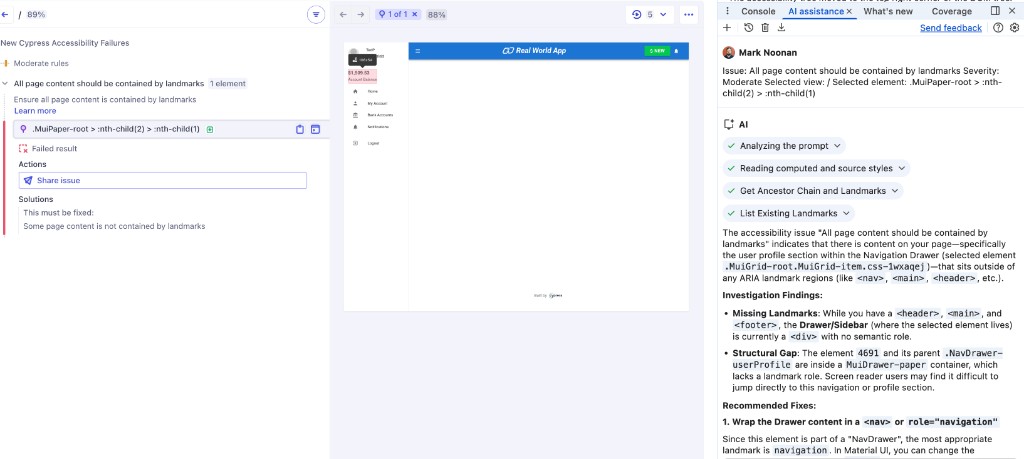
If you use Google Chrome, you might have noticed the Gemini AI debugging assistant. Since Cypress Cloud provides fully rendered DOM snapshots for accessibility issues, you are only a few clicks from a debugging session with Chrome Developer Tools.
Here are the steps to follow for this process:
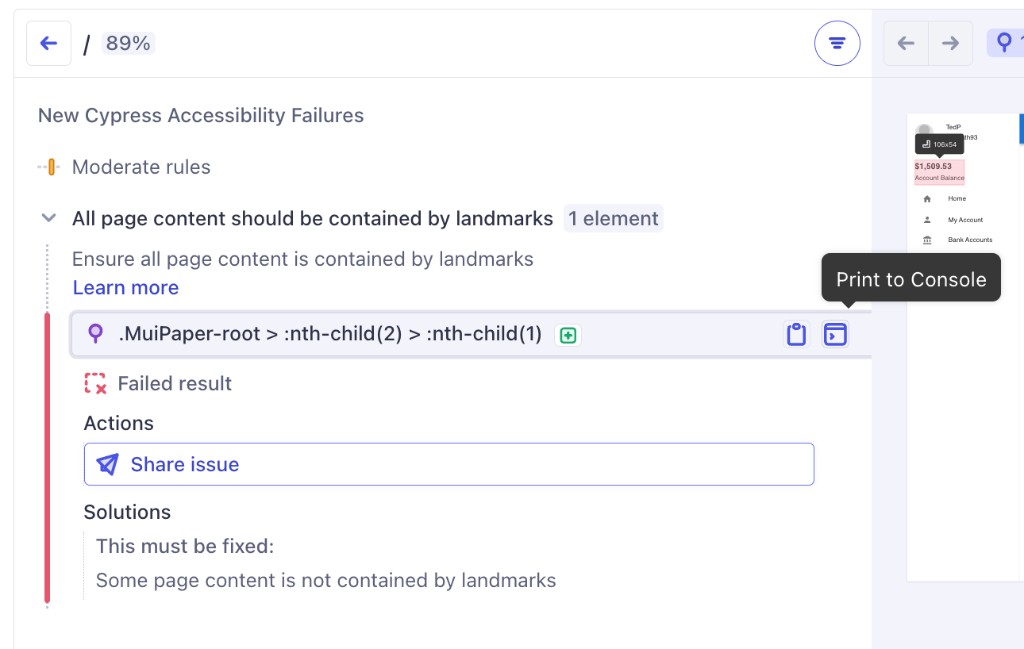
1. Click the Print-to-Console shortcut
This logs the exact element reference to your developer console, avoiding any need to inspect or move around the DOM manually, or use search tools to locate your element.
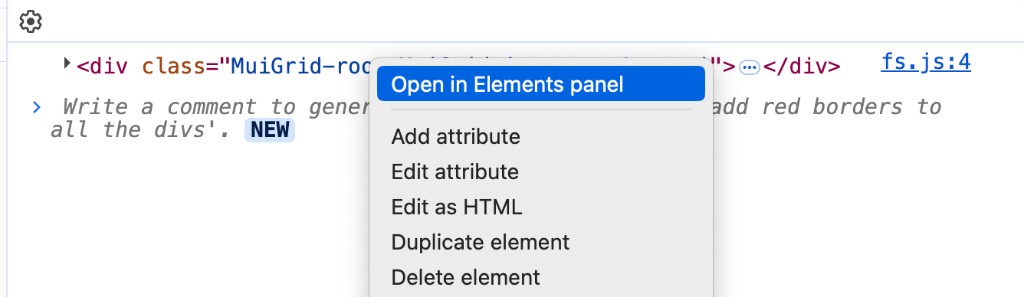
2. Move to the Elements panel
Right-click the element in the console and choose "Open in Elements panel". This will take you to the full DOM view with the element highlighted. You need to be here for the AI chat to correctly start with the element reference.
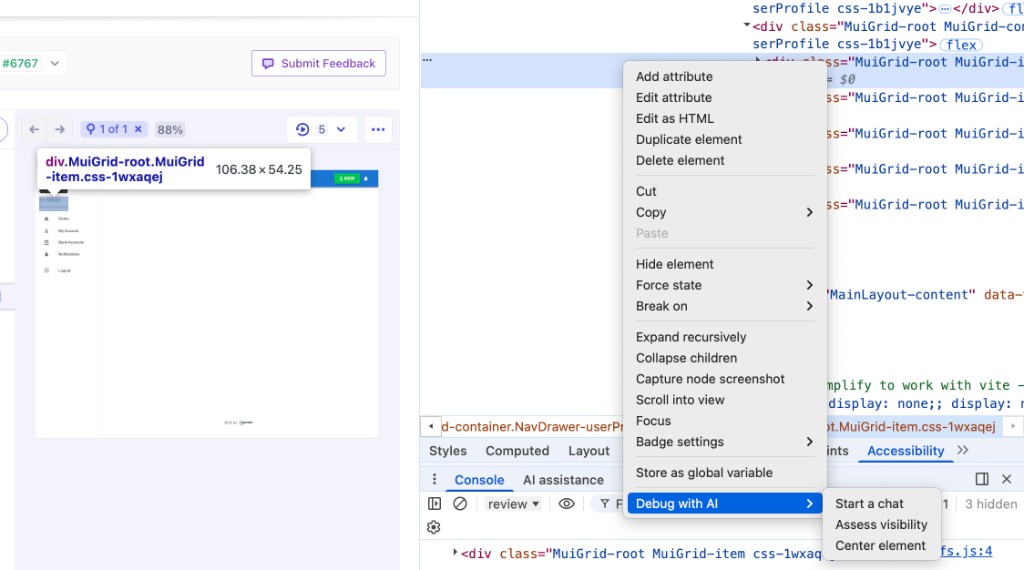
3. Start a chat about this element
Right-click the highlighted element and choose "Debug with AI" and then "Start a chat". This will open the chat with this specific element.
4. Ask about the issue
Use the "Share button" or copy the rule that is failing into the chat, and Gemini can explore the DOM, explain the rule in more detail, and offer solution options.