Prioritize identifying attributes - significantAttributes
The significantAttributes configuration adds your own HTML attributes to the priority list Cypress Accessibility uses to identify elements. Attributes you list are checked before the default test attributes, in the order you list them.
Cypress Accessibility identifies each element with a stable selector, replacing the default Axe-Core® target, so that results for the same element can be deduplicated across the many snapshots captured in a run. That selector is built from a prioritized list of attributes: test attributes like data-cy and data-testid first, then fallbacks like id and name. Your application may already have attributes that describe elements better than anything in that list, such as a data-component attribute from your design system or a data-automation-id your team maintains. Listing them in significantAttributes makes Cypress Accessibility prefer them, so violation targets read in your team's vocabulary when reviewing violation details, creating Jira issues, or handing selectors to AI tools, and deduplication is driven by values that stay stable across snapshots.
Why use significantAttributes?
- Use attributes your application already has: If your components render an attribute like
data-component, Cypress Accessibility can identify elements by it. No new markup required. - Make violation targets easier to locate and fix: A selector like
[data-component="SearchInput"]tells whoever picks up the issue exactly which component to open, where a generated selector doesn't. - Promote one of the default attributes: The defaults are checked in a fixed order (
data-cybeforedata-qa, for example). If your application standardizes ondata-qa, listing it moves it to the front of the line. - Improve deduplication: When the highest-priority attribute an element has is dynamic, the same element can be counted more than once across snapshots. A stable attribute of yours, placed above the rest, keeps it one element.
significantAttributes changes which attributes are preferred. To stop a dynamic attribute from being used at all, use attributeFilters. To require component-identifying attributes in every selector, in addition to the identifying attribute, see components.
Scope
Note: setting significantAttributes at the root of your configuration impacts both Cypress Accessibility and UI Coverage reports. To configure the products separately, nest the property under an accessibility or uiCoverage key. A nested significantAttributes completely replaces a root-level one for that product; the two lists are not merged.
Setting significantAttributes
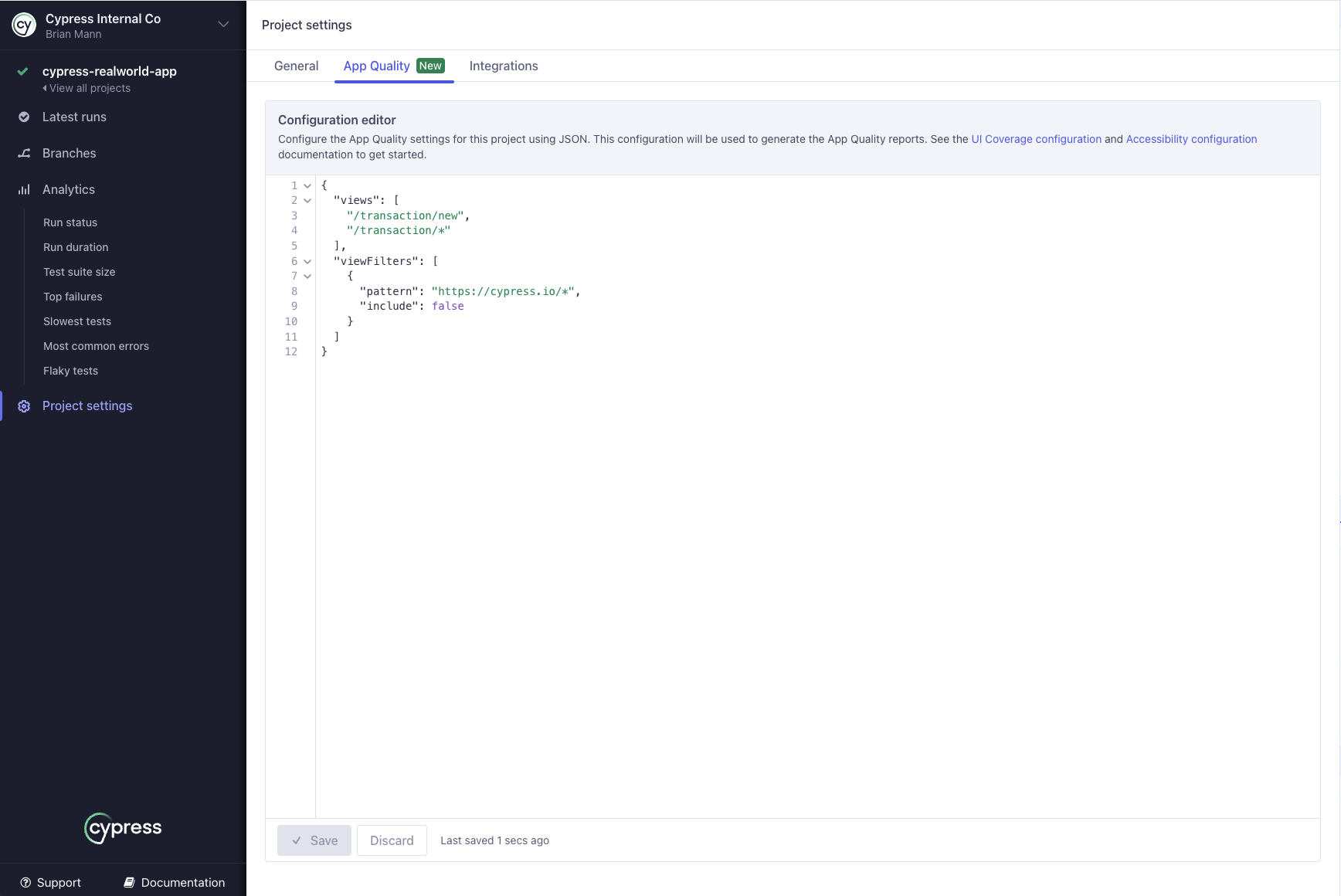
To add or edit significantAttributes, open the App Quality tab in your project settings in Cypress Cloud. See Setting configuration for details, including how to regenerate past reports with a new configuration without rerunning your tests.
Syntax
{
  "significantAttributes": [string]
}
To apply the list to Cypress Accessibility only, nest the property under the accessibility key:
{
  "accessibility": {
    "significantAttributes": [string]
  }
}
Each entry is the name of an HTML attribute, such as "data-component" or "aria-label". Any valid HTML attribute qualifies, not only data-* attributes. Entries are attribute names only: not CSS selectors, not regular expressions, and not attribute values.
How are significant attributes applied?
For each element with accessibility results, Cypress Accessibility builds a selector from one combined list of attributes, in priority order:
- Your
significantAttributes, in the order you list them - The default significant attributes, in order:
data-cy,data-test,data-testid,data-test-id,data-qa, androw-id - Fallbacks, in order:
id,name,class, the element's tag name, other attributes, and finally its position in the DOM
The first attribute that uniquely identifies the element, with a value that isn't excluded by your attributeFilters, becomes the element's selector. That selector is displayed as the violation target throughout your reports and drives how results are deduplicated across snapshots.
Keep these behaviors in mind when building your list:
- Your list is added to the defaults, not a replacement for them. An element that has none of your attributes is still identified by
data-testid,id, or whatever else it has, exactly as it would be without configuration. To stop an attribute from being used entirely, useattributeFilters; listing other attributes insignificantAttributesdoesn't disable it. - To reorder the defaults, list them. Your entries outrank every default, so
"significantAttributes": ["data-qa"]is all it takes to checkdata-qabeforedata-cy. - The attribute must identify the element uniquely. When several elements share the same attribute value, that attribute alone can't distinguish them, so the selector is built from the next candidates in the list.
- Filtered values are skipped, not final. When an
attributeFiltersrule excludes the value of a higher-priority attribute, Cypress Accessibility moves on to the next attribute in the list. The two properties work together:significantAttributessets the preference order, andattributeFiltersremoves unusable values from consideration.
Validation rules
Cypress Cloud rejects a configuration when:
- An entry isn't a valid HTML attribute name. Names can't contain spaces, quotes, or the characters
>,/, and=. - The same attribute name appears twice in the list.
- An entry isn't a plain string, for example an object.
Examples
Identify violation targets by a component attribute
Your configured attribute outranks the defaults, so the image with a missing alt attribute is reported under data-component even though data-testid is also present, and the issue reads as "the ProductImage component" instead of a test ID.
Config
{
  "significantAttributes": ["data-component"]
}
HTML
<body>
  <img data-component="ProductImage" data-testid="product-42-img" src="product.png" />
</body>
Result
The violation target selector displayed in the report:
[data-component="ProductImage"]
List several attributes in priority order
significantAttributes is a list, so you can prioritize more than one attribute. They're checked in the order you write them, and each element is identified by the first attribute it has. This helps when different parts of your application use different conventions.
Config
{
  "significantAttributes": ["data-qa", "data-component"]
}
HTML
<body>
  <button data-qa="save" data-component="SaveButton">Save</button>
  <button data-component="CancelButton">Cancel</button>
</body>
Result
The Save button has both attributes, so data-qa, listed first, identifies it. The Cancel button has only data-component, so that identifies it instead:
[data-qa="save"]
[data-component="CancelButton"]
Review aria-label wording while you triage
Significant attributes aren't limited to data-* attributes; any HTML attribute qualifies, including aria-label. Listing it identifies elements by their label text throughout the report.
This adds a manual check on top of the automated one. Cypress Accessibility can confirm that a control has an accessible name, but not that the name is understandable, so aria-label="button" satisfies the name-presence rules exactly like aria-label="Close dialog". When aria-label is a significant attribute, the elements you review are shown by their label text, so an unclear label is visible as you triage rather than hidden behind a generated selector. To read the wording of every labeled control, not only those with accessibility results, set aria-label at the root of your configuration so UI Coverage lists them all.
Config
{
  "significantAttributes": ["aria-label"]
}
HTML
<body>
  <button aria-label="Close dialog"><i class="icon-x"></i></button>
  <button aria-label="button"><i class="icon-x"></i></button>
</body>
Result
Both labels satisfy the automated name-presence check, and the elements are shown in the report by their label text, where the vague second label is easy to catch:
[aria-label="Close dialog"]
[aria-label="button"]
Because the label text becomes the identifier, aria-label values that are localized or include dynamic content, such as an unread count, change between snapshots and split one element into several. Choose it when the labels you want to review are stable.
Promote a default attribute
Both defaults are present, and by default data-cy would win. Listing data-qa moves it above every default, so it identifies the element instead.
Config
{
  "significantAttributes": ["data-qa"]
}
HTML
<body>
  <input data-cy="widget-4172" data-qa="search-input" />
</body>
Result
The violation target selector displayed in the report:
[data-qa="search-input"]
Deduplicate an element with a dynamic ID
This button's id is regenerated on every page load, and it has no test attribute, so by default each snapshot produces a different selector and the same violation is counted against what looks like a new element. The data-automation-id your team maintains is stable, and listing it makes every snapshot resolve to one element.
Config
{
  "significantAttributes": ["data-automation-id"]
}
HTML
<!-- Snapshot 1 -->
<button id="btn-829142" data-automation-id="checkout-submit"></button>

<!-- Snapshot 2 -->
<button id="btn-107563" data-automation-id="checkout-submit"></button>
Result
Without the configuration, the report can show the same empty button twice, as #btn-829142 and #btn-107563. With it, one element is reported:
[data-automation-id="checkout-submit"]
Since the dynamic id values still exist, also consider an attributeFilters rule that excludes them, so they can't identify any element, including elements without your attribute.
After saving configuration changes, regenerate a recent run to preview the effect of your rules without rerunning your tests. See Setting configuration for how to regenerate a report.
See also
- Element identification: how elements are identified across snapshots.
attributeFilters: stop dynamic or generated attribute values from identifying elements.components: require component-identifying attributes in violation target selectors.elementFilters: ignore elements in reports entirely.- Configuration overview: where to set configuration and regenerate reports.
- Cypress Accessibility FAQ: common questions and troubleshooting.