Cloud CLI: Debug from your terminal
The Cypress Cloud CLI (cy-cloud) brings your Cypress Cloud data to the command line. Check the status of a CI run, pull the screenshot of a failed test, or review the exact commands, network calls, and console logs captured by Test Replay that led to a failure, all without opening a browser.
Every command returns structured JSON, so the CLI is equally at home in a shell script, a CI job, or an AI coding agent.
The Cloud CLI is available on every Cypress Cloud plan, including the free Starter plan, at no additional cost.
Why the Cloud CLI
Getting to the root cause of a CI failure is the slow part. Before you can fix a failing test you have to triage it: find the run, open the right test, read the error, and reconstruct what the app was doing when it broke. That usually means leaving your editor, signing in to Cypress Cloud, clicking to the run, finding the failing spec and test, then piecing the story together from Test Replay.
The Cloud CLI removes that round trip. It exposes the same Cloud data you would click through, as commands you can pipe, script, and compose:
- Stay in your terminal. List failing runs, drill into failing tests, and read errors and stack traces from the shell.
- Review what a test did. Query the Test Replay timeline for a specific attempt, scoped to the commands, network requests, and logs around the point of failure.
- See what happened. Use the Test Replay view to see exactly what your app looked like at every moment of your test.
- Automate it. Because output is JSON, you can wire the CLI into scripts, dashboards, and custom tooling.
- Hand it to an agent. The CLI is designed for both humans and AI agents, so your coding assistant can gather the same context you would.
- Grab a failure screenshot. Save the screenshot Cypress captured at the moment a test failed straight to disk.
How it works
The CLI authenticates you against Cypress Cloud, then calls the Cypress Cloud API on your behalf. Data you retrieve is scoped to the same organizations, teams, and projects your Cypress Cloud user can already see. Access follows your role and team assignments, so the CLI never returns a project you could not open in the Cloud UI.
- Authenticate once with
cy-cloud login(OAuth) or a personal access token. - Query your Cloud data with commands like
run list,test get, andreplay timeline. - Receive JSON on standard output, ready to read, pipe, or parse.
Replay data is downloaded once and cached locally, so repeated queries against the same test are fast and do not re-download data.
The Cloud CLI reads recorded run data. Your tests still run and record the same way they do today, using cypress run --record. See Recording Cloud Runs if you have not set up recording yet.
Configure the Cloud CLI
Set up the CLI once: confirm you meet the requirements, enable the integration for your organization, install the cy-cloud command, and authenticate.
Requirements
To use the Cloud CLI you must:
- Have a Cypress Cloud account.
- Have the Cloud CLI integration enabled for your organization. An organization admin enables it from the organization's Integrations page in Cypress Cloud.
- Be running Node.js
22.21.0or later.
Enable for your organization
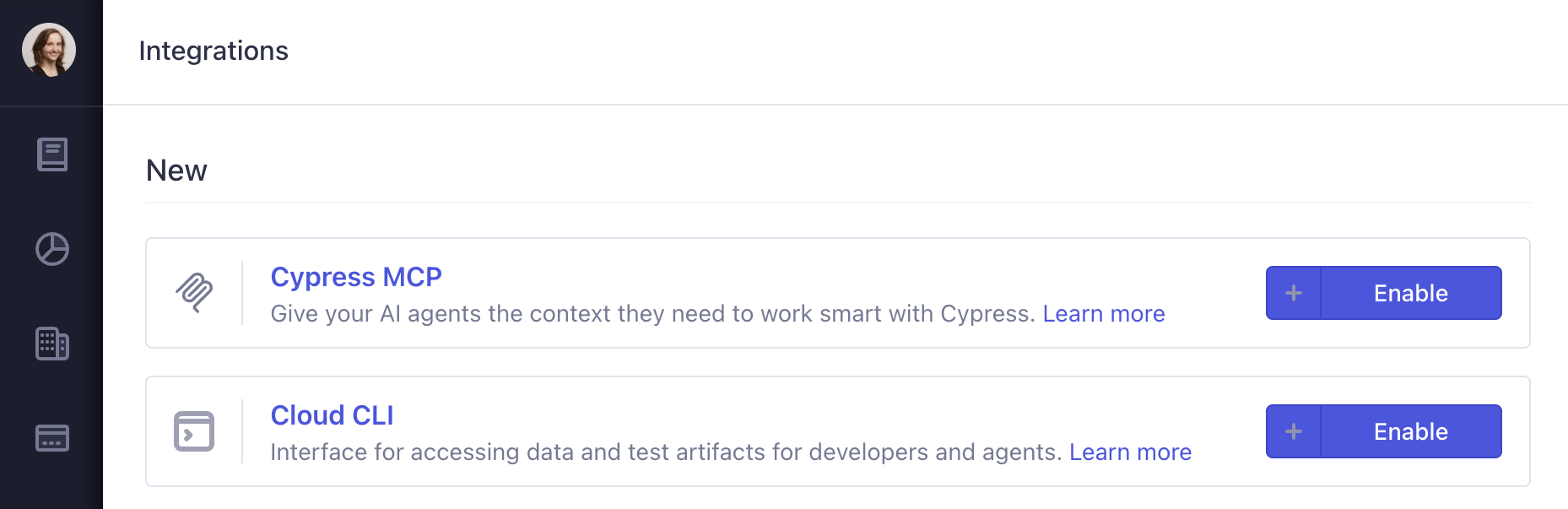
The Cloud CLI is an organization integration. An organization admin turns it on once from the organization's Integrations page in Cypress Cloud: find Cloud CLI and select Enable. Once enabled, any member can authenticate and use the CLI within that organization, scoped to their own role and team permissions.
Install
Install @cypress/cloud globally to get the cy-cloud command:
- npm
- Yarn
- pnpm
- Bun
npm install --global @cypress/cloud
yarn global add @cypress/cloud
pnpm add --global @cypress/cloud
bun add --global @cypress/cloud
Confirm the install and see every available command:
cy-cloud --help
Every command and subcommand also supports --help, so you can explore the CLI as you go:
cy-cloud run list --help
Keep the CLI updated
Always run the latest version. Check your version any time with cy-cloud version, and upgrade to the latest release regularly:
- npm
- Yarn
- pnpm
- Bun
npm install --global @cypress/cloud@latest
yarn global add @cypress/cloud@latest
pnpm add --global @cypress/cloud@latest
bun add --global @cypress/cloud@latest
Authenticate
You can authenticate in three ways. OAuth is recommended for local use; a token in an environment variable is best for CI.
OAuth (recommended)
Running login with no arguments starts a browser-based sign-in. It opens Cypress Cloud in your browser, you approve the request, and your session is stored securely on your machine. OAuth sessions refresh automatically, so you do not manage token expiry yourself.
cy-cloud login
Your browser opens a Cypress Cloud authorization page. Confirm the signed-in account and select Allow to grant the CLI access for the next 30 days.
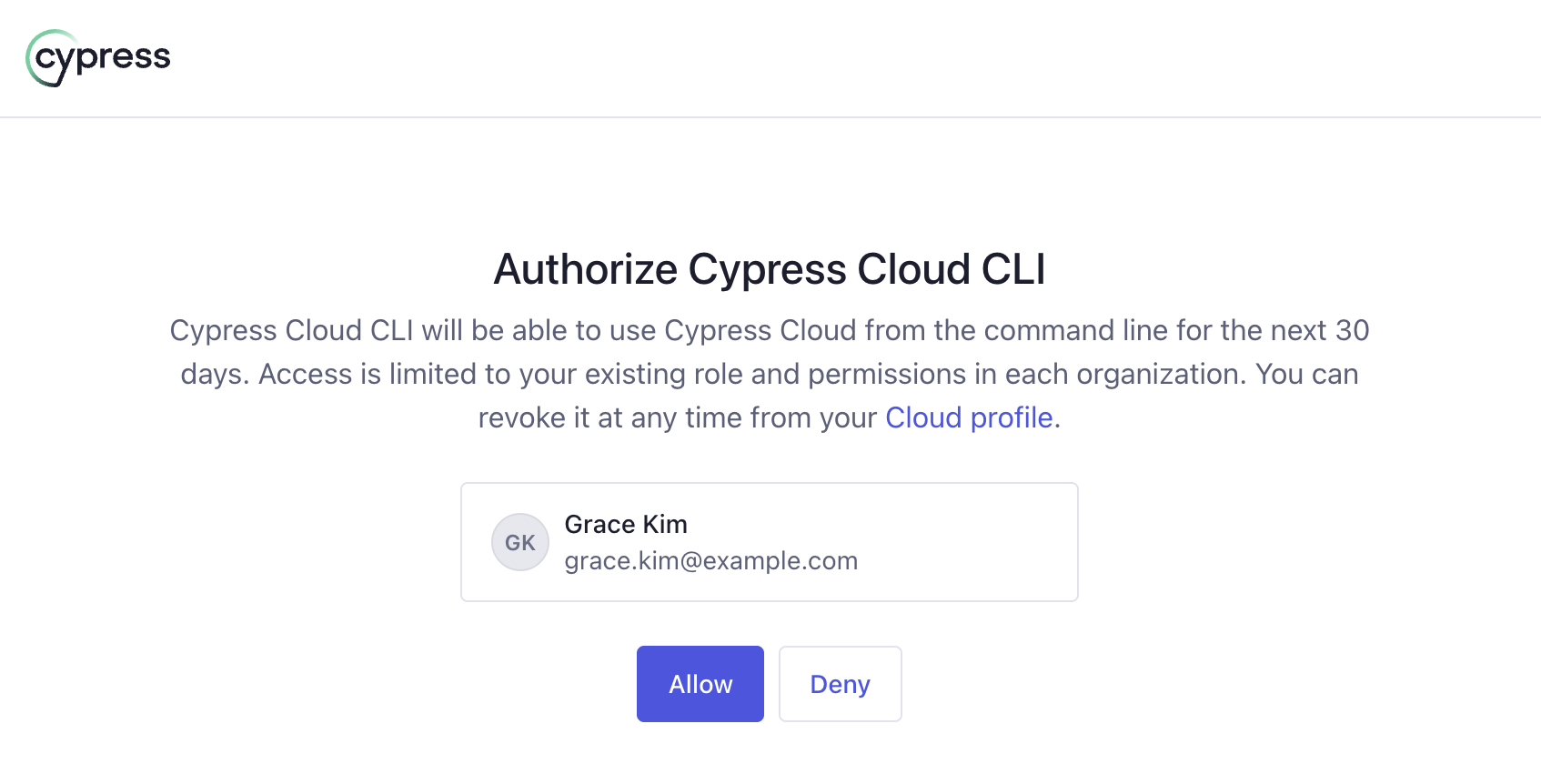
If the browser does not open automatically, the CLI prints a URL you can open manually. You can set how many seconds the CLI waits for the sign-in to complete (the default is 120 seconds):
cy-cloud login --timeout 180
Personal access token
A personal access token (PAT) authenticates you without a browser, which makes it the right choice for CI, remote shells, and any environment where the OAuth browser flow is not available. Access is scoped to your role and permissions in each organization.
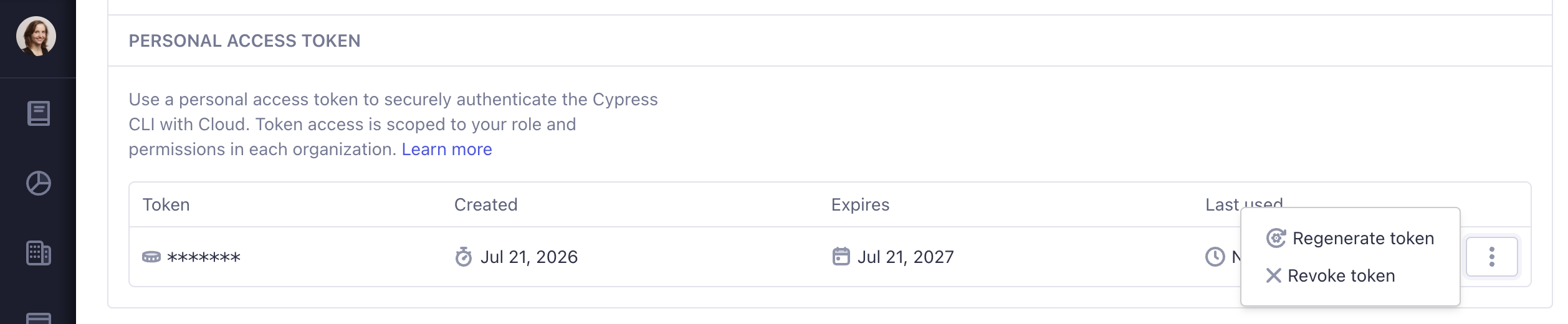
Generate a token from your Cypress Cloud profile: in the Cloud CLI access section, under Personal access token, select Generate token, choose an expiration, and copy the token (it is shown only once).
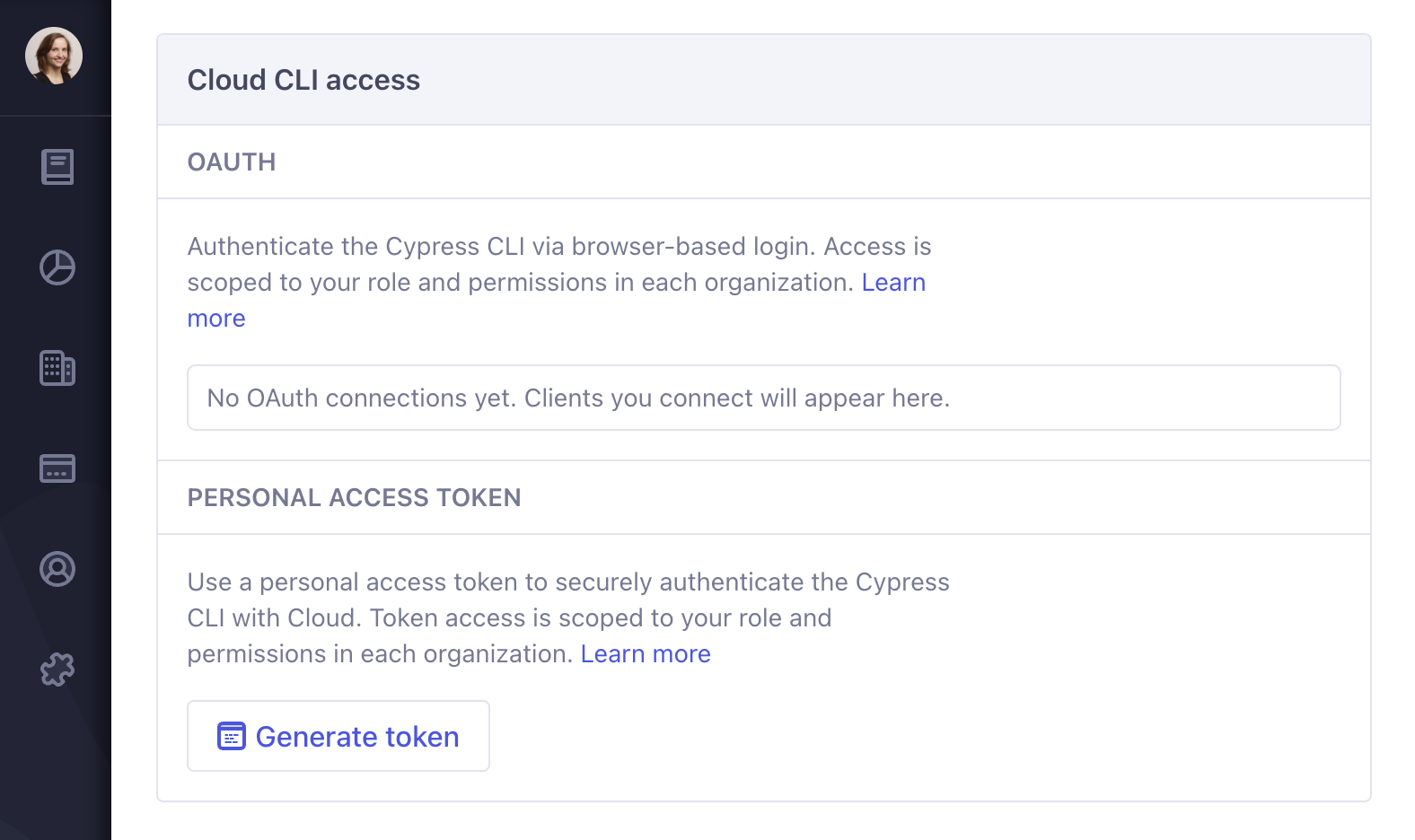
Pass the token to login to store it. The CLI checks the token with Cypress Cloud and, if it is valid, saves it to a credentials file (~/.config/cy-cloud/auth.json, readable only by your user) so later commands reuse it without you passing it each time:
cy-cloud login --token <YOUR_PERSONAL_ACCESS_TOKEN>
For CI and other non-interactive environments, set the token as the CYPRESS_CLOUD_TOKEN environment variable instead. This authenticates without a login step and without writing any credentials to disk, and it takes precedence over any stored credentials:
- macOS / Linux
- Windows
export CYPRESS_CLOUD_TOKEN=<YOUR_PERSONAL_ACCESS_TOKEN>
cy-cloud run list --projectId <projectId>
set CYPRESS_CLOUD_TOKEN=<YOUR_PERSONAL_ACCESS_TOKEN>
cy-cloud run list --projectId <projectId>
$env:CYPRESS_CLOUD_TOKEN = "<YOUR_PERSONAL_ACCESS_TOKEN>"
cy-cloud run list --projectId <projectId>
cy-cloud logout clears credentials stored by login. It does not unset CYPRESS_CLOUD_TOKEN. If that variable is set, you remain authenticated through it until you unset it.
Check your sign-in
Confirm you are signed in at any time with cy-cloud status, which reports authenticated, the method in use, and, for OAuth, when the session refreshes:
cy-cloud status
{
  "authenticated": true,
  "method": "oauth",
  "expiresAt": "2026-07-21T18:30:00.000Z"
}
Revoke access
cy-cloud logout clears the credentials stored on your machine, but the underlying session or token stays valid until it expires. To revoke access entirely, open your Cypress Cloud profile and revoke the credential under Cloud CLI access. Revoking there invalidates it everywhere, including anywhere it is still stored locally.
To revoke an OAuth session, find it under OAuth and select Revoke connection.
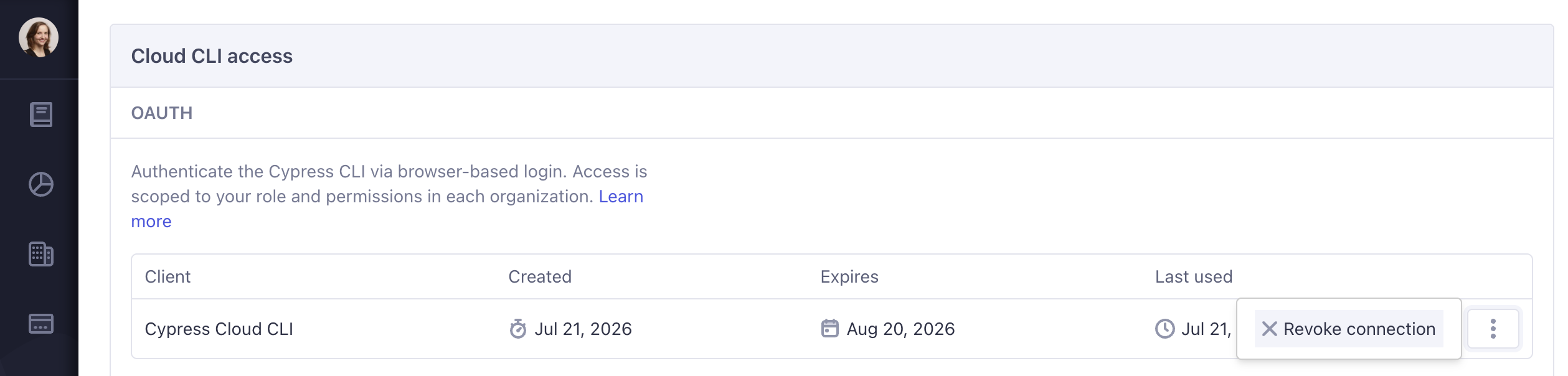
To revoke a personal access token, find it under Personal access token and select Revoke token, or Regenerate token to replace it.
Command reference
Most data commands live under a top-level noun (org, project, run, spec, test, replay, cache), each with subcommands such as list and get. For example, cy-cloud run list lists runs. Each data command returns JSON on standard output.
| Command | What it does |
|---|---|
cy-cloud org list | List the organizations you belong to. |
cy-cloud project list | List the projects you can access. |
cy-cloud project get | Get details for a specific project. |
cy-cloud run list | List runs for a project. |
cy-cloud run get | Get details for a specific run. |
cy-cloud spec list | List specs for a run, or by spec ID. |
cy-cloud spec get | Get details for a specific spec. |
cy-cloud test list | List tests for a run, spec, or test ID. |
cy-cloud test get | Get details for a specific test. |
cy-cloud replay info | Summarize a test's replay event counts. |
cy-cloud replay timeline | Query a test's replay timeline of events. |
cy-cloud replay view | Open a test replay in the browser to inspect your app. Requires cy-cloud 0.4.0+. |
cy-cloud status | Print your authentication state and Cloud status. |
cy-cloud version | Print the CLI version and whether an upgrade is required. |
cy-cloud login | Sign in to Cypress Cloud. |
cy-cloud logout | Clear stored credentials. |
cy-cloud cache info | Print the local Test Replay cache location and size. |
cy-cloud cache clear | Remove everything from the cache. |
cy-cloud cache cleanup | Delete expired and oversized cache entries. |
Pagination and filtering
Every list command returns one page of results plus a pagination object describing the full result set.
--limitsets how many items to return per page. The default is 30 and the maximum is 100.--pageselects which page to return, starting at 1 (the default).- The response's
paginationobject reports the effectivepage,perPage, and thetotalnumber of matching items, so you can tell how many results exist and whether more pages remain.
Filters that accept multiple values (--status, --branch, --specId, --testId, --orgId) take a comma-separated list, and you can combine any of them with --page and --limit.
To walk an entire result set, request the largest page you can (--limit 100), then keep incrementing --page until a page returns fewer than --limit items, or until you have collected pagination.total items:
cy-cloud test list --projectId <projectId> --runNumber <runNumber> --limit 100 --page 1
cy-cloud test list --projectId <projectId> --runNumber <runNumber> --limit 100 --page 2
cy-cloud org list
List the organizations your account belongs to, sorted alphabetically by name. Use this to find the organization uuid you need for other commands.
cy-cloud org list
Prints the organizations you belong to, each with the uuid you pass to other commands:
{
  "organizations": [
    { "uuid": "8a7f0b2c-1d3e-4f5a-9b6c-2d1e0f3a4b5c", "name": "Acme Corp" },
    { "uuid": "1b2c3d4e-5f6a-7b8c-9d0e-1f2a3b4c5d6e", "name": "Acme Labs" }
  ]
}
cy-cloud project list
List every project you can access, sorted alphabetically by name:
cy-cloud project list
Each project includes its projectId and name:
{
  "projects": [
    { "projectId": "abc123", "name": "design-system" },
    { "projectId": "def456", "name": "storefront" }
  ]
}
Or list projects in specific organizations:
cy-cloud project list --orgId <orgId1>,<orgId2>
cy-cloud project get
Get details for a single project by its project ID (the projectId from your Cypress configuration):
cy-cloud project get --projectId <projectId>
The response also includes the project's latest run ids:
{
  "projectId": "abc123",
  "name": "design-system",
  "latestRunId": 4021,
  "latestCompletedRunId": 4020
}
cy-cloud run list
List runs for a project, returned most recent first. Filter by branch and status to find the run you care about, for example the most recent failed run on main:
cy-cloud run list --projectId <projectId> --branch main --status failed --limit 1
Each run includes its number, branch, timestamps, and status:
{
  "runs": [
    {
      "runNumber": 4021,
      "branch": "main",
      "createdAt": "2026-07-21T02:14:05.000Z",
      "completedAt": "2026-07-21T02:19:44.000Z",
      "status": "failed"
    }
  ]
}
--status accepts passed, failed, running, errored, timedOut, cancelled, and noTests (comma-separate to combine).
cy-cloud run get
Get details for a specific run by project ID and run number:
cy-cloud run get --projectId <projectId> --runNumber <runNumber>
The details surface the commit SHA, per-status test counts, and duration in milliseconds:
{
  "runNumber": 4021,
  "branch": "main",
  "createdAt": "2026-07-21T02:14:05.000Z",
  "completedAt": "2026-07-21T02:19:44.000Z",
  "status": "failed",
  "gitSha": "9f2c1a7e4b",
  "pendingCount": 0,
  "failedCount": 2,
  "passedCount": 418,
  "skippedCount": 1,
  "duration": 339000
}
cy-cloud spec list
List specs for a run, or look up specs by ID. Provide a project ID together with a run number, or one or more spec IDs. Listed by run, specs come back in the order they ran; looked up by --specId, they follow the order of the IDs you pass.
List the failing specs in a run:
cy-cloud spec list --projectId <projectId> --runNumber <runNumber> --status failed
Each spec includes its id, status, filepath, and whether Cypress Cloud has flagged it as flaky:
{
  "specs": [
    {
      "id": "3f9a2b1c-4d5e-6f7a-8b9c-0d1e2f3a4b5c",
      "status": "failed",
      "flaky": false,
      "path": "cypress/e2e/checkout.cy.ts"
    }
  ]
}
--status accepts passed, failed, running, errored, timedOut, cancelled, and noTests (comma-separate to combine).
Filter to only flaky specs with --onlyFlaky. This requires a Cypress Cloud plan with Flaky Test Management; without one, the command returns an error.
cy-cloud spec list --projectId <projectId> --runNumber <runNumber> --onlyFlaky
Or look up specific specs by ID:
cy-cloud spec list --specId <specId1>,<specId2>
cy-cloud spec get
Get details for a single spec:
cy-cloud spec get --specId <specId>
{
  "id": "3f9a2b1c-4d5e-6f7a-8b9c-0d1e2f3a4b5c",
  "status": "failed",
  "startedAt": "2026-07-21T02:15:10.000Z",
  "duration": 48200,
  "totalPassed": 11,
  "totalFailed": 1,
  "totalPending": 0,
  "path": "cypress/e2e/checkout.cy.ts"
}
cy-cloud test list
List tests for a run, or look them up by spec or test ID. As with specs, provide a project ID together with a run number, or narrow with --specId or --testId. Tests are returned in the order they ran within the run.
List the failing tests in a run:
cy-cloud test list --projectId <projectId> --runNumber <runNumber> --status failed
Each test includes its title parts, spec, status, whether Cypress Cloud has flagged it as flaky, a Test Replay URL (when available), and, for failures, the error and stack trace per attempt:
{
  "tests": [
    {
      "projectId": "abc123",
      "runNumber": 4021,
      "specFilepath": "cypress/e2e/checkout.cy.ts",
      "specName": "checkout.cy.ts",
      "testName": ["Checkout", "applies a discount code"],
      "testId": "7c1e9d20-5a3b-4c8d-9e0f-1a2b3c4d5e6f",
      "testReplayUrl": "https://cloud.cypress.io/projects/abc123/runs/4021/overview/7c1e9d20",
      "browserName": "Chrome",
      "status": "failed",
      "flaky": false,
      "attempts": [
        {
          "attemptNumber": 1,
          "errorName": "AssertionError",
          "errorMessage": "expected '.cart-total' to have text '$45.00'",
          "stackTrace": "at Context.eval (webpack:///./cypress/e2e/checkout.cy.ts:42:7)"
        }
      ]
    }
  ]
}
Or list tests within specific specs:
cy-cloud test list --specId <specId>
--status accepts passed, failed, pending, skipped, running, errored, timedOut, and cancelled (comma-separate to combine).
Filter to only flaky tests with --onlyFlaky. This requires a Cypress Cloud plan with Flaky Test Management; without one, the command returns an error.
cy-cloud test list --projectId <projectId> --runNumber <runNumber> --onlyFlaky
cy-cloud test get
Get details for a single test, including its error and stack trace:
cy-cloud test get --testId <testId>
The single-test response adds the resolved attempt (1-indexed), runnerId, and duration:
{
  "projectId": "abc123",
  "runNumber": 4021,
  "specFilepath": "cypress/e2e/checkout.cy.ts",
  "specName": "checkout.cy.ts",
  "testName": ["Checkout", "applies a discount code"],
  "testId": "7c1e9d20-5a3b-4c8d-9e0f-1a2b3c4d5e6f",
  "testReplayUrl": "https://cloud.cypress.io/projects/abc123/runs/4021/overview/7c1e9d20",
  "browserName": "Chrome",
  "status": "failed",
  "attempts": [
    {
      "attemptNumber": 1,
      "errorName": "AssertionError",
      "errorMessage": "expected '.cart-total' to have text '$45.00'",
      "stackTrace": "at Context.eval (webpack:///./cypress/e2e/checkout.cy.ts:42:7)"
    }
  ],
  "attempt": 1,
  "runnerId": "r3-88f2",
  "duration": 5200
}
Save the failure screenshot for a test. Pass --screenshot on its own to write to a temporary directory, or give it a path to choose the destination:
cy-cloud test get --testId <testId> --screenshot ./screenshots
The output is the same test object shown above, with a failureScreenshotPath pointing to the saved file (other fields omitted here):
{
  "testId": "7c1e9d20-5a3b-4c8d-9e0f-1a2b3c4d5e6f",
  "status": "failed",
  "attempt": 1,
  "failureScreenshotPath": "./screenshots/7c1e9d20-5a3b-4c8d-9e0f-1a2b3c4d5e6f-attempt-1-failure.png"
}
If the test passed, or no failure screenshot exists, the output includes a failureScreenshotReason instead and writes no file (other fields omitted here):
{
  "testId": "b4d1f0a2-6c7e-4a9b-8d3f-5e2c1a0b9d8e",
  "status": "passed",
  "failureScreenshotReason": "test passed"
}
cy-cloud replay info
Test Replay captures the commands, network traffic, and console logs for a test. The replay commands let you query that timeline for a single test attempt.
Replay attempts are 1-indexed to match the Cypress Cloud dashboard, where the first run of a test is Attempt 1. When you omit --attempt, replay commands default to the last (most recent) attempt, which is the final retry for a test that was retried.
Get a summary of a replay, including how many command, network, and log events it holds and where the failure occurred:
cy-cloud replay info --testId <testId>
The summary reports the event counts and where the failure occurred:
{
  "runnableId": "7c1e9d20-5a3b-4c8d-9e0f-1a2b3c4d5e6f",
  "attemptId": 1,
  "commandEvents": 214,
  "networkEvents": 38,
  "logs": 12,
  "failedAt": 1753063204120
}
The first time you query a test's replay, the CLI downloads and caches the replay database and prints its progress before the summary:
Resolving replay... 52e51732-06d6-4fdb-ac31-640a8acebf31
Replay resolved.
Downloading replay data... f4e3f7559ec3d28e63993fa084fe1f6a62e4b1483c320292b822968cf205f959
Download complete.
Replay data ready, caching...
Replay data cached.
Later queries for the same test read from the cache and skip the download.
Because replay data is cached locally after the first download, repeated replay info, replay timeline, and replay view queries for the same test run entirely against the local cache and do not count against your usage limit. The first query for a test makes a request that counts. Requests for assets in replay view are batched and cached so only the first use makes a request that counts.
cy-cloud replay timeline
Query the replay timeline. By default the timeline is broad, so scope it to what you need. Include --commands, --logs, and --network to choose event types, and narrow to the failure with --failedOnly or --aroundFailure.
Get the five commands leading up to the failure, plus the failed command:
cy-cloud replay timeline --testId <testId> --commands --aroundFailure 5
Events come back in a single events array. Each carries a category of command, network, or log, so you can tell them apart:
{
  "events": [
    {
      "category": "command",
      "commandId": "c-118",
      "type": "assertion",
      "name": "assert",
      "runnableId": "7c1e9d20-5a3b-4c8d-9e0f-1a2b3c4d5e6f",
      "attempt": 1,
      "startTimestamp": 1753063204120,
      "endTimestamp": 1753063208120,
      "state": "failed",
      "message": "expected '.cart-total' to have text '$45.00'",
      "hookId": null
    }
  ]
}
Or include command, network (XHR and Fetch), and console log events for an attempt:
cy-cloud replay timeline --testId <testId> --commands --network --logs
The events array now also holds network and log entries alongside the commands, each tagged by its category:
{
  "events": [
    {
      "category": "network",
      "id": "n-42",
      "timestamp": 1753063205000,
      "url": "https://api.example.com/cart",
      "method": "POST",
      "request": { "headers": { "content-type": "application/json" } },
      "response": {
        "status": 500,
        "headers": { "content-type": "application/json" }
      }
    },
    {
      "category": "log",
      "id": 7,
      "type": "console",
      "timestamp": 1753063205200,
      "payload": "Uncaught TypeError: Cannot read properties of undefined (reading 'total')"
    }
  ]
}
Useful replay timeline options:
| Option | Description |
|---|---|
--testId | The test to replay (required). |
--attempt | Attempt number (1-indexed). Defaults to the last (most recent) attempt. |
--commands | Include Cypress command events. |
--network | Include network events by type, comma-separated. Defaults to XHR,Fetch. |
--logs | Include console log events. |
--failedOnly | Return only failed command events. |
--aroundFailure | Return N commands before the failure, plus the failed command. |
--page / --limit | Paginate through the timeline. |
--network accepts standard resource types, including XHR, Fetch, Document, Script, Stylesheet, Image, Font, WebSocket, and All.
If a test's replay data is not available (for example, it is still processing or was not captured), replay commands return an error like Failed to download replay: Replay "<testId>" not available. Confirm Test Replay was enabled for the run and that it is within your data retention window.
cy-cloud replay view
Launch Test Replay in a browser and inspect your application throughout the test lifecycle. Query for specific elements, accessibility tree state, and generate screenshots.
replay view requires cy-cloud version 0.4.0 or later. Check your version with cy-cloud version and upgrade if you are on an older release.
Your system must have a Chromium-family browser installed to use replay view. The CLI will attempt to locate one automatically; you can target a specific instance by defining a CYCLOUD_CHROMIUM_PATH environment variable.
Launch a Test Replay, navigate to the moment the test failed, and capture a screenshot:
cy-cloud replay view open --testId <testId>
cy-cloud replay view move --time failure
cy-cloud replay view screenshot
You can have multiple replay viewers open at the same time. Identify which to target using the --testId or --testResultUrl flag. If you don't provide a testId commands will be directed to the most-recently-opened viewer. Only one instance of a given testId can be open at once - that viewer will be shared by any commands targeting that test.
Identifying a target test
All subcommands provide flags to identify the test result you're interested in.
| Flag | Description |
|---|---|
--testId | A Cypress Cloud test UUID (cannot use with --testResultUrl) |
--testResultUrl | A Cypress Cloud URL pointing to desired test result (cannot use with --testId) |
--headless | Launch headed/headless browser (default: false) |
If no test target is specified all control and query subcommands default to the most-recently-opened replay viewer. If a test target is provided and a viewer is not already open for that test one will automatically be opened.
Open and manage viewers
A dedicated open subcommand exists to open a viewer as a helpful starting point.
cy-cloud replay view open --testId <testId>
You can list all open viewers to help with cleanup or quickly identify different tests to target.
cy-cloud replay view list
Once you're done with a viewer you can close it to release any resources it's consuming.
cy-cloud replay view close --testId <testId>
Replay viewers take time to launch. It is much faster to open a test once and perform multiple queries than it is to open and close one repeatedly. Conversely, viewers consume memory while they remain open, so it is advisable to close one as soon as you're done with it. A viewer will automatically close after 5 minutes of inactivity, or when the browser tab or process is closed.
Control a viewer
You can control a viewer by sending commands via the CLI
| Subcommand | Description |
|---|---|
move | Navigate a viewer to a specific timestamp, command, or switch to a different attempt |
status | Report a viewer's current attempt, time, and pinned command |
| Flag | Description |
|---|---|
--time | start|end|failure, or a numeric timestamp. Cannot combine with pin. |
--attempt | Test attempt to navigate to (1=first attempt) |
--pin | A command ID to pin in the viewer. Optionally, specify a snapshot by suffixing with |{snapshot}, where {snapshot} is a 0-based index, before, or after. Cannot combine with time. Use replay timeline to find command IDs. |
cy-cloud replay view move --time failure
cy-cloud replay view move --attempt 2 --pin 'c-42|after'
Check where a viewer currently is at any time with status:
cy-cloud replay view status --testId <testId>
The replay viewer is fully interactive in the browser as well. After opening a viewer with the CLI you can navigate manually and use the browser DevTools to perform any manual inspections you'd like.
Query a viewer
Once you are at the moment of interest, you can query the replay for information about your app.
| Subcommand | Description |
|---|---|
dom | Serialize the HTML markup for an identified element and its descendants. |
inspect | Print detailed information about an element, including its bounding box, computed styles, attributes, and ARIA role, name, and states. |
aria | Print a representation of the accessibility (ARIA) tree for an identified element. |
Subcommands that target an element require a --selector flag with a valid CSS Selector value. The selector will be evaluated against your app and will return one of three responses:
- A "no items found" response if no matches exist.
- An "ambiguous" response if multiple matches are found. This will include generated unique selectors for the first 10 matches to assist identifying the specific instance you're interested in.
- A "match" response if a single match is found, with the requested data.
You can also request a visual record
| Subcommand | Description |
|---|---|
screenshot | Save a PNG image of the application under test at that moment. |
| Flag | Description |
|---|---|
--path | Location to save the image. Optional, defaults to current working directory named with the active viewer timestamp. |
When providing a path value it can be defined multiple ways:
- Can be a relative or absolute path
- Can identify an existing directory or a filepath
- When identifying a filepath it cannot match an existing file
- When identifying a directory the generated file will be named using the active timestamp of the viewer
- Images will be generated in PNG format and should be named accordingly
You must have filesystem permissions to the path being written to. If you see EPERM errors you may need to adjust where you trying to save the images.
cy-cloud status
Print your authentication state and Cloud status. See Authenticate for the signed-in example and field details.
cy-cloud status
When you are not signed in:
{ "authenticated": false }
cy-cloud version
Print the CLI version and whether an upgrade is required.
cy-cloud version
It reports your installed version, the latest published version, and whether your version is still supported:
{
  "version": "0.1.1",
  "latestVersion": "0.1.1",
  "status": "supported",
  "suggestedMinVersionUpgrade": null
}
cy-cloud login
Sign in to Cypress Cloud. With no arguments it starts a browser-based OAuth sign-in; pass --token to use a personal access token instead. See Authenticate for details.
cy-cloud login
On success it prints:
"Successfully logged in"
cy-cloud logout
Clear the credentials stored by login. This does not unset the CYPRESS_CLOUD_TOKEN environment variable.
cy-cloud logout
On success it prints:
"Successfully logged out"
cy-cloud cache info
Print the local Test Replay cache location, file count, and total size on disk.
cy-cloud cache info
{
  "location": "/Users/you/.cache/cy-cloud",
  "files": 12,
  "bytes": 48210432
}
cy-cloud cache clear
Remove everything from the cache.
cy-cloud cache clear
{ "success": true }
cy-cloud cache cleanup
Delete expired and oversized entries. This runs automatically as a maintenance task after commands, but you can trigger it manually. See Test Replay Caching for the size and age limits.
cy-cloud cache cleanup
It reports the cache size before and after, and how many entries it removed:
{
  "originalSize": "1.15 GB",
  "newSize": "1.02 GB",
  "expiredEntriesDeleted": 4,
  "oversizedEntriesDeleted": 1
}
Use with AI agents
Because every command returns structured JSON and exposes its output schema with --schema, the Cloud CLI is a natural tool for AI coding agents. An agent can list failing tests, read errors, and pull Test Replay timelines, then use that context to propose a fix in your editor. The workflows below are written to run by hand or to hand to an agent.
The easiest way to hand this to an agent is the cypress-cloud-cli skill from the Cypress AI Toolkit. It gives your agent the debugging know-how for cy-cloud: which attempt to replay for a flaky test, how to navigate the Test Replay timeline, and how to correlate the failed command with the network and console events around it, so it reaches a root cause instead of restating the error.
Install it with the skills CLI:
- npm
- Yarn
- pnpm
- Bun
npx skills add https://github.com/cypress-io/ai-toolkit --skill cypress-cloud-cli
yarn dlx skills add https://github.com/cypress-io/ai-toolkit --skill cypress-cloud-cli
pnpm dlx skills add https://github.com/cypress-io/ai-toolkit --skill cypress-cloud-cli
bunx skills add https://github.com/cypress-io/ai-toolkit --skill cypress-cloud-cli
or with the GitHub CLI:
gh skill install cypress-io/ai-toolkit cypress-cloud-cli
If your agent runs shell commands (for example, Claude Code, Codex CLI, or Copilot CLI), point it at cy-cloud and describe the goal in plain language. Copy one of the prompts below to get started, replacing the <projectId>, <branch>, <runNumber>, and <testId> placeholders with your own values.
Summarize the latest failure
Find the most recent failed run on a branch and explain why each test failed.
Using the cy-cloud CLI, find the most recent failed run on <branch> for project <projectId> and summarize why each failing test failed.
Debug from Test Replay
Pull the Test Replay timeline around a failure and propose a fix in your code.
With cy-cloud, pull the replay timeline around the failure for test <testId>, including commands, network requests, and console logs, then look at my code and propose a fix.
Triage a specific run
Confirm you are signed in, list the failing specs in a run, and save a failure screenshot.
Run cy-cloud status to confirm I am signed in, then list the failing specs in run <runNumber> of project <projectId> and save the first failure's screenshot to ./screenshots.
Daily failure check
Check the latest run each day and summarize any failures.
Every morning, run cy-cloud to check the latest run on <branch> for project <projectId>. If it failed, open a summary of the failing tests and their errors.
Identify visual regressions
Compare visual application state across runs.
Use cy-cloud to find test <specPath> in the two latest runs and open each in a Test Replay viewer. Move each viewer to the end of the test and capture a screenshot. Compare both screenshots and determine if significant visual changes exist between them.
For a conversational, in-editor alternative that speaks the Model Context Protocol, see Cloud MCP. Many teams use both: give a terminal-based agent the CLI, and connect an MCP client to Cloud MCP. The two are compared in the Cloud MCP FAQ.
Workflow: triage a failing run
This walkthrough puts the commands together on a common situation: the nightly run on main failed, and a checkout test is red. It takes you from a failing run to the exact cause, without opening a browser.
1. Find the failing run. Grab the most recent failed run on main and note its run number.
cy-cloud run list --projectId <projectId> --branch main --status failed --limit 1
2. List the failing tests in that run.
cy-cloud test list --projectId <projectId> --runNumber <runNumber> --status failed
3. Read the failure. Get the failing test's error and stack trace, and save its screenshot so you can see the app at the moment it broke.
cy-cloud test get --testId <testId> --screenshot ./screenshots
4. See what the replay holds. Check the replay summary to confirm where the failure occurred and how much detail is captured.
cy-cloud replay info --testId <testId>
5. Reconstruct the moment of failure. Pull the commands right before the failure, plus the network calls and console logs for the attempt. This is the same context you would scrub through in Test Replay, delivered as JSON.
cy-cloud replay timeline --testId <testId> --commands --aroundFailure 5 --network --logs
At this point you have the error, the screenshot, the commands that led up to it, and the network and console activity around it, all in your terminal. From here you can fix the test, or hand the JSON to an agent and ask it to propose a fix.
6. Verify the fix before you push. The best way to confirm the fix is to run the test locally. Start Cypress with cypress open, then use cypress tap to start the spec: pass the specFilepath returned from cy-cloud test list to cypress tap run. Then run cypress tap status to verify the updated test passed; if it isn't, your agent can use cypress tap to inspect the full report, dig into the command logs, and inspect the DOM to make corrections before recording to the Cloud.
npx cypress tap run cypress/e2e/checkout.cy.ts
npx cypress tap status
Wrap this sequence in a shell script that takes a project ID and branch, and you have a one-command "why did the last build fail" tool for your team.
Workflow: debug a flaky test
A flaky test failed and then passed on retry, so its status is passed but it has more than one attempt. This requires test retries.
1. Find the flaky tests in a run. If your plan includes Flaky Test Management, list only the tests Cypress Cloud has flagged as flaky with --onlyFlaky:
cy-cloud test list --projectId <projectId> --runNumber <runNumber> --onlyFlaky
Without that plan, spot them by attempt count instead: list the passed tests and keep only those with more than one attempt:
cy-cloud test list --projectId <projectId> --runNumber <runNumber> --status passed \
  | jq '.tests[] | select((.attempts | length) > 1) | {testId, testName, attempts}'
Each result shows the failed attempt's error next to the passing attempt, so you can read what went wrong the first time:
{
  "testId": "7c1e9d20-5a3b-4c8d-9e0f-1a2b3c4d5e6f",
  "testName": ["Checkout", "applies a discount code"],
  "attempts": [
    {
      "attemptNumber": 1,
      "errorName": "AssertionError",
      "errorMessage": "expected '.cart-total' to have text '$45.00'",
      "stackTrace": "at Context.eval (webpack:///./cypress/e2e/checkout.cy.ts:42:7)"
    },
    {
      "attemptNumber": 2,
      "errorName": null,
      "errorMessage": null,
      "stackTrace": null
    }
  ]
}
2. Compare the failing and passing attempts. Pull the Test Replay timeline for the attempt that failed, then for the one that passed, and look for the difference in timing, network, or state:
cy-cloud replay timeline --testId <testId> --attempt 1 --commands --network --logs
cy-cloud replay timeline --testId <testId> --attempt 2 --commands --network --logs
A command that ran slower, a request that returned late, or a value that differed between the two attempts usually points straight at the cause of the flake.
For flake trends across many runs, such as flake rate and your most flaky tests over time, use Flaky Test Management in Cypress Cloud. The CLI is best for inspecting and debugging the flaky tests in a specific run.
Workflow: find which command broke an element
A test can fail on an assertion far from its actual root cause. The checkout test below fails because .cart-total never updates, but the command that broke it ran several steps earlier, silently. Reading the error and stack trace tells you what failed; it does not tell you which command caused it. replay view does, by letting you pin the viewer to the exact moment before and after any single command and compare your app's state across it.
1. Find the failing test's replay timeline. Look at the commands around the failure to spot a suspect: a command that ran on or near .cart-total before the assertion failed.
cy-cloud replay timeline --testId <testId> --commands --aroundFailure 5
2. Open a viewer for the test.
cy-cloud replay view open --testId <testId>
3. Pin to the suspect command, before it ran, and inspect the element.
cy-cloud replay view move --testId <testId> --pin '<commandId>|before'
cy-cloud replay view inspect --testId <testId> --selector '[data-cy="cart-total"]'
4. Pin to the same command, after it ran, and inspect again.
cy-cloud replay view move --testId <testId> --pin '<commandId>|after'
cy-cloud replay view inspect --testId <testId> --selector '[data-cy="cart-total"]'
5. Compare the two inspect results. A difference in the box, styles, or attributes between the before and after snapshots pinpoints exactly what that command changed, whether it left the element with a stale value, an unexpected class, or a collapsed layout.
6. Close the viewer when you're done.
cy-cloud replay view close --testId <testId>
This is a different kind of answer than a failure screenshot or a broad timeline window gives you: instead of a general sense of "sometime around here," you get the state immediately before and after one specific command, so you can point at the exact step that broke your app. Hand the two inspect JSON blobs to an agent and ask it to explain the difference and propose a fix.
Output format and schemas
Every data command prints JSON to standard output, so you can pipe results into other tools. For example, print the run numbers of the last five failed runs on main with jq:
cy-cloud run list --projectId <projectId> --branch main --status failed --limit 5 \
  | jq '.runs[].runNumber'
To see the exact shape of a command's output before you parse it, add --schema. It prints the Zod-compliant JSON schema for that command's output and makes no network call:
cy-cloud test get --schema
It returns a JSON Schema describing the output fields and their types, which begins like this (abbreviated):
{
  "type": "object",
  "properties": {
    "testId": { "type": "string", "format": "uuid" },
    "status": { "type": "string" },
    "attempt": { "type": "integer" },
    "duration": { "type": "integer" },
    "failureScreenshotPath": { "type": "string" }
  },
  "required": ["testId", "status", "attempt"]
}
This is especially useful when generating parsing code or briefing an agent on what to expect.
Exit codes
Every command exits 0 on success and a non-zero code on failure, with the error message written to standard error. Failures include authentication errors, a resource that is not found or not accessible, an exceeded rate limit, and network problems. This makes the CLI safe to gate CI steps on and to use with set -e in scripts.
Use in a shell script
Because cy-cloud prints JSON, it drops straight into shell scripts. Make the cy-cloud command available (install it globally, or invoke it with npx @cypress/cloud), authenticate non-interactively with CYPRESS_CLOUD_TOKEN, and parse the output with a tool like jq.
The script below finds the most recent failed run on a branch, then prints each failing test with its first error message:
#!/usr/bin/env bash
set -euo pipefail

# Authenticate non-interactively (read the token from your CI secret store)
export CYPRESS_CLOUD_TOKEN="${CYPRESS_CLOUD_TOKEN:?Set CYPRESS_CLOUD_TOKEN first}"

project_id="$1"
branch="${2:-main}"

# Most recent failed run number on the branch
run_number=$(cy-cloud run list --projectId "$project_id" --branch "$branch" --status failed --limit 1 \
  | jq -r '.runs[0].runNumber // empty')

if [ -z "$run_number" ]; then
  echo "No failed runs on $branch."
  exit 0
fi

echo "Failing tests in run #$run_number:"

# Print each failing test's name and first error message
cy-cloud test list --projectId "$project_id" --runNumber "$run_number" --status failed \
  | jq -r '.tests[] | "- \(.testName | join(" > "))\n    \(.attempts[0].errorMessage // "no error message")"'
Run any command with --schema (for example cy-cloud test list --schema) to see the exact JSON shape before you write your jq filters.
The same approach works in CI. Install the CLI in your job and authenticate with a token from your secret store. For example, in a GitHub Actions workflow:
- name: Summarize the latest failed Cypress Cloud run
  if: always()
  env:
    CYPRESS_CLOUD_TOKEN: ${{ secrets.CYPRESS_CLOUD_TOKEN }}
  run: |
    npm install --global @cypress/cloud
    cy-cloud run list --projectId <projectId> --branch "$GITHUB_REF_NAME" --status failed --limit 1
Test Replay Caching
Test Replay data can cover an entire spec, so the CLI downloads the replay once and caches it locally. The replay commands query Test Replay from the cache instead of downloading again.
- The cache lives at
~/.cache/cy-cloudby default. Override it with theCYCLOUD_CACHE_DIRenvironment variable. - Generally, entries expire after 30 days. The cache is capped at 1 GB by default and when the cap is exceeded, the oldest entries are removed first.
- Maintenance runs automatically once per day. The CLI performs cache maintenance when a command is run and prunes expired or oversized entries.
- You can manually run cache maintenance more frequently using the
cache cleanupcommand.
Inspect or clear the cache at any time with the cache info and cache clear commands. To turn off automatic maintenance, set CYCLOUD_DISABLE_CACHE_MGMT=true.
Some AI agents automatically run inside sandbox environments, which causes them to build a fresh cache for each session. This can slow things down and affect your rate limits. Review your agent's documentation to configure the CYCLOUD_CACHE_DIR environment variable to a persistent filesystem location shared across agent invocations.
Configuration
The CLI stores configuration and credentials under ~/.config/cy-cloud. If the XDG_CONFIG_HOME environment variable is set, it uses $XDG_CONFIG_HOME/cy-cloud instead. Credentials are written with owner-only permissions.
The following environment variables adjust its behavior:
| Variable | Purpose |
|---|---|
CYPRESS_CLOUD_TOKEN | Authenticate with a personal access token. Takes precedence over stored credentials. |
CYCLOUD_CACHE_DIR | Directory for the local replay cache. Defaults to ~/.cache/cy-cloud. |
CYCLOUD_DISABLE_CACHE_MGMT | Set to true to disable automatic cache validation and cleanup. |
CYCLOUD_CHROMIUM_PATH | Override the Chromium executable to use for replay view |
CYCLOUD_CHROMIUM_PORT | Override the randomly-selected debugging port used in replay view |
CYCLOUD_VIEWER_TIMEOUT_MS | How long to wait for replay view commands to complete, in milliseconds. Defaults to 30000. |
CYCLOUD_REPLAY_IDLE_TIMEOUT | Seconds to wait before terminating an inactive replay viewer (default: 300) |
FAQs
Usage limits
The Cloud CLI is available on all Cypress Cloud plans, and the same rate limit applies across every plan. Requests are limited per user to a default of 100 requests per hour.
If you exceed the limit, requests return an error until the hour resets. Contact [email protected] if you need a higher limit.
Usage limits are separate from data availability. What data you can retrieve follows the same recording limits and data retention policies as the rest of Cypress Cloud, so those limits do vary by plan. Runs beyond your retention window or usage limits are not accessible through the Cloud CLI.
Security and privacy
- Read-only. The CLI only retrieves data. It cannot modify your test code, delete runs, or change any Cloud settings.
- Scoped to your access. Every request runs as your Cypress Cloud user, so you only ever see the organizations, teams, and projects you can already access in the Cloud UI.
- Local credentials. Credentials from
cy-cloud loginare stored on your machine under~/.config/cy-cloud, in files readable only by your user. TheCYPRESS_CLOUD_TOKENenvironment variable is never written to disk.
Restrictive VPNs and allowlists
The Cloud CLI communicates with the Cypress Cloud API at https://cloud-api.cypress.io. If you run the CLI from behind a restrictive VPN or firewall, add that host to your allowlist so the CLI can reach Cloud. Sign-in also uses https://cloud.cypress.io. See the Cypress Cloud allowlist URLs for the full list.
See also
- Cloud MCP: Agentic debugging
- Cypress AI Skills: the
cypress-cloud-cliskill drives this CLI for your agent - cypress tap: live Cypress app context in your terminal
- Test Replay
- Recording Cloud Runs
- Data Extract API
- Debug failing tests
- Cypress Cloud FAQ