Build custom integrations with Cypress webhooks
When a Cypress Cloud run finishes, the
run.completed webhook delivers a JSON payload
describing the run. You can use that event to send a message, create a tracking
ticket, trigger a deployment, or page an on-call engineer. This guide focuses on this run completion event, but more events are available, for example
run.accessibility.completed for
Cypress Accessibility,
run.uiCoverage.completed for
UI Coverage reports, and
run.allSettled when you want one delivery after the run and any related
reports have all settled.
The Cloud Webhook documentation explains each
event, its payload, headers, security, and retry behavior. This guide shows
examples and one deep dive: a custom Slack message with different formatting
for passing and failing run.completed deliveries.
What you can build
run.completed, run.accessibility.completed, run.uiCoverage.completed, and
run.allSettled can each drive a downstream action. Point the Payload URL
at a tool that accepts an inbound webhook, map the
payload fields you care about, and
filter in the destination if you only want certain deliveries. The outcomes
in this table use run.completed.
Slack's built-in Workflow Builder works this way. Some destinations use a no-code platform or a short script that receives the Cypress POST and performs the next action.
| Outcome | How to build it | Use cases |
|---|---|---|
| Custom Slack or Teams message | Point the Payload URL at a Slack Workflow Builder webhook (walkthrough below). Microsoft Teams Workflows work the same way. | Failed-run alerts with your own wording, alerts to the commit author, conditional logic or formatting that the built-in Slack or Teams integrations do not offer |
| Custom GitHub status | Point the Payload URL at Zapier, Make, or n8n, which forwards commitSha, status, and runUrl to GitHub. See GitHub status checks. | Required checks with your own rules |
| Trigger a deploy | Point the Payload URL at a CD provider's build hook (Netlify, Vercel, and similar). | Deploy after a passing run |
| Create a Jira issue | Jira automation receives the delivery on its incoming-webhook trigger and creates an issue. | File a bug when a run fails |
| Page an on-call engineer | PagerDuty receives the event on an integration URL and opens an incident. | Page when a run fails or times out |
| Post to other apps | Zapier, Make, or n8n receives the webhook and sends the next action. For Google Chat, an Apps Script web app can post the message. | Discord, Google Chat, a spreadsheet, a warehouse |
What you need to set up a Cypress webhook
Each outcome uses the same three moving parts:
- Get a destination URL from the tool you are integrating with. Use that URL as the Payload URL on your Cypress Cloud webhook.
- Map fields from the flat
run.completedpayload to variables in your tool. These fields can includestatus,projectName,runNumber,runUrl,totalFailed, andcommitBranch. - If needed, add a condition in your tool. For example, check whether
statusisfailedso the tool creates a ticket or page only for failed runs.
You don't need to run a server for these examples. Each one points the Payload URL at a no-code or low-code tool that receives the delivery. Review Send to a no-code destination for details about signature verification and other security considerations.
Create a custom Slack message for a Cypress run
Cypress Cloud already has a built-in Slack integration that posts run results. Reach for a webhook when you want a message Cypress Cloud does not offer out of the box: your own wording, your own fields, a specific channel, or different formatting for passing and failing runs. This walkthrough builds one from scratch.
What you'll build
This walkthrough posts a Slack message to a channel or person every time a run completes. The message names the project, links to the run in Cypress Cloud, and shows the test totals. You can also format passing and failing runs differently.
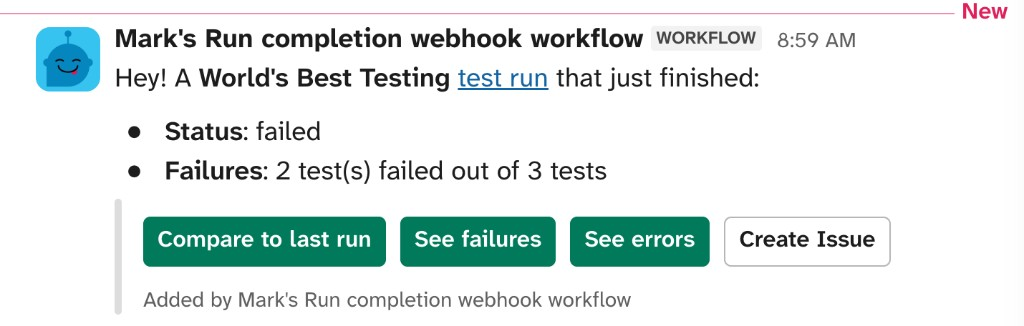
You'll use Slack's Workflow Builder, a tool provided by Slack. It can receive a webhook directly and map its JSON into a message, so you don't need a separate automation account. The example message also shows optional Slack interactive buttons that link to actions for the Cypress Cloud run.
Prerequisites
- Permission to manage webhooks for the Cypress Cloud project. You must be an Owner, Admin, or Team Admin, or you can ask a user with one of those roles to add the webhook.
- A Slack plan that includes Workflow Builder, and permission to create and publish a workflow in your workspace. Conditional (if/else) steps require a paid Slack plan; a fallback that works on any plan is described below.
Step 1: Create a webhook-triggered Slack workflow
-
In Slack, open Workflow Builder and create a new workflow.
-
For the way the workflow starts, choose Starts with a webhook.
-
Under Data Variables, add a key for each payload field you want in the message. Slack reads these from the top-level keys of the JSON body. You will likely want to start with fields like this:
statusprojectNamerunNumberrunUrlcommitBranchtotalTeststotalFailed
You can add any other payload field you plan to use, such as
commitMessageorcommitAuthorName.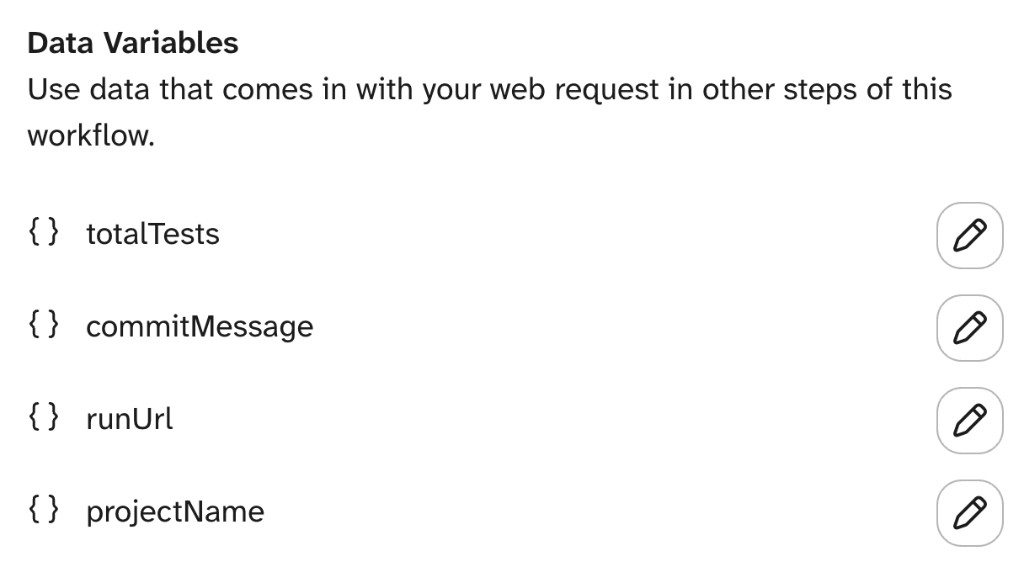
-
Save the trigger. Slack generates a Web request URL. Click Copy Link; that URL becomes your Cypress Cloud Payload URL later. Treat it as a secret: anyone who has the link can trigger the workflow.
Array fields such as tags and groups don't map to a Workflow Builder
variable, and neither do nested objects. The Accessibility and UI Coverage
payloads keep report data under accessibility and uiCoverage. If you need
these fields in Slack, transform the body in another service. You can also use
Submit feedback in Cypress Cloud or contact your Cypress representative to
request support for these fields.
Step 2: Compose the message
If needed, add a check using a Branch workflow
step that checks fields such as commitAuthorName, commitBranch, tags, or
ciProvider to only send the message on certain conditions.
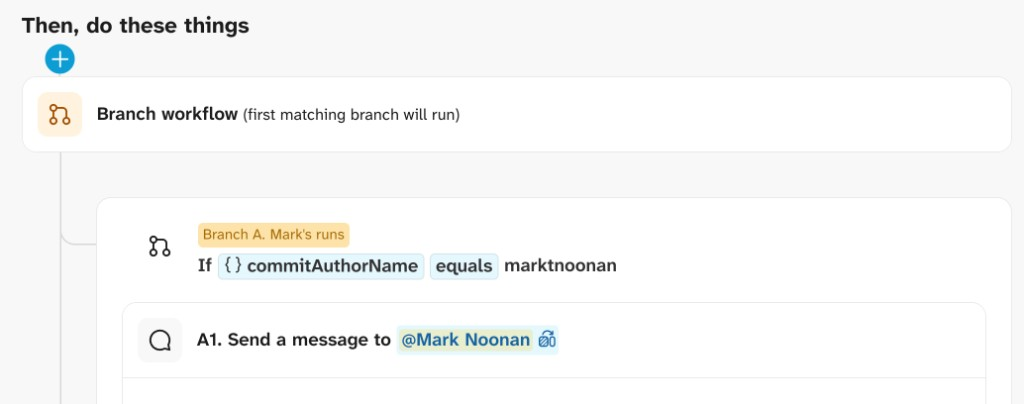
Inside that branch, add a Send a message to a channel or Send a message to a person step. Choose the destination, and write the message, using Insert a variable to drop in the fields you mapped in Step 1. For example:
Hey! A {projectName} test run just finished:

- Status: {status}
- Failures: {totalFailed} test(s) failed out of {totalTests} tests
Link the words "test run" (or the run number) to {runUrl} so the message opens
the run in Cypress Cloud.
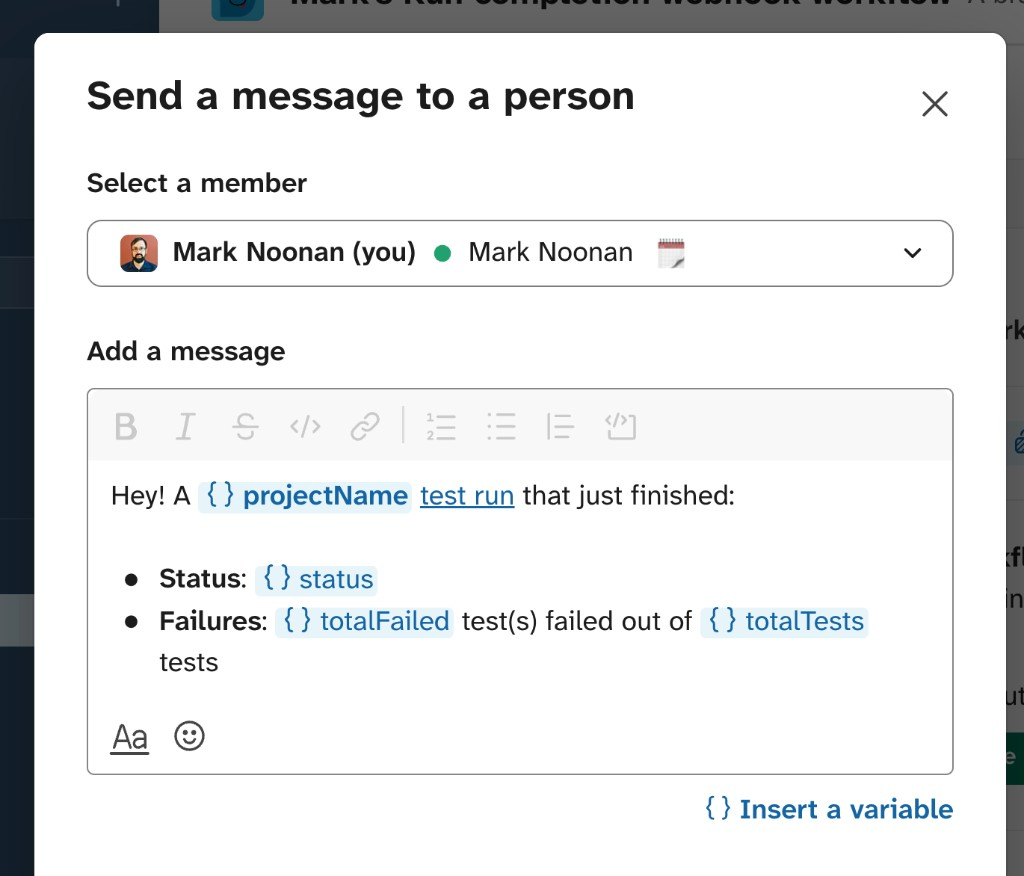
When a run completes, Slack replaces each variable with the value from the payload.
The final message looks like this:
In the screenshot, the Compare to last run, See failures, and See errors buttons link to Cypress Cloud pages for that run. To create something like this yourself, add Slack Interactive Buttons to the workflow, where you can set a URL that includes branch and project variables from the webhook payload, to set right to the page you would use the most.
The Create Issue button uses Slack's built-in Jira integration to start a ticket for the run. You can replace it with another workflow step, such as PagerDuty.
Step 3: Format passing and failing runs differently
The status field tells you how the run ended. Use it to make a failing run
stand out.
-
On a paid Slack plan, add a Branch workflow step (If/else) before the message step. Set the condition to check whether the
statusvariable equalspassed. In the passing path, send a success-styled message; in the other path, send a failure-styled one, for example leading with a clear label and the failure count:❌ FAILED — Cypress run #{runNumber} for {projectName} on {commitBranch}{totalFailed} of {totalTests} tests failed. Investigate: {runUrl} -
On any plan, skip the branch and put the status directly in the text so the outcome is always spelled out in words, never by color alone:
[{status}] Cypress run #{runNumber}: {projectName} ({commitBranch}){totalFailed}/{totalTests} failed · {runUrl}
Because status can be passed, failed, errored, timedOut, or
cancelled, treat "not passed" as the attention case rather than checking only
for failed. That way an errored or timedOut run still gets your failure
formatting.
Click Publish when the message looks right.
Step 4: Point the Cypress Cloud webhook at Slack
- In Cypress Cloud, open your project's Settings, find the Webhooks panel, and click Add webhook. See Create a webhook.
- Paste the Slack workflow's webhook URL as the Payload URL.
- Leave
run.completedselected and save the webhook. Uncheck other events if they are pre-selected. This walkthrough maps fields fromrun.completedonly.
You cannot use a signing secret to authenticate the request here. Treat the Slack webhook URL itself as a secret: don't share it or commit it, since anyone who has it can post to your channel. For the full tradeoff, see Send to a no-code destination.
Step 5: Test the delivery
Use Send test on the webhook and choose run.completed from the menu.
Cypress Cloud delivers a sample of that event's payload, with realistic but
fabricated data, so Slack can fill in status, runNumber, and the other
variables. See
Send a test event.
The sample body matches the
example run.completed payload with example data.
To see your own project data in the message, record a Cypress run so a fresh
run.completed fires. You can trigger that run locally with a single test if
your project doesn't record runs often.
Step 6: Go live
Once a real delivery renders the message the way you want, you're done. The workflow runs on every completed run. If you need to change the wording or fields later, edit the Slack workflow and republish; the Payload URL stays the same, so the Cypress Cloud webhook needs no change.
GitHub status checks
Use the GitHub integration to report Cypress results on the pull request. It posts commit status checks per run group or spec.
For a custom check, such as your own context name or a pass/fail rule on
totalFailed and commitBranch, point the Payload URL at
Zapier, Make, or
n8n. That tool acts as a forwarder: it receives the Cypress
POST, then calls GitHub with commitSha, status, and runUrl so a
repository_dispatch
workflow can post the commit status. Store a GitHub token in the tool.
When a check fails and you want the tests, screenshots, or Test Replay for that run, use the Cloud CLI or Cloud MCP.
Other options
- To send the message to Microsoft Teams instead of Slack, use Workflows with an incoming-webhook trigger. Create the flow, map the payload fields, and use its URL as the Payload URL. Cypress Cloud also has a built-in Microsoft Teams integration for standard notifications.
- To post to Google Chat, deploy an
Apps Script web app
whose
doPostreads the Cypress JSON and POSTs a message to a Chat incoming webhook. - To filter runs, use your tool's filter step to continue only when
statusisn'tpassed, or only whentotalFailedis greater than zero. - A no-code platform such as Zapier, Make, or n8n can use one delivery to post to a channel, open a Jira ticket, and append a row to a reporting sheet.
See also
- Webhooks Integration - headers, security, and retries
- Webhook events -
run.completed,run.accessibility.completed,run.uiCoverage.completed, andrun.allSettled - Webhook payloads - fields for each event
- Verify webhook signatures - HMAC verification for destinations that support it
- Slack integration - built-in Slack notifications for run results
- GitHub integration - built-in commit status checks and pull request comments
- Cloud CLI - inspect a specific run from the terminal
- Cloud MCP - inspect a specific run from an AI client
- Microsoft Teams integration - built-in Teams notifications
- Jira integration - connect Cypress Cloud runs to Jira