Browser launch options
When you run tests, Cypress launches and controls a real browser for you. Rather than attaching to a browser you already have open, Cypress starts its own instance so it can guarantee two things that make automated testing trustworthy:
- A clean, pristine testing environment. Every run starts from a known, isolated state, with no leftover cookies, history, cached logins, or third-party extensions from your day-to-day browsing leaking into your tests. This is what keeps runs reproducible and prevents "works on my machine" flakiness.
- Access to privileged browser automation APIs. Driving the browser directly is how Cypress reads and controls your application reliably, takes screenshots and video, stubs the network, and more.
Cypress currently supports Chrome-family browsers (including Edge and Chrome for Testing) and Firefox, plus experimental WebKit. Testing across the browsers your users actually use gives you cross-browser confidence. For strategies to do this efficiently in CI, see the Cross Browser Testing guide.
Supported browsers
When Cypress is launched, you can choose to test your application using a number of browsers, including:
- Chrome for Testing
- Chrome
- Chrome Beta
- Chrome Canary
- Chromium
- Edge
- Edge Beta
- Edge Canary
- Edge Dev
- Electron (deprecated)
- Firefox
- Firefox Developer Edition
- Firefox Nightly
- WebKit (Experimental)
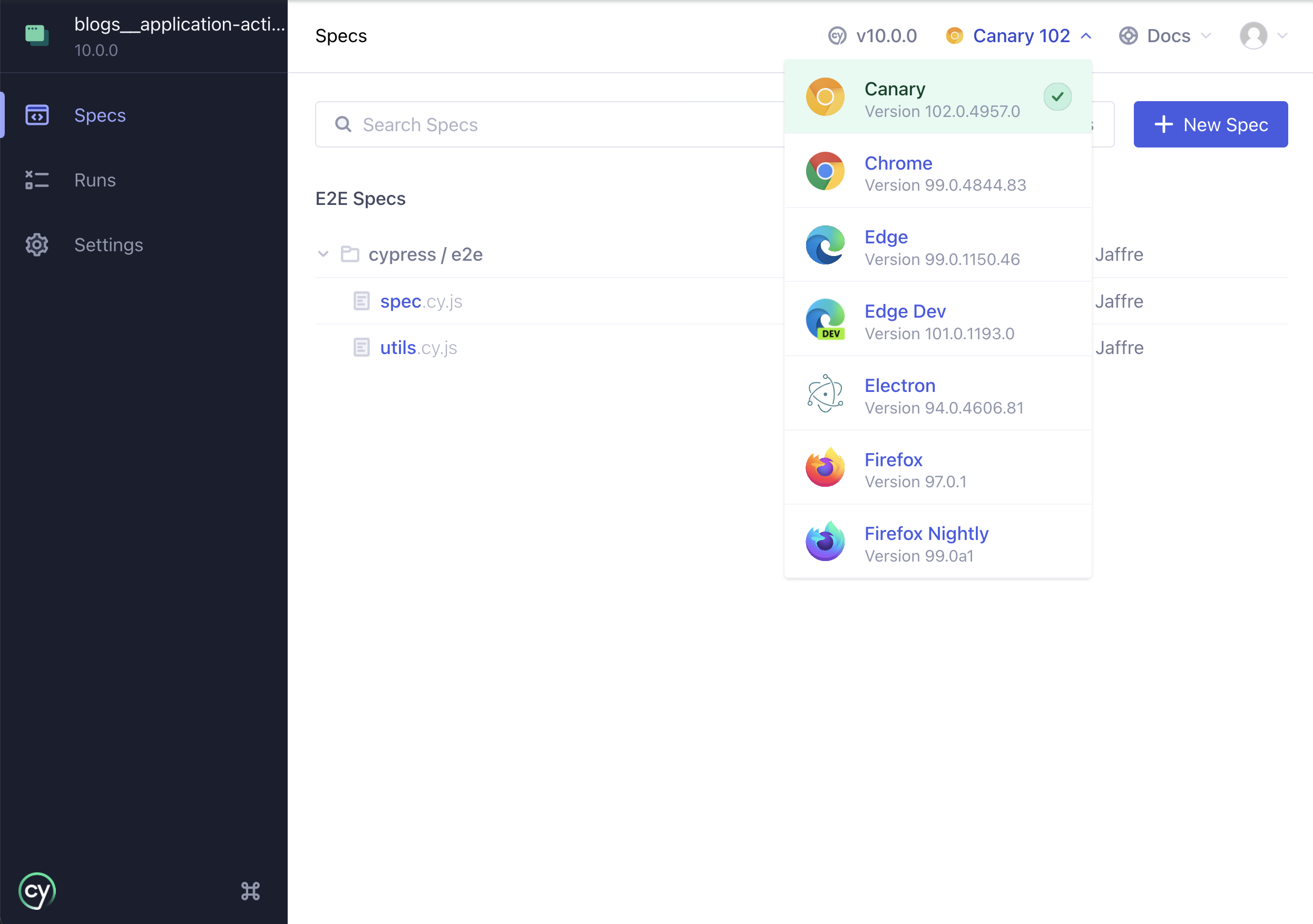
Cypress automatically detects the browsers installed on your OS so you don't have
to configure paths by hand. In cypress open, switch browsers using the drop
down near the top right corner; in cypress run, choose one with the
--browser
flag.
Launching headed or headless
By default, when running cypress run
from the CLI, Cypress launches browsers headlessly. To run headed, pass the
--headed argument:
cypress run --headed
Browser versions supported
Cypress officially supports the latest 3 major versions of Chrome, Firefox, and Edge. (For example, if the stable release of Chrome was 150, Cypress would officially support Chrome 148, 149, and 150.)
Sticking to recent versions matters because these browsers are evergreen and their automation interfaces evolve quickly, so supporting the latest versions lets Cypress rely on stable, modern automation APIs.
Regardless of the above, Cypress cannot launch Firefox versions older than 140.
Cypress automates Firefox through
WebDriver BiDi, and Firefox versions
below 140 implement it incompletely, so older versions will fail with an error.
Cypress 15.0.0 through 15.18.1 set this floor at Firefox 135.
See each browser's official release schedule for more information.
Download specific Chrome version
The Chrome browser is evergreen - meaning it will automatically update itself, sometimes causing a breaking change in your automated tests. To keep your test runs deterministic, you can pin a fixed browser version instead of letting it drift. You can use the information in Download Chromium to download a specific released version of Chrome for Testing or Chromium for every platform.
Electron Browser (deprecated)
In addition to the browsers found on your system, you'll notice that Electron is an available browser. The Electron browser is a version of Chromium that comes with Electron.
Electron is deprecated as a test
browser and will be removed in a future version of Cypress. Switch to Chrome
or another installed browser to avoid a breaking change when you upgrade. Set a
defaultBrowser (for example,
'chrome') and/or pass --browser
so your runs don't rely on the bundled Electron default.
After Electron is removed, runs that target it (--browser electron, or an
implicit fallback to Electron) will fail. See
Migrating away from the Electron browser.
Chrome Browsers
All Chrome* flavored browsers are detected and supported by Cypress.
You can launch Chrome like this:
- npm
- Yarn
- pnpm
- Bun
npx cypress run --browser chrome
yarn cypress run --browser chrome
pnpm cypress run --browser chrome
bunx cypress run --browser chrome
To use this command in CI, you need to install the browser you want - or use one of our docker images.
By default, we will launch Chrome headlessly during cypress run. To run
Chrome headed, you can pass the --headed argument to cypress run.
You can also launch Chromium:
- npm
- Yarn
- pnpm
- Bun
npx cypress run --browser chromium
yarn cypress run --browser chromium
pnpm cypress run --browser chromium
bunx cypress run --browser chromium
Or Chrome Beta:
- npm
- Yarn
- pnpm
- Bun
npx cypress run --browser chrome:beta
yarn cypress run --browser chrome:beta
pnpm cypress run --browser chrome:beta
bunx cypress run --browser chrome:beta
Or Chrome Canary:
- npm
- Yarn
- pnpm
- Bun
npx cypress run --browser chrome:canary
yarn cypress run --browser chrome:canary
pnpm cypress run --browser chrome:canary
bunx cypress run --browser chrome:canary
Or Chrome for Testing:
- npm
- Yarn
- pnpm
- Bun
npx cypress run --browser chrome-for-testing
yarn cypress run --browser chrome-for-testing
pnpm cypress run --browser chrome-for-testing
bunx cypress run --browser chrome-for-testing
Where possible, we recommend running your tests in Chrome for Testing. It is a dedicated Chrome flavor that Google builds specifically for automation, and it has a few advantages over a standard, day-to-day Chrome install:
- No auto-update. Regular Chrome is evergreen and silently updates itself, which can change browser behavior between runs and cause tests that passed yesterday to fail today. Chrome for Testing is pinned to a specific version and never updates on its own, so your environment stays deterministic.
- Versioned, reproducible binaries. A matching build is published for every Chrome version and every major OS, so you can install the exact same browser locally and in CI. See Download specific Chrome version.
- Built for automation, not browsing. Because it is intended only for testing, it is not subject to the enterprise/group policies often applied to branded Chrome (such as disabling remote debugging), which removes a common cause of launch failures.
- Extension loading still works. Standard Chrome 137 and above can no longer load extensions via the Browser Launch API, but Chrome for Testing and Chromium still can.
Chrome policy
If Chrome policy is set, ensure that
RemoteDebuggingAllowed
is either undefined or set to true.
If this is not the case, then Cypress will timeout, returning an ECONNREFUSED error, attempting to connect to the browser.
Chrome policy is generally applied to a Chrome-branded browser only, not to Chromium or Chrome for Testing browsers.
Check by browsing to chrome://policy. See
Cypress failed to make a connection to the Chrome DevTools Protocol
for more.
Skipping Chrome preference reads/writes
To set up a consistent testing environment, Cypress reads and writes Chrome
preference files inside its isolated profile in the browser's
user-data directory (the Preferences, Secure Preferences, and Local State
files). This is how Cypress applies preference-based settings, for example,
disabling password saving and autofill, configuring the
downloads behavior, and any preferences you set through the
before:browser:launch
event.
Some applications and environments encrypt the user-data directory (for
example, certain enterprise security tooling). In that case, Cypress reading or
writing the preference files can fail or corrupt the encrypted profile. To work
around this, set the IGNORE_CHROME_PREFERENCES system environment variable,
which tells Cypress to skip reading and writing Chrome preferences entirely:
- npm
- Yarn
- pnpm
- Bun
IGNORE_CHROME_PREFERENCES=1 npx cypress run --browser chrome
IGNORE_CHROME_PREFERENCES=1 yarn cypress run --browser chrome
IGNORE_CHROME_PREFERENCES=1 pnpm cypress run --browser chrome
IGNORE_CHROME_PREFERENCES=1 bunx cypress run --browser chrome
Edge Browsers
Microsoft Edge-family (Chromium-based) browsers are supported by Cypress.
You can launch Microsoft Edge like this:
- npm
- Yarn
- pnpm
- Bun
npx cypress run --browser edge
yarn cypress run --browser edge
pnpm cypress run --browser edge
bunx cypress run --browser edge
Or Microsoft Edge Beta:
- npm
- Yarn
- pnpm
- Bun
npx cypress run --browser edge:beta
yarn cypress run --browser edge:beta
pnpm cypress run --browser edge:beta
bunx cypress run --browser edge:beta
Or Microsoft Edge Canary:
- npm
- Yarn
- pnpm
- Bun
npx cypress run --browser edge:canary
yarn cypress run --browser edge:canary
pnpm cypress run --browser edge:canary
bunx cypress run --browser edge:canary
Or Microsoft Edge Dev:
- npm
- Yarn
- pnpm
- Bun
npx cypress run --browser edge:dev
yarn cypress run --browser edge:dev
pnpm cypress run --browser edge:dev
bunx cypress run --browser edge:dev
Edge policy
If Edge policy is set, ensure that
RemoteDebuggingAllowed
is either undefined or set to true.
If this is not the case, then Cypress will timeout, returning an ECONNREFUSED error, attempting to connect to the browser.
Check by browsing to edge://policy. See
Cypress failed to make a connection to the Chrome DevTools Protocol
for more.
Firefox Browsers
Firefox-family browsers are supported by Cypress.
You can launch Firefox like this:
- npm
- Yarn
- pnpm
- Bun
npx cypress run --browser firefox
yarn cypress run --browser firefox
pnpm cypress run --browser firefox
bunx cypress run --browser firefox
Or Firefox Developer Edition:
- npm
- Yarn
- pnpm
- Bun
npx cypress run --browser firefox:dev
yarn cypress run --browser firefox:dev
pnpm cypress run --browser firefox:dev
bunx cypress run --browser firefox:dev
Or Firefox Nightly:
- npm
- Yarn
- pnpm
- Bun
npx cypress run --browser firefox:nightly
yarn cypress run --browser firefox:nightly
pnpm cypress run --browser firefox:nightly
bunx cypress run --browser firefox:nightly
To use this command in CI, you need to install these other browsers - or use one of our docker images.
By default, we will launch Firefox headlessly during cypress run. To run
Firefox headed, you can pass the --headed argument to cypress run.
Mozilla geckodriver
Cypress requires the Mozilla geckodriver to launch Firefox. To meet this requirement, the Cypress binary uses the separate npm wrapper package geckodriver to provide the Mozilla geckodriver. The wrapper downloads the latest driver version if it does not find any driver version cached locally.
Retrieving the driver may fail if you are operating Cypress in an air-gapped environment without Internet connectivity and you do not have a cached driver version available.
To avoid this issue, use a current
Cypress Docker image cypress/browsers or cypress/included, built with Firefox 139, or above.
These images include a Mozilla geckodriver version pre-installed.
Using cypress/factory:5.9.0, or above, you can also build your own custom Cypress Docker image that includes a Mozilla geckodriver version.
Refer to the cypress/factory
documentation for instructions on building custom images.
If you need to work without Docker, refer to the npm wrapper package geckodriver documentation for information about how to define a custom path for the driver or how to refer to a local CDN mirror site. Download the Mozilla geckodriver from the releases location.
WebKit (Experimental)
Cypress has experimental support for WebKit,
Safari's browser engine. Because Apple does not ship Safari's automation on every
platform, testing against WebKit is the practical way to validate how your app
behaves in Safari from Windows, Linux, or CI, without needing a Mac. To opt-in to
experimentalWebKitSupport, follow these steps:
- Add
experimentalWebKitSupport: trueto your configuration to enable the experiment. - For installation on Linux, refer to Linux Dependencies below.
- Install the
playwright-webkitnpm package in your repo to acquire WebKit itself:npm install playwright-webkit --save-dev - Now, you should be able to use WebKit like any other browser. For example, to record with WebKit in CI:
- npm
- Yarn
- pnpm
- Bun
npx cypress run --browser webkit --record
yarn cypress run --browser webkit --record
pnpm cypress run --browser webkit --record
bunx cypress run --browser webkit --record
We built this experiment on top of the Playwright WebKit browser as a stepping stone towards creating a better UX with Cypress-provided browsers in the future. Thank you, Playwright contributors.
WebKit support is experimental, so you may encounter issues. If you encounter an issue not on the "Known Issues" list, open an issue on the GitHub repository.
Linux Dependencies
WebKit requires additional dependencies to run on Linux. To install the required dependencies, run this:
- npm
- Yarn
- pnpm
- Bun
npx playwright install-deps webkit
yarn dlx playwright install-deps webkit
pnpm dlx playwright install-deps webkit
bunx playwright install-deps webkit
Known Issues with experimentalWebKitSupport
cy.origin()is not yet supported.- Test Replay is not supported.
cy.intercept()'sforceNetworkErroroption is disabled.- When using
experimentalSingleTabRunModewith video recording in WebKit, only the video for the first spec is recorded. - Some differences in
cy.type()behavior:textInputevents are missing thedatapropertybeforeinputevents are missing theinputTypepropertycy.type('{uparrow}')andcy.type('{downarrow}')on aninput[type=number]do not round to the neareststepspecified
- Stack traces may be missing some function names and location information.
- See issues labeled
experiment: webkitfor a complete list.
Launching by a path
If a browser isn't auto-detected, for example a portable install or a custom build, you can launch any supported browser by specifying a path to the binary:
- npm
- Yarn
- pnpm
- Bun
npx cypress open --browser /usr/bin/chromium
yarn cypress open --browser /usr/bin/chromium
pnpm cypress open --browser /usr/bin/chromium
bunx cypress open --browser /usr/bin/chromium
Cypress will automatically detect the type of browser supplied and launch it for you.
See the Command Line guide for more information about the --browser arguments
Having trouble launching a browser? Check out our troubleshooting guide
Customize available browsers
Sometimes you might want to modify the list of browsers found before running tests. This is useful when your application only targets certain browsers, or when you want to test in a Chromium-based browser that Cypress doesn't detect on its own.
In the setupNodeEvents function, you can
filter the list of browsers passed inside the config object and return the
list of browsers you want available for selection during cypress open.
- cypress.config.js
- cypress.config.ts
const { defineConfig } = require('cypress')

module.exports = defineConfig({
  // setupNodeEvents can be defined in either
  // the e2e or component configuration
  e2e: {
    setupNodeEvents(on, config) {
      // inside config.browsers array each object has information like
      // {
      //   name: 'chrome',
      //   channel: 'canary',
      //   family: 'chromium',
      //   displayName: 'Chrome Canary',
      //   version: '133.0.6890.0',
      //   path:
      //    '/Applications/Google Chrome Canary.app/Contents/MacOS/Canary',
      //   majorVersion: 133
      // }
      return {
        browsers: config.browsers.filter(
          (b) => b.family === 'chromium' && b.name !== 'electron'
        ),
      }
    },
  },
})
import { defineConfig } from 'cypress'

export default defineConfig({
  // setupNodeEvents can be defined in either
  // the e2e or component configuration
  e2e: {
    setupNodeEvents(on, config) {
      // inside config.browsers array each object has information like
      // {
      //   name: 'chrome',
      //   channel: 'canary',
      //   family: 'chromium',
      //   displayName: 'Chrome Canary',
      //   version: '133.0.6890.0',
      //   path:
      //    '/Applications/Google Chrome Canary.app/Contents/MacOS/Canary',
      //   majorVersion: 133
      // }
      return {
        browsers: config.browsers.filter(
          (b) => b.family === 'chromium' && b.name !== 'electron'
        ),
      }
    },
  },
})
When you open Cypress in a project that uses the above modifications to the
setupNodeEvents function, Electron will no longer display in the list of
available browsers.
If you return an empty list of browsers or browsers: null, the default list
will be restored automatically.
If you have installed a Chromium-based browser like Brave, Vivaldi you can add them to the list of returned browsers. Here is a configuration that inserts a local Brave browser into the returned list.
- cypress.config.js
- cypress.config.ts
const { defineConfig } = require('cypress')
const execa = require('execa')
const findBrowser = () => {
  // the path is hard-coded for simplicity
  const browserPath =
    '/Applications/Brave Browser.app/Contents/MacOS/Brave Browser'

  return execa(browserPath, ['--version']).then((result) => {
    // STDOUT will be like "Brave Browser 77.0.69.135"
    const [, version] = /Brave Browser (\d+\.\d+\.\d+\.\d+)/.exec(result.stdout)
    const majorVersion = parseInt(version.split('.')[0])

    return {
      name: 'Brave',
      channel: 'stable',
      family: 'chromium',
      displayName: 'Brave',
      version,
      path: browserPath,
      majorVersion,
    }
  })
}

module.exports = defineConfig({
  // setupNodeEvents can be defined in either
  // the e2e or component configuration
  e2e: {
    setupNodeEvents(on, config) {
      return findBrowser().then((browser) => {
        return {
          browsers: config.browsers.concat(browser),
        }
      })
    },
  },
})
import { defineConfig } from 'cypress'
import execa from 'execa'
const findBrowser = () => {
  // the path is hard-coded for simplicity
  const browserPath =
    '/Applications/Brave Browser.app/Contents/MacOS/Brave Browser'

  return execa(browserPath, ['--version']).then((result) => {
    // STDOUT will be like "Brave Browser 77.0.69.135"
    const [, version] = /Brave Browser (\d+\.\d+\.\d+\.\d+)/.exec(result.stdout)
    const majorVersion = parseInt(version.split('.')[0])

    return {
      name: 'Brave',
      channel: 'stable',
      family: 'chromium',
      displayName: 'Brave',
      version,
      path: browserPath,
      majorVersion,
    }
  })
}

export default defineConfig({
  // setupNodeEvents can be defined in either
  // the e2e or component configuration
  e2e: {
    setupNodeEvents(on, config) {
      return findBrowser().then((browser) => {
        return {
          browsers: config.browsers.concat(browser),
        }
      })
    },
  },
})
Once selected, the Brave browser is detected using the same approach as any
other browser of the chromium family.
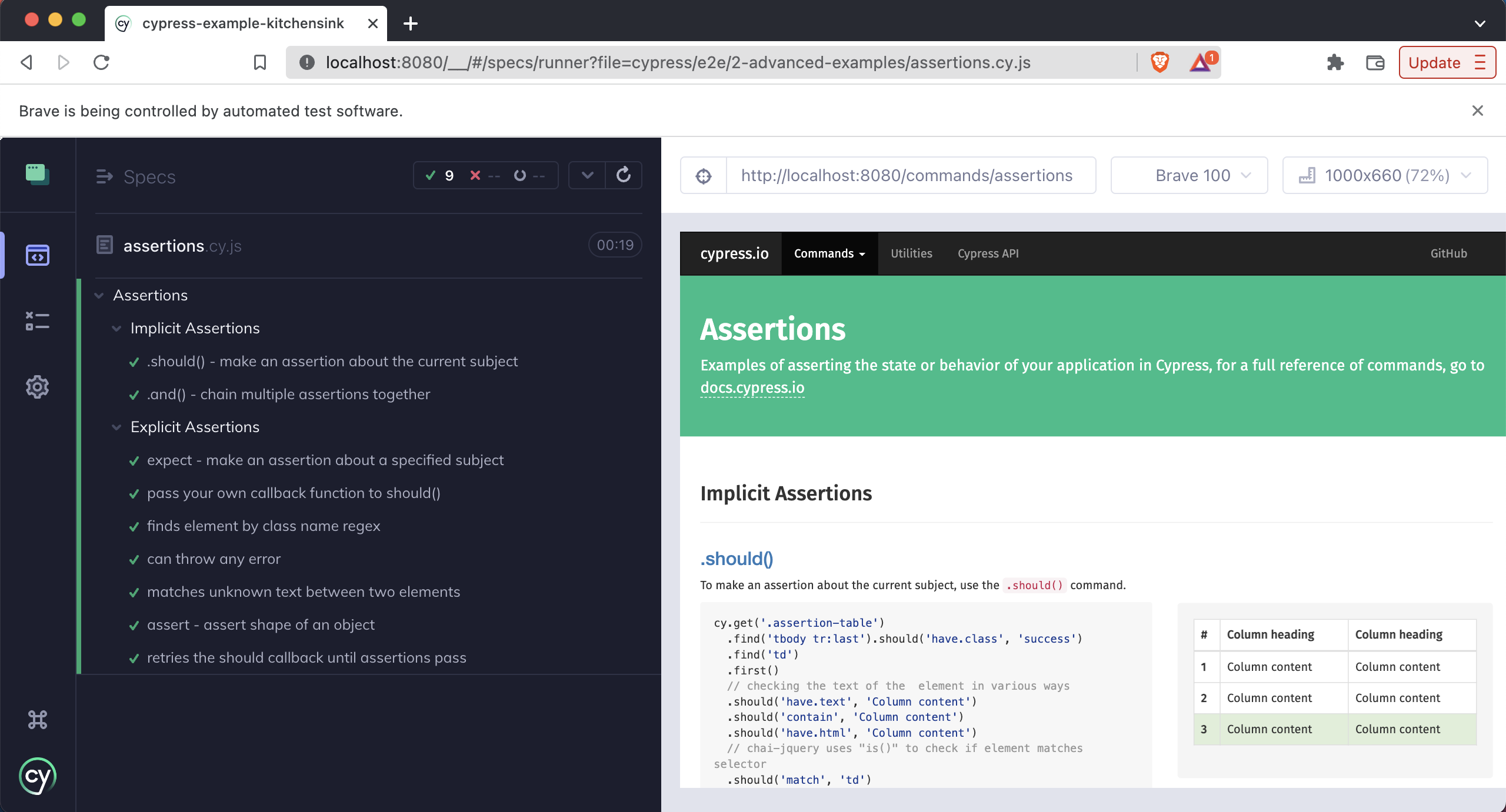
If you modify the list of browsers, you can see the resolved configuration in the Settings tab.
Browser environment
Cypress launches the browser in a way that's different from a regular browser environment. These differences are deliberate: each one removes a source of noise or unpredictability so that your tests are more reliable, more reproducible, and easier to debug.
Cypress Profile
Cypress generates its own isolated profile apart from your normal browser
profile. This means things like history entries, cookies, and
3rd party extensions from your regular browsing session will not affect your
tests in Cypress.
Because Cypress runs in its own profile, your usual extensions won't carry over automatically. If you rely on developer extensions, install them once in the Cypress-launched browser. Cypress reuses the same testing profile on every subsequent launch, so your extensions and other configuration are preserved.
Disabled Barriers
Cypress automatically disables certain functionality in the Cypress launched browser that tend to get in the way of automated testing. This includes various features and prompts that are commonly disabled in automation, for example, ignoring certificate errors, allowing blocked pop-ups, and disabling things like password saving, autofill, session restoring, background throttling, and device permission prompts.
The goal is to keep these native browser behaviors from interrupting an unattended run. A "Save password?" dialog or a throttled background tab can stall or destabilize a test, so Cypress turns them off up front.
Extra Tabs
Any extra tabs (i.e. tabs other than the one opened by Cypress) will be closed between tests. We recommend using your own browser instead of the one launched by Cypress for general-purpose browsing.
Customize the browser launch
When Cypress goes to launch your browser, it gives you an opportunity to modify the arguments, preferences, environment, and extensions used to launch it. This is the main extension point for tailoring the browser to your application's needs.
This enables you to do things like:
- Load your own extension
- Enable or disable experimental features
- Change command-line arguments, preferences, and environment variables
This part of the API is documented here.
Distinguishing the Cypress browser
You might notice that if you already have the browser open you will see two of the same browser icons in your dock.
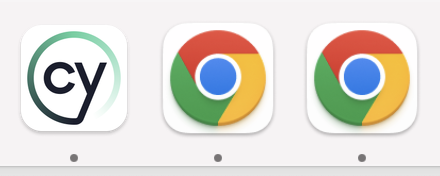
Because Cypress runs in its own profile, it can be difficult to tell its browser apart from your normal one, and accidentally treating the Cypress browser like a regular one (or vice versa) leads to confusion.
In Chrome-based browsers, we've made the browser spawned by Cypress look different than regular sessions. You'll see a darker theme around the chrome of the browser, so you'll always be able to visually distinguish them.

Headless mode
When running cypress run from the CLI, Cypress launches browsers headlessly by default. The browser runs without a visible UI. This is what makes Cypress well suited to Continuous Integration, where there is no display to render to and headless runs are faster and lighter. When running cypress open, the browser is always headed so you can watch and debug interactively.
How each browser is launched headlessly differs slightly:
| Browser | Default during cypress run | How it runs headless |
|---|---|---|
| Electron | Headless | Internal Electron headless mode |
| Chrome / Chromium / Edge | Headless | Launched with --headless=new |
| Firefox | Headless | Launched with -headless |
| WebKit (Experimental) | Headless | Launched headless via Playwright |
To show the browser while running cypress run, pass the
--headed flag:
- npm
- Yarn
- pnpm
- Bun
npx cypress run --headed
yarn cypress run --headed
pnpm cypress run --headed
bunx cypress run --headed
Because Electron is the default browser, it is typically the one running in CI.
You can also explicitly hide a headed browser with --headless.
Headless rendering defaults
When a browser runs headlessly, there is no physical display, so Cypress uses the following defaults for rendering:
- A default screen size of 1280x720.
- A device pixel ratio (DPR) forced to 1.
Knowing these defaults matters because they determine the size and resolution of
the screenshots and videos captured during the run. You can override them in the
before:browser:launch
event, for example, to change the window size or force a retina-like DPR for
higher-resolution output.
Debugging headless-only failures
Occasionally a test passes when the browser is headed but fails when run headlessly (or vice versa). When this happens, the quickest way to debug is to reproduce the failure locally with the browser shown:
- npm
- Yarn
- pnpm
- Bun
npx cypress run --headed --no-exit --browser chrome
yarn cypress run --headed --no-exit --browser chrome
pnpm cypress run --headed --no-exit --browser chrome
bunx cypress run --headed --no-exit --browser chrome
The --headed flag shows the browser so you can watch the run, and --no-exit
keeps Cypress open afterward so you can inspect the
command log and the application's
final state. Comparing a headed run against a headless one, along with the
recorded screenshots and videos, usually surfaces the difference.
Downloading files
When your application downloads a file, Cypress automatically saves it to the
downloadsFolder (by default
cypress/downloads) without showing the browser's native "Save As" prompt or
download shelf. This is what makes downloads testable end-to-end: a native
file-picker dialog would block an unattended run, so Cypress routes downloads to a
known folder where you can assert on them directly from disk.
Troubleshooting
Having issues launching installed browsers? Read more about troubleshooting browser launching