Manage users
A user is anyone who logs in to Cypress Cloud. Managing users well is how you turn Cypress Cloud from a single-developer tool into a shared source of truth for your whole team: everyone sees the same test results, the right people get the right level of access, and onboarding a new teammate takes minutes instead of a support ticket. The features below (invitations, roles, self-service requests, and account updates) exist to make that growth fast and safe.
Invite users
Inviting users is how you bring your team into Cypress Cloud so they can see test results, debug failures together, and act on insights instead of waiting for a screenshot in chat. Because invited users only see the projects and tests they have team permissions to view, you can grow your organization without exposing every project to everyone, so people get exactly the visibility their work requires.
Organization owner or admin roles can invite Cypress Cloud users.
Note: only owners can give other users 'owner' access.
Your plan determines how many users your organization can have. To compare the user seats each plan allows, see the pricing page. To see how many of your seats are in use, check the Billing & Usage page.
Invite a user to an organization:
- Select the organization you want to invite a user to.
- Click Users & Teams, then Invite User.
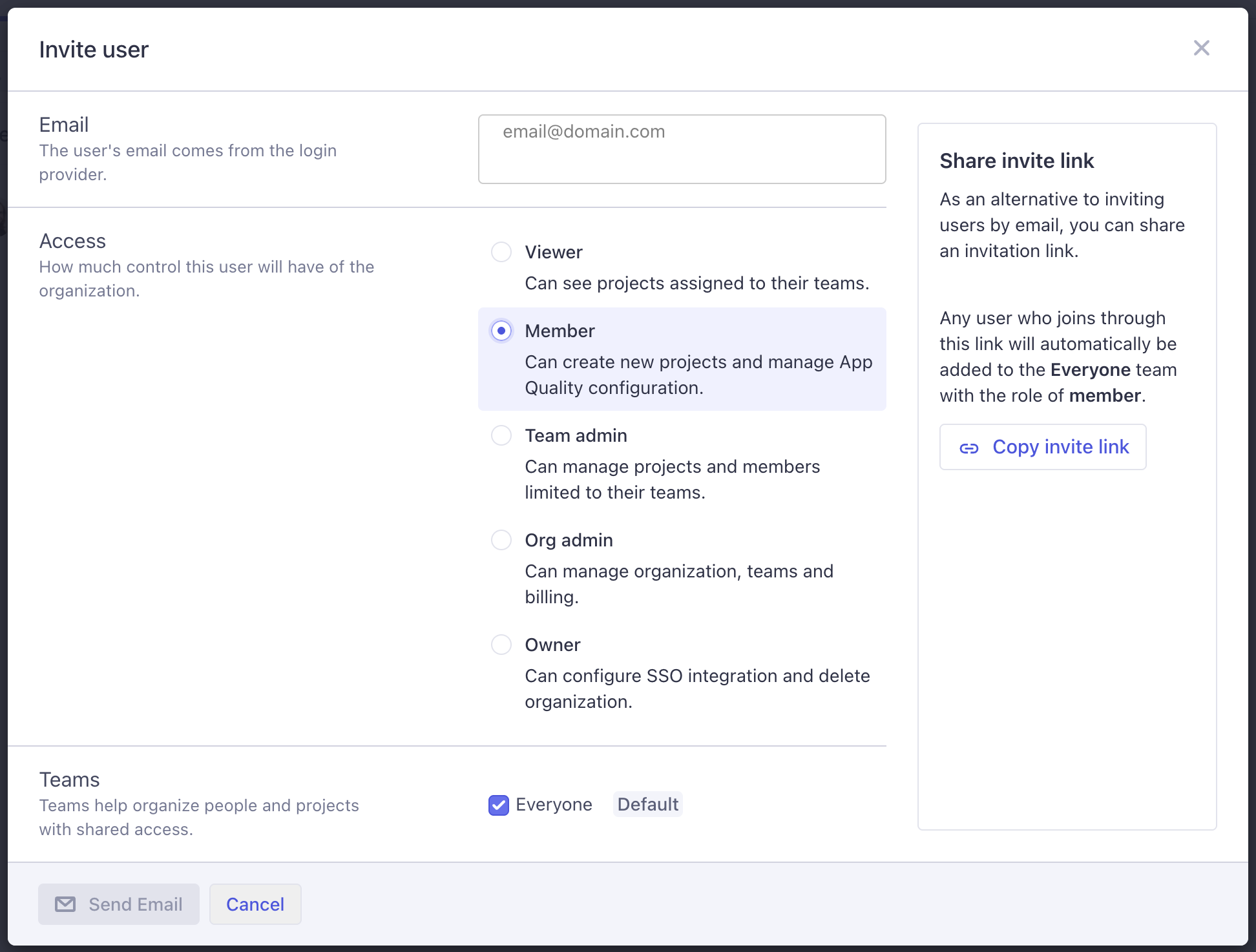
- Add one or more emails, pressing Enter after each one, and select their role.
- Click Invite User.
- The user will receive an invitation email with a link to accept the invitation.
If you prefer to send your own message to users and include a link to join the organization, you can click Copy invite link and all users who accept this invitation will be given the default role of Member.
Sign up with an invitation
Upon receiving the email, click Accept Invitation to be redirected to Cypress Cloud. From there, you will have the choice of authentication type:
- Basic (Email and Password)
- Social (Google or GitHub)
- Single Sign On
Sign up with basic authentication
- Click Don't have an account? Sign Up
- Click Sign up with Email
- Type your email address and make a password
- Click Sign Up
Sign up with social authentication
- Click Don't have an account? Sign Up
- Click Sign up with Google or Sign up with GitHub
- You may need to verify via your Social provider depending on your personal settings
Sign up with single sign on (SSO) authentication
Refer to our Single Sign-On (SSO) guide.
Locked out or forgot password
Try resetting your password. If you never received the email, try the following:
- Try signing in with Google or GitHub, in case your account was created with social authentication rather than a password
- Check your trash and spam folder
- Verify you typed the correct email address
If the troubleshooting tips above did not resolve the issue or involves SSO, reach out to support.
User roles
Roles let you grant access on a need-to-know basis, following the principle of least privilege. Instead of an all-or-nothing model, each person gets exactly the capabilities their job calls for: stakeholders can review results without risking accidental changes, developers can do their day-to-day work, and only a trusted few can touch billing, SSO, or destructive actions. This keeps your organization secure as it scales and makes it obvious who can do what.
Users can be assigned roles that affect their access to certain features of Cypress Cloud.
- Viewer: Can see projects and runs but not make any changes. Ideal for managers, QA stakeholders, or anyone who needs visibility without edit access.
- Member: Can see projects, runs, record keys, and adjust App Quality configuration. The everyday role for developers contributing to the team.
- Team Admin: Can manage the member list for projects where the Team Admin is a member, and edit project configurations. Gives team leads control over their own projects without organization-wide power.
- Org Admin: Can manage all users within the organization, and edit both organization and project configurations. For people who run the account day to day.
- Owner: Can manage all aspects of the organization and projects, including billing, SSO, and deletion. Reserved for those ultimately accountable for the account.
We recommend assigning at least two owner roles to every organization. Having a second owner ensures continuity of ownership if one owner is unavailable or leaves the organization, so your team is never locked out of owner-only actions like managing billing, setting up SSO, or inviting and removing other owners.
Organization-level permissions
| Permission | Viewer | Member | Team Admin | Org Admin | Owner |
|---|---|---|---|---|---|
| View Enterprise Reporting | ✅ | ✅ | ✅ | ✅ | ✅ |
| Assign members to a team | ✅ | ✅ | ✅ | ||
| Remove members from a team | ✅ | ✅ | ✅ | ||
| View billing and usage information | ✅ | ✅ | |||
| Edit billing information | ✅ | ✅ | |||
| Invite a Member | ✅ | ✅ | |||
| Invite an Admin | ✅ | ✅ | |||
| View invited users | ✅ | ✅ | |||
| Resend invitation to invited user | ✅ | ✅ | |||
| View user requests to join organization | ✅ | ✅ | |||
| Accept user requests to join organization | ✅ | ✅ | |||
| Edit users | ✅ | ✅ | |||
| Remove users | ✅ | ✅ | |||
| Create and edit teams | ✅ | ✅ | |||
| Assign projects to a team | ✅ | ✅ | |||
| Remove projects from a team | ✅ | ✅ | |||
| Set up organization GitHub Integration | ✅ | ✅ | |||
| Set up organization Slack Integration | ✅ | ✅ | |||
| Set up organization MS Teams Integration | ✅ | ✅ | |||
| Invite an owner | ✅ | ||||
| Edit an owner | ✅ | ||||
| Remove an owner | ✅ | ||||
| Edit organization name | ✅ | ||||
| Set up SSO | ✅ | ||||
| Delete organization | ✅ |
Project-level permissions
| Permission | Viewer | Member | Team Admin | Org Admin | Owner |
|---|---|---|---|---|---|
| View test results of private projects | ✅ | ✅ | ✅ | ✅ | ✅ |
| View record keys of projects | ✅ | ✅ | ✅ | ✅ | |
| Edit App Quality configuration | ✅ | ✅ | ✅ | ✅ | |
| Edit project name | ✅ | ✅ | ✅ | ||
| Edit project status (private/public) | ✅ | ✅ | ✅ | ||
| Add or delete record keys | ✅ | ✅ | ✅ | ||
| Configure project GitHub Integration | ✅ | ✅ | ✅ | ||
| Configure project Slack Integration | ✅ | ✅ | ✅ | ||
| Configure project MS Teams Integration | ✅ | ✅ | ✅ | ||
| Transfer project to another organization | ✅ | ✅ | ✅ | ||
| Delete project | ✅ | ✅ | ✅ |
User requests
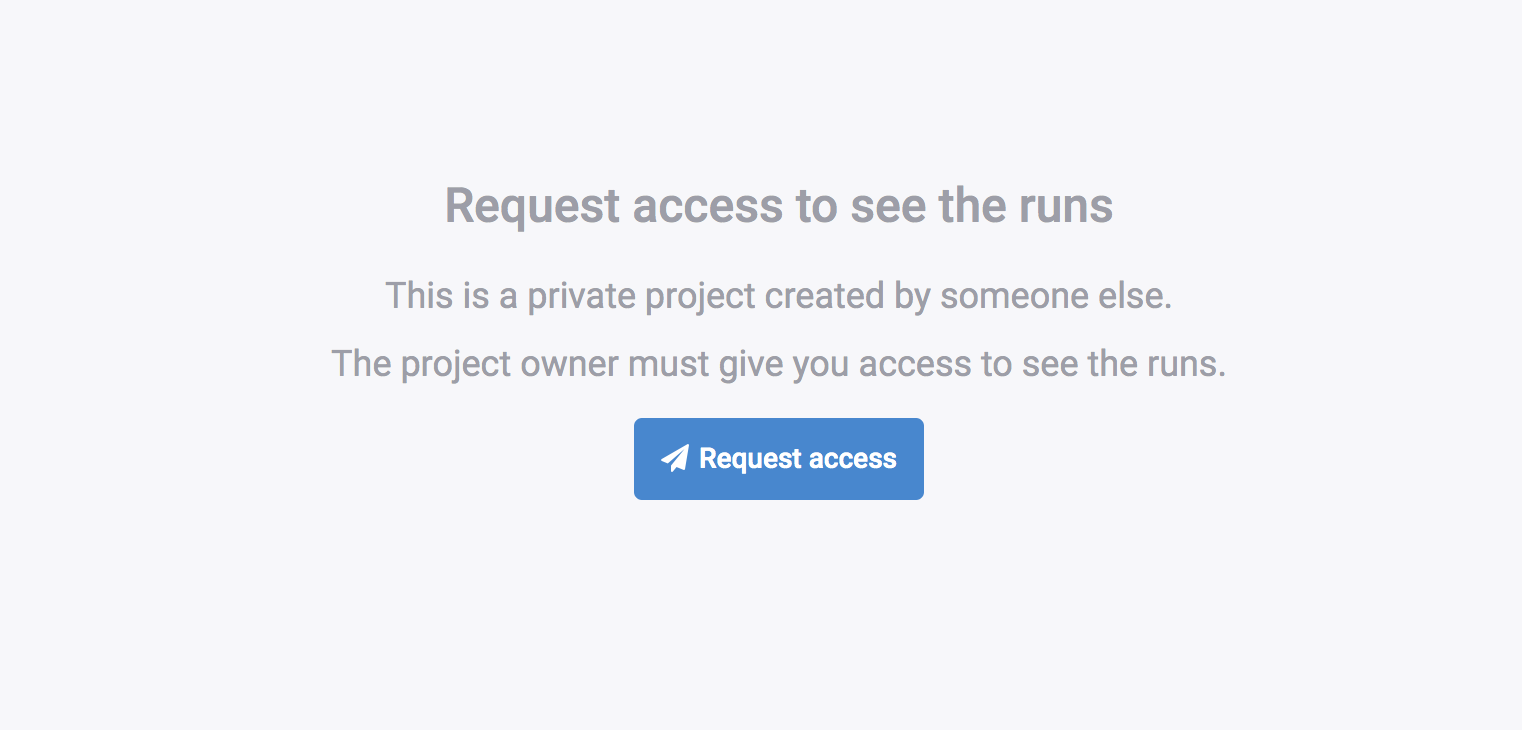
User requests flip onboarding from a push to a pull: rather than admins having to track down and invite every new teammate up front, team members who already have access to Cypress and your project's source code can request to join your organization from within the Cypress App, and you simply approve or deny. This removes admin bottlenecks, gets your team productive faster, and still keeps you in control of exactly who gets in.
User requests are not available if your Cloud organization is configured for SSO.
User updates
Keeping user details current ensures access always reaches the right place, which matters when people change emails or switch teams.
To change a user email, an Owner or Admin can invite the new user/email address and delete the previous user/email address.
To update your organization's billing email address, see Billing & Usage.