Spec Prioritization
Spec Prioritization automatically runs the specs that failed in your previous Cypress run first. Instead of waiting for the same failures to resurface late in a run, Cypress Cloud surfaces them right away, so you find out whether your latest change worked in minutes instead of waiting for the entire suite to finish.
The longer it takes to learn that a test is still broken, the slower your whole team moves. Every minute spent waiting on CI is a minute not spent shipping. Spec Prioritization shrinks that wait by putting the specs most likely to fail, the ones that just failed, at the front of the line.
Benefits: Running previously failed specs first will:
- Surface failures sooner. Get the verdict on your fix in the first few minutes of a run instead of the last.
- Accelerate debugging. Tighten the edit → run → verify loop so fixes and iterations progress faster.
- Reduce CI costs. Paired with Auto Cancellation, runs stop as soon as the prioritized failures reappear, cutting wasted compute and lowering your bill.
Why does Spec Prioritization matter?
Consider a test suite of several spec files that takes 30 minutes to run, where a failure first occurs 20 minutes in. Without Spec Prioritization, every attempt to fix that failure means kicking off CI and waiting 20 minutes all over again just to see whether the change worked, repeating that cycle until it's resolved.
With Spec Prioritization, the spec that failed runs first. That 20-minute wait collapses to a few minutes, and you get an answer almost immediately. Across a suite with multiple spec files and multiple debugging iterations, this time savings compounds with every run.
Spec Prioritization only moves previously failed specs to the front of the run. The remaining specs still run in their usual load-balanced order and across all your parallelized machines, so you keep every other Smart Orchestration benefit while getting failures sooner.
On its own, Spec Prioritization changes the order specs run in, surfacing failures earlier so you can react sooner. To turn that earlier feedback into shorter runs and lower CI bills, pair it with Auto Cancellation. When the prioritized failures reappear at the start of a run, Auto Cancellation stops the run right away, avoiding wasted compute on specs you already know will need another pass.
Enable Spec Prioritization
Spec Prioritization is a Smart Orchestration feature available to users with a Business or Enterprise tier Cypress Cloud plan.
Wondering if upgrading your Team tier subscription is worth it? Check out the recommendations on the run overview page to see how much time we predict these features would save you.
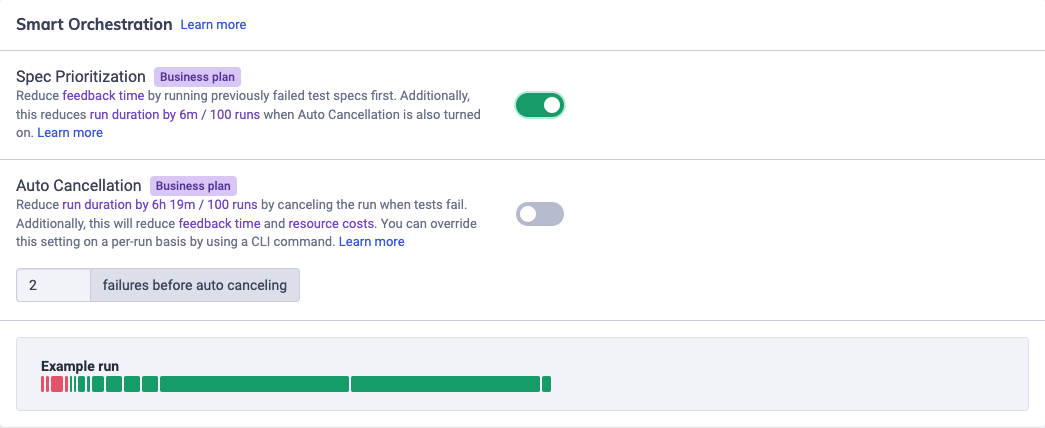
To enable or disable Spec Prioritization at the Project level (must be an admin user):
- Select the desired project within Projects in Cypress Cloud.
- Click Project Settings.
- Scroll to the Smart Orchestration section within Project Settings.
- Toggle Spec Prioritization to enable or disable it.
How do I know Spec Prioritization took effect?
Run Properties tab
The quickest way to check is the Properties tab of a run. Its Smart Orchestration section lists each feature with its status for that run, so a Spec Prioritization value of Applied confirms Cypress Cloud reordered the specs.
You can also trace which run drove the order: when Spec Prioritization fires, the run displays a "Prioritized failed specs from run #X" label, where #X links back to the source run whose failures were moved to the front of the line. Following that link shows exactly which previous failures Cypress Cloud was reacting to.

If the status reads anything other than Applied, double-check that Spec Prioritization is toggled on in your project settings and that the previous run actually recorded test failures for Cypress Cloud to prioritize (as opposed to timeouts or other non-test failures).
Specs tab
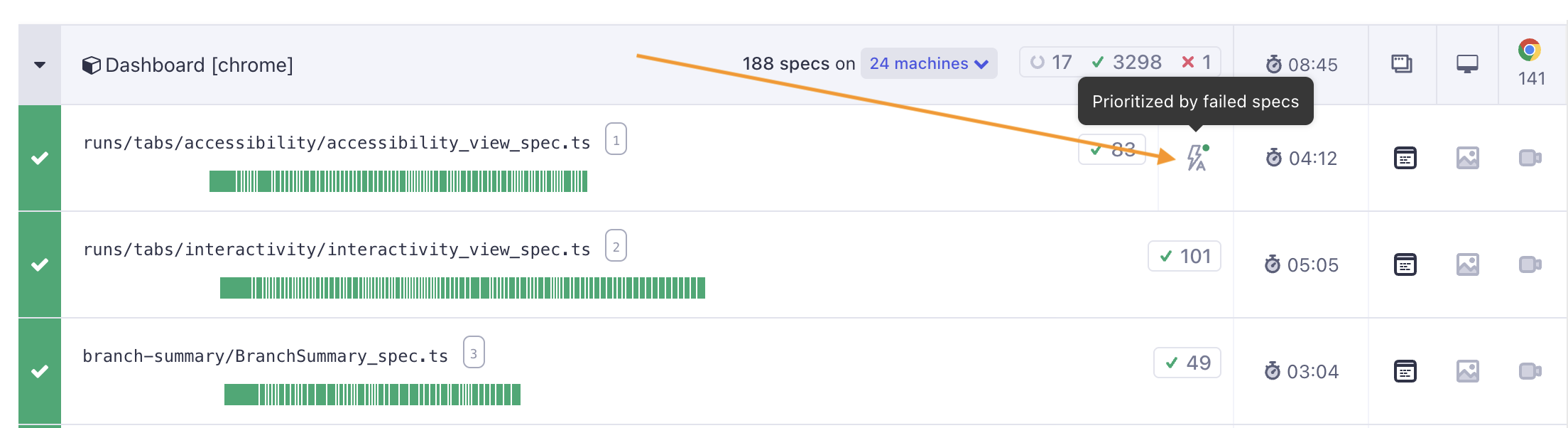
To see prioritization at the individual spec level, open the Specs tab. Sorting by Timeline might help you find the spec that was moved up. Each spec that was moved up is marked with the Smart Orchestration icon, and hovering it shows a "Prioritized by failed specs" tooltip.
See also
- Auto Cancellation - pair with Spec Prioritization to stop broken runs early and cut CI costs
- Smart Orchestration Overview - all the ways Cypress Cloud speeds up and optimizes your CI runs
- Parallelization - run spec files simultaneously across multiple CI machines
- Load Balancing - distribute specs across machines to minimize overall run duration
- Spec Prioritization FAQ