Load Balancing
When you run tests in parallel across multiple CI machines, how you split the work matters just as much as how many machines you use. If one machine is handed all the slow specs while the others sit idle, you pay for every machine but only move as fast as the slowest one.
Load balancing is how Cypress Cloud solves this. Cypress automatically distributes your spec files across the available machines in your CI provider, using data from previous runs to predict how long each spec will take and assign work accordingly. The goal is simple: keep every machine busy until the last spec finishes, so your run completes as fast as the hardware you're paying for allows, with no manual configuration.
Why load balancing matters
Balanced runs finish in the shortest time your machine count allows, so pull requests are verified sooner and developers spend less time waiting on CI. Just as importantly, keeping every machine busy until the run ends means you aren't paying for idle machines. Load balancing gets the full value out of the CI resources you've already provisioned, which is often the difference between needing more machines and getting more out of the ones you have.
All of this happens automatically. Load balancing is on by default whenever you
run with --record --parallel, with nothing to set up and nothing to keep up to
date. Because Cypress balances from recent run history rather than a static
configuration, it self-corrects as your suite changes: add a spec, delete a spec,
or watch one get slower over time, and runs stay balanced without any
hand-maintained spec lists or manual resharding. Duration is even predicted
separately per browser, so runs stay balanced when the same spec behaves
differently across Chrome, Firefox, Edge, or Electron.
How it works
Balance strategy
Cypress calculates which spec file to run on each machine based on the data collected from previous runs. Rather than splitting specs evenly by count, Cypress estimates the duration of each spec and distributes them so that the total run finishes as quickly as possible.
As more and more tests are recorded to the Cloud, Cypress can better predict how long a given spec file will take to run. To prevent irrelevant data from affecting the duration prediction, Cypress doesn't use old historical run data regarding the spec file, keeping estimates accurate as your application and tests evolve.
Rather than receiving a fixed, pre-assigned list of specs, each machine pulls the next spec from a shared, intelligently ordered queue as soon as it's free. Because work is handed out one spec at a time to whichever machine becomes available next, it naturally flows to wherever there's free capacity, so a single slow spec can't leave a machine idle while others keep working.
Because specs are distributed dynamically based on available capacity, the run order of spec files is not guaranteed when parallelized.
Spec duration history analysis
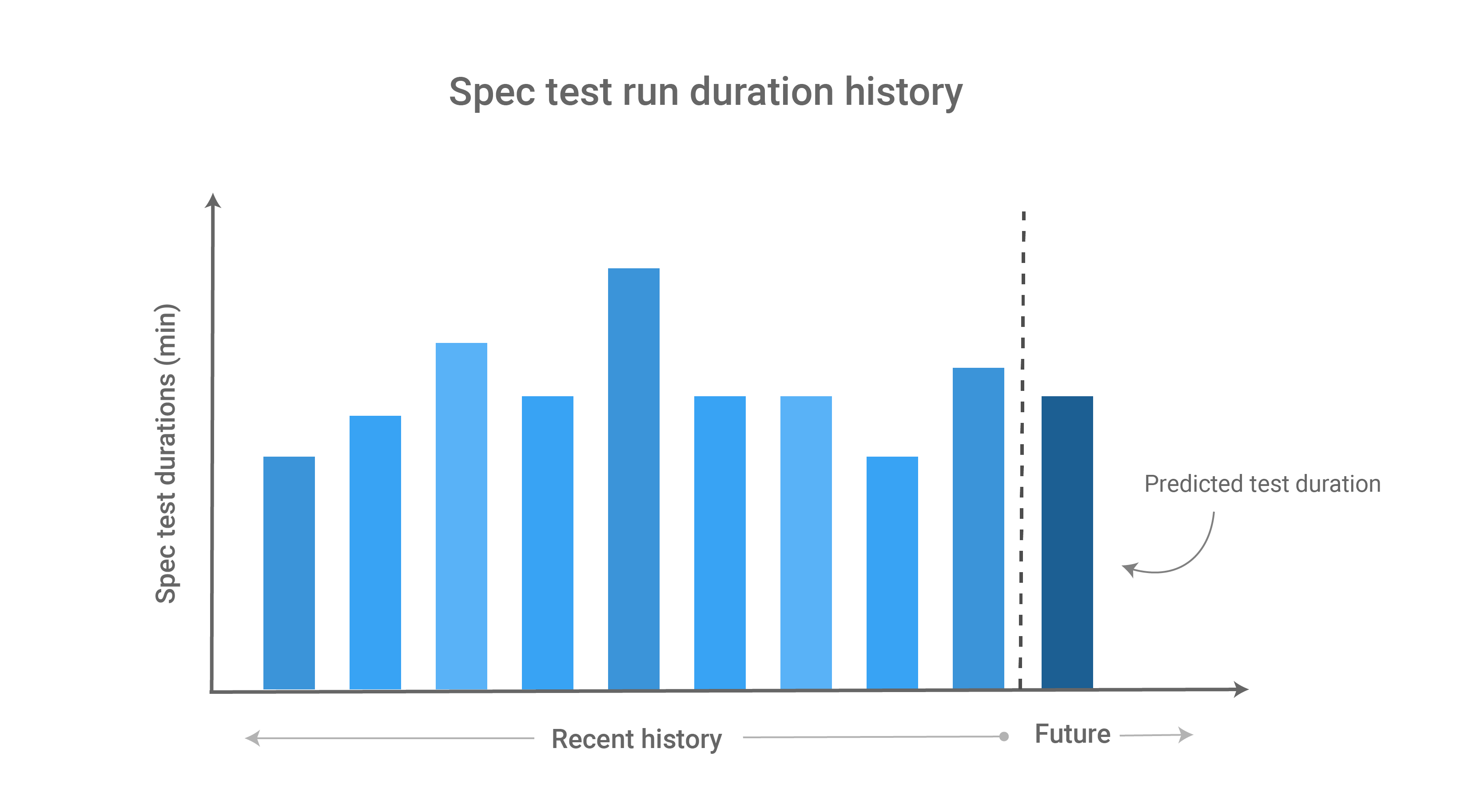
With a duration estimation for each spec file of a test run, Cypress can distribute spec files to available CI resources in descending order of spec run duration. In this manner, the most time-consuming specs start first, which minimizes the overall test run duration and keeps faster specs available to fill in any remaining gaps at the end of the run.
Duration estimation is done separately for every browser the spec file is tested against. This is helpful since performance characteristics vary by browser, and therefore it is perfectly acceptable to see different duration estimates for each browser a spec file was tested against.
Smart Orchestration layered on top
Load balancing decides the default ordering, but two optional, user-configurable behaviors can modify it:
- Spec Prioritization moves specs that failed in the previous run to the front of the queue, so you get fast feedback on the specs most likely to be broken.
- Auto Cancellation cancels the remaining specs once a configured number of tests fail. It works alongside load balancing and is configured separately.
Both are complementary to load balancing: prioritization changes which specs run first, while auto cancellation decides when to stop a run that's already failing.
Get started
Load balancing works automatically once your project is
recording to Cypress Cloud and running in
parallel. Add the --parallel
flag to your cypress run command:
cypress run --record --key=abc123 --parallel
From there, Cypress Cloud takes care of distributing your specs across every available machine.
Load balancing only helps when there is more than one machine to balance across, so the real prerequisite is running in parallel on multiple CI machines. See the Parallelization guide for how to turn on parallelization, and the Continuous Integration guide for how to provision multiple machines with your CI provider.
Verifying your time savings
You don't have to estimate the savings yourself. Cypress Cloud measures them for you.
Want a projection before you record your first run? The Cypress Cloud Savings Calculator estimates the time and cost you could save from parallelization and load balancing based on your suite size and run frequency.
Run Duration analytics
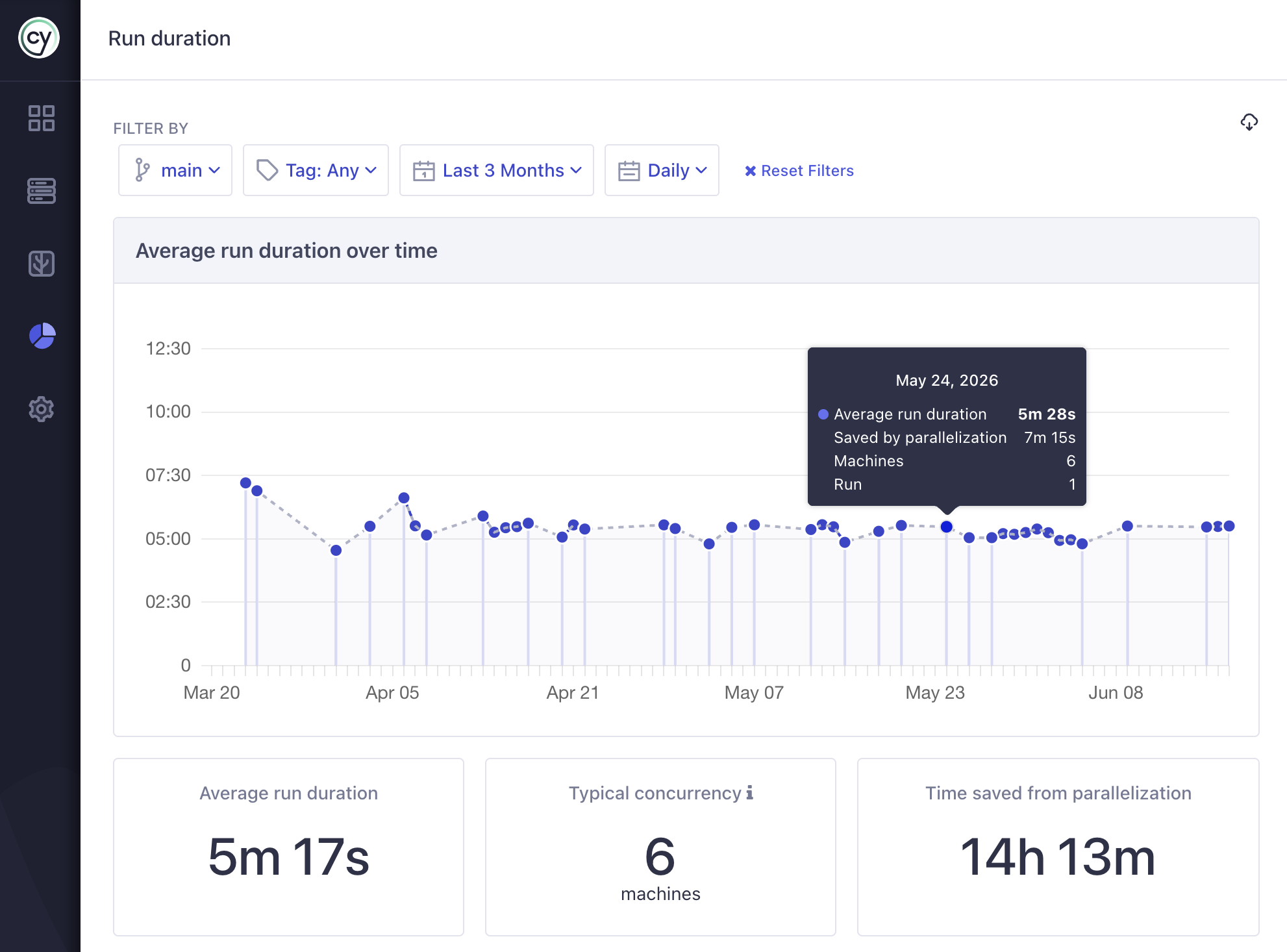
The Run Duration report shows your average run duration, average parallelization (concurrency), and the time saved from parallelization over time. This is the most direct way to confirm that load balancing is paying off, and to watch the trend as your suite and machine count change. (Only passing runs are included, so failures don't skew the numbers.)
Machines View
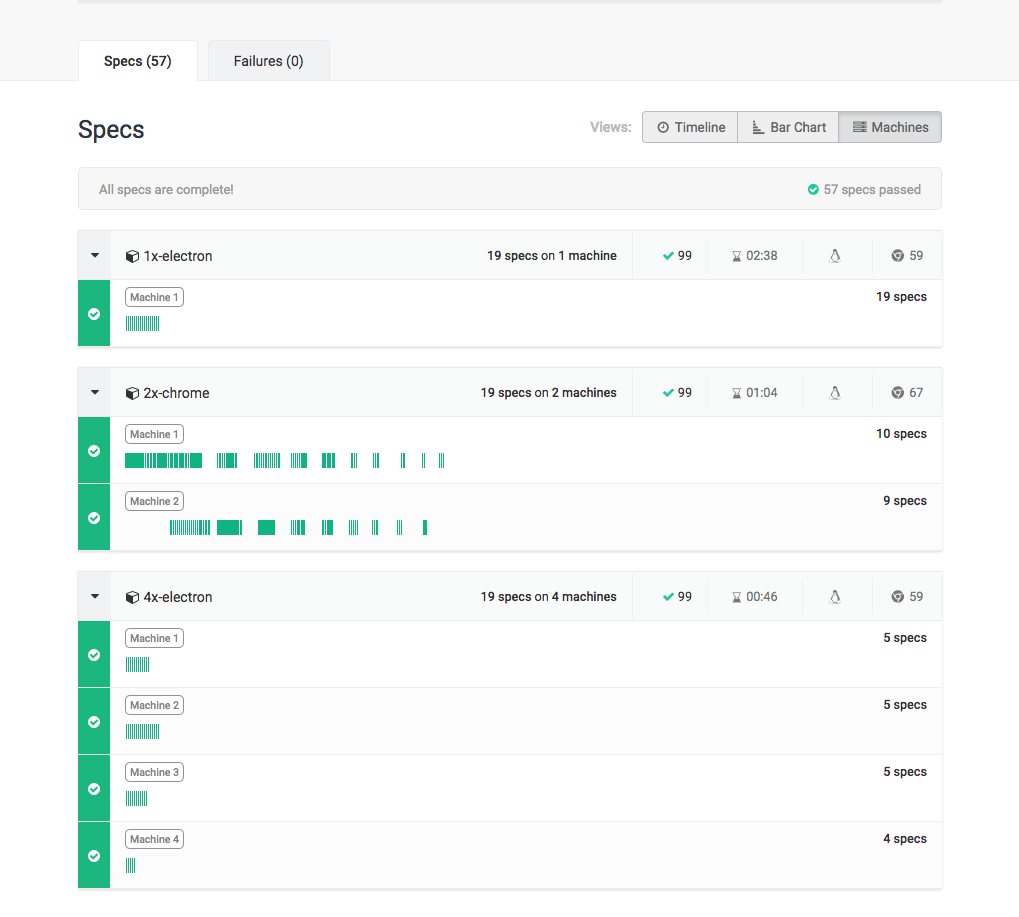
Open any run, select the Specs tab, and switch to the Machines View. When load balancing is working well, every machine finishes at roughly the same time. If one machine finishes in 3 minutes while another runs for 12, the run is bottlenecked by a single long spec, and adding more machines won't help until that imbalance is resolved.
Bar Chart and Timeline Views
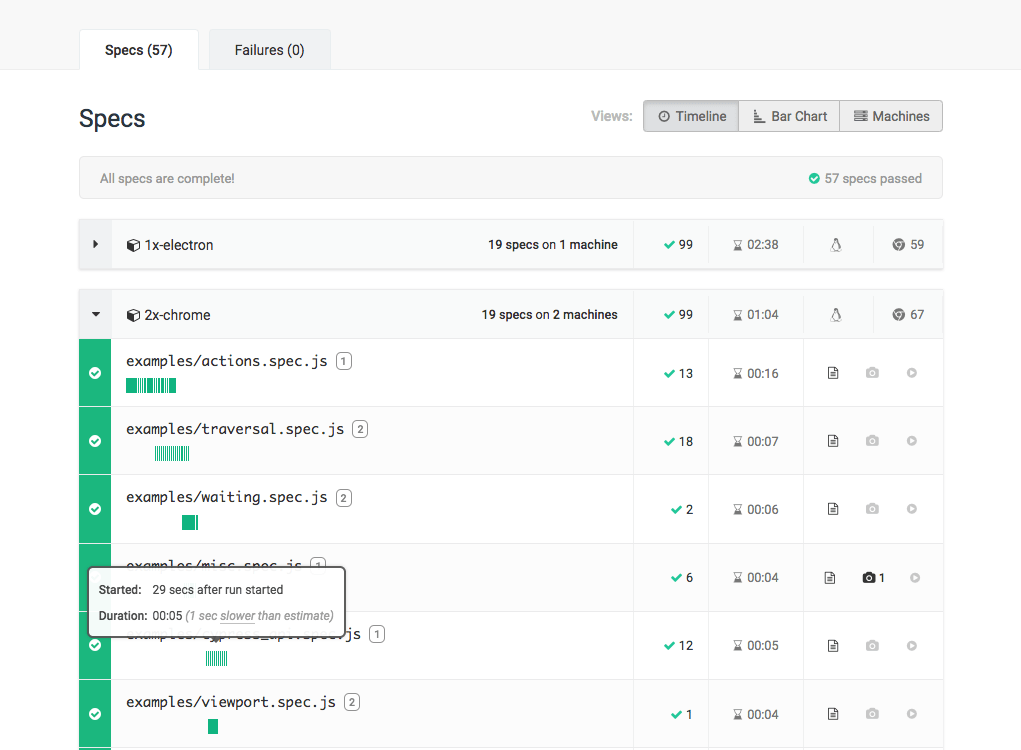
The Bar Chart View ranks specs by duration so you can spot the longest ones, while the Timeline View shows machines running in parallel versus sitting idle.
Getting the most out of load balancing
Load balancing is automatic, but it can only distribute the spec files you give it. A few practices help Cypress balance your runs as efficiently as possible:
- Keep spec durations similar. Cypress balances whole spec files, so a single long spec can't be split across machines mid-run, so it strands a machine while the others wait. Aim for spec files with comparable durations. See the test performance guide for duration benchmarks and splitting strategies.
- Split your slowest specs. Use the Slowest Tests analytics report or the Bar Chart View to find the specs dominating your run time, and break them into smaller, similarly sized files. Specs under ~10 seconds rarely benefit from further splitting, since per-spec overhead (browser launch, video encoding) outweighs the savings.
- Match machine count to suite size. Adding machines speeds runs up only until the workload is evenly balanced. Use the Machines View to confirm machines are well utilized before scaling further. Cypress Cloud also surfaces a Recommendations panel on each run that models your run time at different machine counts. For example, it estimating how much faster a run would be with more machines, or flagging when you're using more than you need.
- Combine with the other Smart Orchestration features. Spec Prioritization and Auto Cancellation surface failures faster and stop wasting machine-minutes on runs that are already broken.
See also
- Parallelization: Run spec files simultaneously across machines and visualize the results in Cypress Cloud.
- Smart Orchestration Overview: See how load balancing fits alongside Cypress Cloud's other orchestration features.
- Spec Prioritization: Run specs that failed in the previous run first for faster feedback.
- Auto Cancellation: Cancel a run once a set number of tests fail to save CI resources.
- Test Performance guide: Benchmarks and strategies for splitting specs so they balance more efficiently.